Network visibility isn't optional anymore—it's essential. Whether you manage a corporate infrastructure with hundreds of endpoints or simply want to understand what's connected to your home router, knowing how to map your network gives you control, security, and troubleshooting power.
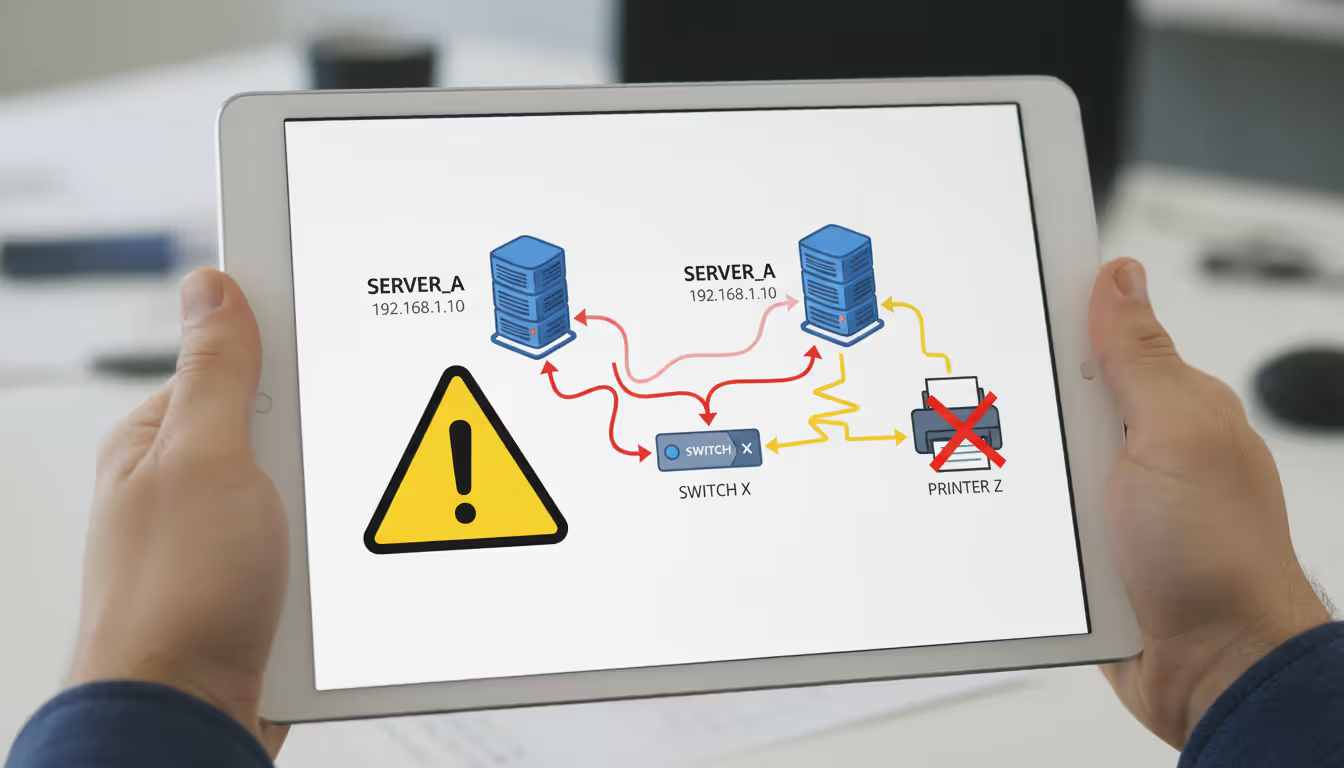
Most network issues stem from not knowing what devices exist on your infrastructure. A printer that suddenly stops working, unauthorized devices siphoning bandwidth, or a server that can't be reached—these problems become manageable when you have an accurate network map. This guide walks through the practical steps, tools, and platform-specific methods you need.
What Does It Mean to Map a Network?
Network mapping is the process of discovering, documenting, and visualizing all devices connected to a network infrastructure. Think of it as creating a blueprint of your digital environment—showing routers, switches, computers, printers, IoT devices, and how they connect to each other.
Two types of network mapping serve different purposes:
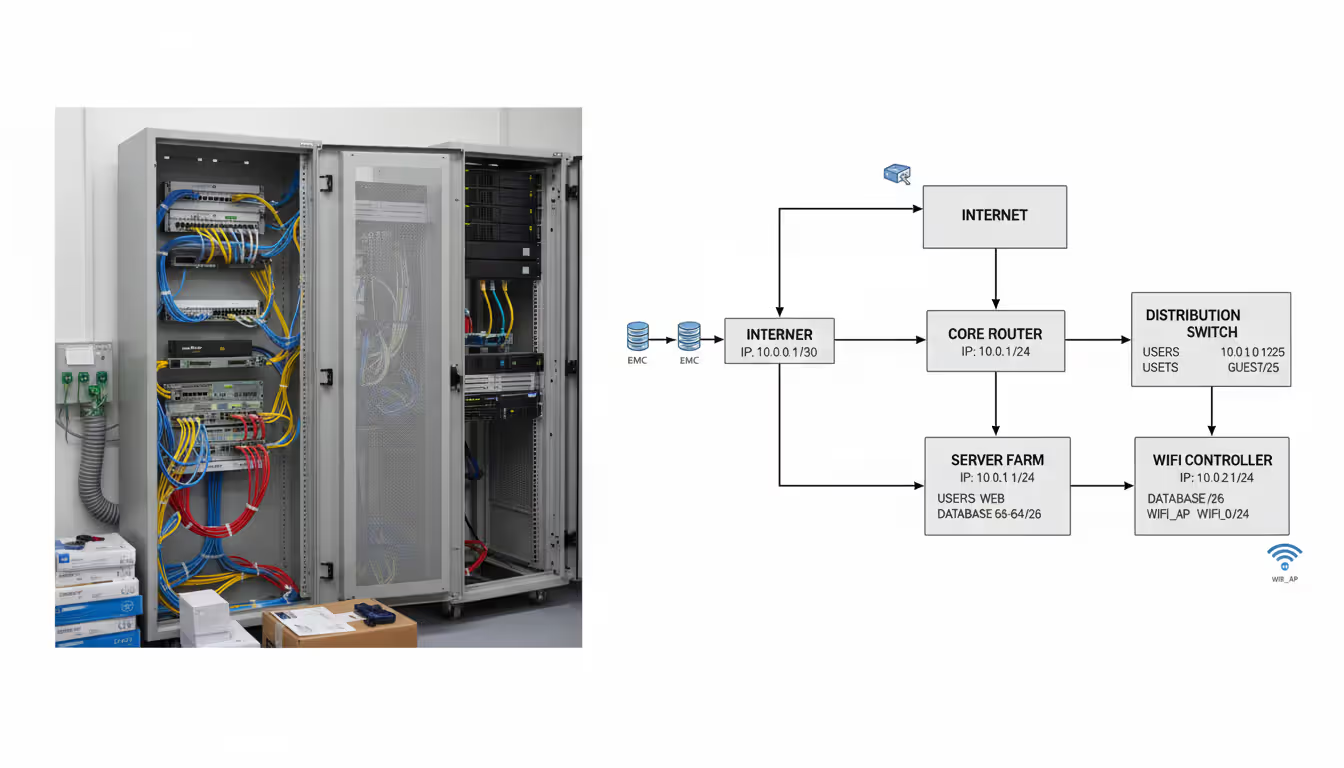
Physical mapping shows the actual hardware layout—where devices physically sit, how cables run, which ports connect to what. This matters when you're troubleshooting connectivity issues or planning infrastructure changes. A physical map might show that your accounting department's switch sits in a closet on the third floor, connected via fiber to the main distribution frame.
Logical mapping illustrates how data flows through the network regardless of physical location. It shows IP address ranges, VLANs, subnets, and routing paths. This view helps network administrators understand traffic patterns and security boundaries.
Organizations map networks for several compelling reasons. Security teams need to identify rogue devices and unauthorized access points. IT departments use maps for capacity planning and troubleshooting. Compliance requirements often mandate maintaining current network documentation. Even home users benefit—knowing which smart devices connect to your network helps identify bandwidth hogs and potential security risks.
Author: Nicole Bramwell;
Source: milkandchocolate.net
The difference between a mapped network and chaos becomes obvious during an outage. Without documentation, technicians waste hours tracing cables and guessing at configurations. With a current map, they pinpoint problems in minutes.
Tools and Methods to Map Network Devices
Network discovery happens through several methods. Active scanning sends probes across IP ranges, waiting for responses. Passive monitoring watches existing traffic without generating new packets. SNMP (Simple Network Management Protocol) queries managed devices for detailed configuration data. Each approach has trade-offs between completeness and network impact.
Free Network Mapping Tools
Budget constraints shouldn't prevent you from mapping your infrastructure. Several capable tools cost nothing.
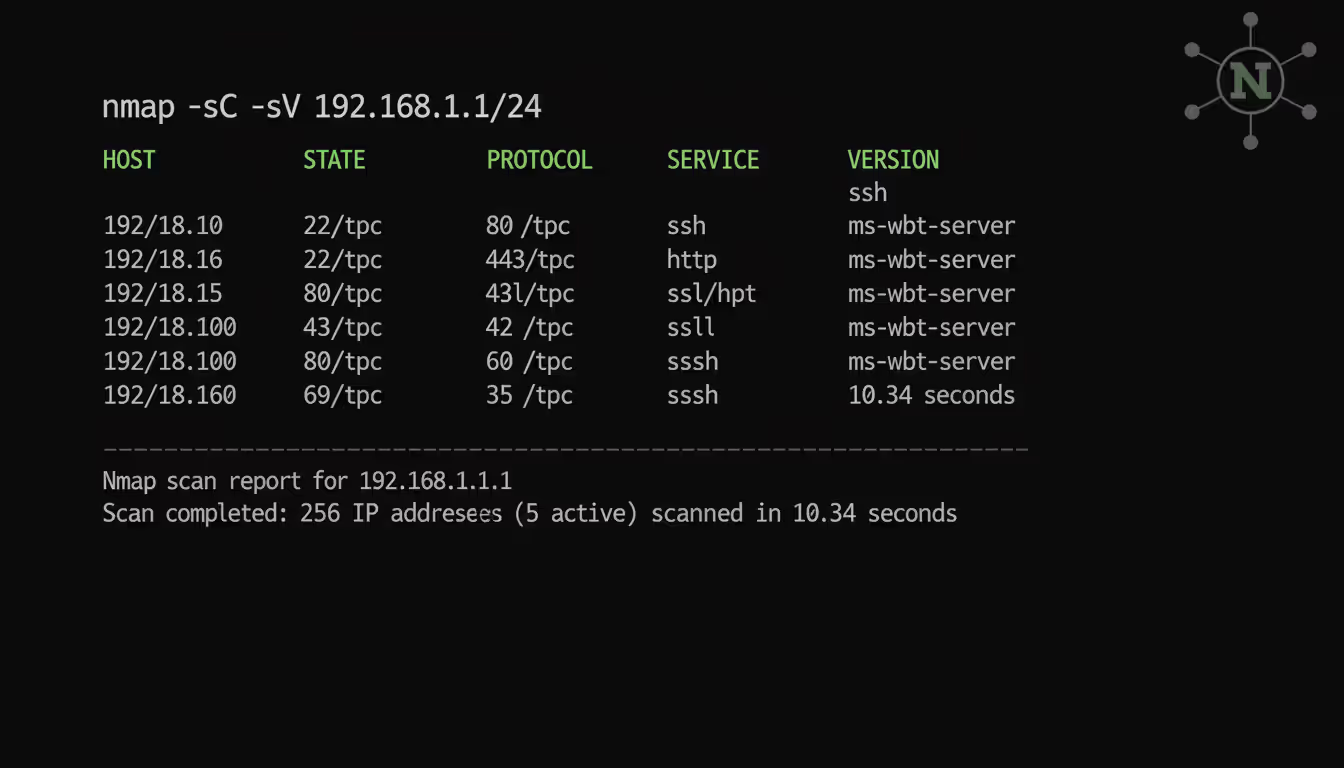
Nmap remains the gold standard for network discovery. This command-line scanner identifies live hosts, open ports, operating systems, and running services. The learning curve is steep, but the depth of information justifies the effort. A simple scan like nmap -sn 192.168.1.0/24 discovers all active devices on a typical home network.
Angry IP Scanner provides a graphical interface for users uncomfortable with command lines. It pings IP addresses, resolves hostnames, and exports results to various formats. The speed is impressive—scanning a /24 subnet takes seconds.
Spiceworks Network Inventory offers more features than many commercial products. It auto-discovers devices, tracks hardware and software inventory, and generates topology maps. The catch? It's ad-supported and requires Windows.
Wireshark excels at passive discovery. By capturing and analyzing network traffic, it reveals devices that might not respond to active scans. This matters for identifying stealthy or misconfigured equipment.
Author: Nicole Bramwell;
Source: milkandchocolate.net
Enterprise Network Mapping Solutions
Organizations with complex infrastructures need more robust capabilities. Commercial tools provide automation, integration, and support that justify their cost.
SolarWinds Network Topology Mapper automatically discovers network devices and creates detailed diagrams. It handles multi-site environments, tracks changes over time, and integrates with other SolarWinds modules. Pricing starts around $1,500 for smaller deployments.
PRTG Network Monitor combines mapping with comprehensive monitoring. It discovers devices via SNMP, WMI, and packet sniffing, then continuously tracks their status. The free version supports up to 100 sensors—enough for small businesses.
ManageEngine OpManager targets mid-sized networks with features like layer-2 mapping, business views, and workflow automation. Its strength lies in correlating physical and logical topologies.
Auvik delivers cloud-based network management particularly popular with managed service providers. It automatically maps network topology, tracks configuration changes, and provides remote access—all through a web interface.
Tool Name
Best For
Price Range
Key Features
Platform Support
Nmap
Technical users, detailed scanning
Free
Port scanning, OS detection, scripting
Windows, macOS, Linux
Angry IP Scanner
Quick host discovery
Free
Fast ping sweeps, hostname resolution
Windows, macOS, Linux
SolarWinds NTM
Enterprise topology mapping
$1,500+
Auto-discovery, change tracking, multi-site
Windows
PRTG
Small to mid-size monitoring
Free to $15,000+
Unified monitoring, customizable sensors
Windows (probe: Linux)
Auvik
MSPs, cloud-based management
$100+/month
Automatic mapping, config backup, remote access
Web-based
How to Map a Network Step by Step
Mapping a network follows a logical sequence. Skipping steps leads to incomplete documentation and wasted effort.
Step 1: Define your scope. Determine which network segments you need to map. A home user might scan a single subnet. An enterprise administrator might need to document multiple sites with different security zones. Know your IP address ranges, VLAN assignments, and any restricted segments that require special permissions.
Step 2: Gather credentials. Read-only SNMP community strings, Windows administrative credentials, or SSH keys enable deeper discovery. Without proper authentication, tools only see basic connectivity—missing device names, configurations, and detailed inventory data.
Step 3: Choose the right tool. Match the tool to your environment. Nmap works great for a one-time audit. PRTG makes sense if you want ongoing monitoring. Consider your technical skill level and budget.
Step 4: Run discovery scans during off-hours. Network scanning generates traffic. A comprehensive scan of a large network can temporarily slow performance. Schedule intensive scans for evenings or weekends when impact is minimal.
Step 5: Document everything discovered. Record device names, IP addresses, MAC addresses, manufacturers, and purposes. Note physical locations for critical infrastructure. A spreadsheet works for small networks; dedicated asset management systems suit larger environments.
Step 6: Create visual diagrams. Translate raw data into understandable topology maps. Tools like Microsoft Visio, Lucidchart, or Draw.io help create professional diagrams. Layer your maps—one showing physical connections, another showing logical relationships.
Step 7: Validate and refine. Walk through your map with someone familiar with the network. You'll catch mistakes: a server listed in the wrong subnet, a switch that was replaced last month, IoT devices you didn't know existed.
A common mistake is treating network mapping as a one-time project. Networks change constantly—new devices connect, old ones retire, configurations evolve. Schedule regular scans to keep documentation current. Quarterly updates work for most environments; critical infrastructure might warrant monthly reviews.
Author: Nicole Bramwell;
Source: milkandchocolate.net
How to Map Network Drive to Mac
macOS handles network file shares differently than Windows, but the process remains straightforward once you understand the approach.
Using Finder (the visual method):
Open Finder and press Command+K, or select Go > Connect to Server from the menu bar. In the Server Address field, enter the network path using the appropriate protocol. For Windows shares, use smb://servername/sharename or smb://192.168.1.10/documents. For older macOS servers, afp://servername/sharename might still apply, though AFP is largely deprecated.
Click Connect. If prompted, enter your username and password for the remote system. Check "Remember this password in my keychain" to avoid repeated authentication.
The share appears in Finder's sidebar under Locations. You can now browse files as if they were local.
Making connections permanent:
macOS doesn't use drive letters like Windows. Instead, shares mount as volumes. To automatically reconnect at login, open System Settings > General > Login Items. Click the + button under "Open at Login" and add the mounted network volume. The system will attempt to reconnect each time you log in.
For more control, create a login script using AppleScript. This approach handles credentials programmatically and provides better error handling when shares are temporarily unavailable.
Troubleshooting common issues:
If the connection fails, verify the server address and your network connectivity. Ping the server's IP address to confirm basic reachability. Check that SMB is enabled on the remote system—Windows 10 and 11 sometimes disable SMB1 for security reasons, requiring SMB2 or SMB3.
Firewall settings on either system might block file sharing protocols. macOS Firewall and Windows Defender Firewall both need appropriate exceptions for SMB traffic (TCP port 445).
How to Map Network Drive Using GPO
Group Policy Objects provide centralized network drive mapping for Windows domain environments. This eliminates the need to manually configure each workstation and ensures consistency across your organization.
Setting up drive mapping via GPO:
Open the Group Policy Management Console on your domain controller. Create a new GPO or edit an existing one that applies to your target users or computers. Navigate to User Configuration > Preferences > Windows Settings > Drive Maps.
Right-click in the right pane and select New > Mapped Drive. Configure the following settings:
Action: Choose "Create" for new mappings or "Replace" to overwrite existing mappings
Location: Enter the UNC path (e.g., \\fileserver\shared\accounting)
Drive Letter: Select a specific letter or choose "Use first available"
Label as: Provide a friendly name that appears in File Explorer
Reconnect: Check this box to make the mapping persistent
Under the Common tab, consider enabling "Run in logged-on user's security context" to ensure proper permission handling. Item-level targeting lets you apply mappings based on security group membership, operating system version, or other criteria.
Targeting specific user groups:
Item-level targeting prevents drive clutter. Not everyone needs access to every share. Click the Targeting button and add conditions. For example, map the HR share only to members of the "HR-Users" security group. Map the engineering drive only to computers in the "Engineering-OU" organizational unit.
This granular control means users see only relevant network resources, reducing confusion and support calls.
Troubleshooting GPO mapping issues:
When drive mappings don't appear, start with gpupdate /force to refresh Group Policy on the affected workstation. Run gpresult /r to verify which policies applied successfully.
Check that the user has network connectivity to the file server. Verify NTFS and share permissions grant appropriate access. A common mistake is configuring share permissions correctly but forgetting to set NTFS permissions on the underlying folder.
Event Viewer often contains clues. Look in Applications and Services Logs > Microsoft > Windows > GroupPolicy > Operational for detailed error messages about failed drive mappings.
Some organizations experience slow logons when mapping many drives. Consider using Access-Based Enumeration on file servers—it hides shares users can't access, reducing enumeration time.
Network visibility is the foundation of network security. You can't protect what you can't see
— Bruce Schneier
Common Network Mapping Mistakes to Avoid
Even experienced administrators make preventable errors that compromise network documentation quality and security.
Ignoring security implications: Network maps contain sensitive information—IP addresses, device types, network topology. This data helps attackers plan intrusions. Store maps securely with appropriate access controls. Don't email unencrypted network diagrams or post them to public documentation systems.
Incomplete device discovery: Focusing only on servers and workstations misses important assets. IoT devices, network printers, security cameras, HVAC controllers, and other embedded systems all connect to modern networks. These devices often have weak security and become attack vectors. A comprehensive map includes everything with an IP address.
Treating mapping as a one-time project: Networks change daily. New devices connect, old ones disconnect, configurations evolve. A map created six months ago might be 30% inaccurate. Schedule regular discovery scans and update documentation promptly when making infrastructure changes.
Poor credential management: Storing SNMP community strings or administrative passwords in clear text creates security risks. Use password managers or secure vaults. Rotate credentials periodically and limit their scope to read-only access when possible.
Neglecting documentation standards: Inconsistent naming conventions make maps harder to understand. Establish standards before you start: how to name devices, what information to record, diagram layout conventions. Future administrators will thank you.
Skipping validation: Automated tools make mistakes. They might misidentify device types, miss devices that don't respond to scans, or create duplicate entries. Always validate automated discovery results against known infrastructure.
Forgetting about wireless networks: Many mapping tools focus on wired infrastructure. Don't forget wireless access points, client devices, and guest networks. These often represent significant security exposure.
Author: Nicole Bramwell;
Source: milkandchocolate.net
FAQ
What is the difference between mapping a network and mapping a network drive?
Mapping a network refers to discovering and documenting all devices connected to your infrastructure—creating a complete inventory and topology diagram. Mapping a network drive means connecting to a shared folder on a remote server and assigning it a drive letter (Windows) or mounting it as a volume (macOS/Linux) for easy access. The first is about visibility and documentation; the second is about convenient file access.
Can I map my home network without special software?
Yes. Your router's administration interface typically shows connected devices with IP and MAC addresses. For Windows, the command arp -a displays recently communicated devices. On macOS or Linux, arp -an provides similar information. These built-in methods work for basic discovery, though dedicated tools like Nmap or Angry IP Scanner provide more detailed information and better visualization.
How often should I update my network map?
Update frequency depends on network volatility and security requirements. Home networks might need quarterly updates unless you're troubleshooting specific issues. Small businesses should review maps monthly. Enterprise environments with frequent changes benefit from automated discovery that runs weekly or even daily. Always update documentation immediately after major infrastructure changes like adding switches, reconfiguring VLANs, or deploying new servers.
Is network mapping legal and safe?
Mapping your own network is completely legal and recommended. Scanning networks you don't own or have explicit permission to scan may violate computer fraud laws in many jurisdictions. From a safety perspective, network scanning generates traffic and in rare cases might crash poorly-designed embedded devices. Run comprehensive scans during maintenance windows and start with less aggressive scan settings to minimize risk.
What information should a network map include?
At minimum, document device names, IP addresses, MAC addresses, device types (router, switch, server, etc.), and connection relationships. Enhanced maps add physical locations, responsible personnel, purchase dates, warranty information, operating system versions, and open ports. For servers, include application roles and dependencies. The goal is providing enough information that someone unfamiliar with your network can understand its structure and troubleshoot problems.
Do I need administrator privileges to map network devices?
Basic network discovery (ping scans, identifying active IP addresses) typically doesn't require special privileges. However, gathering detailed information—device configurations, installed software, SNMP data—usually requires administrative credentials on target systems. On your local computer, some scanning tools need elevated privileges to craft raw packets or access certain network interfaces. Run tools like Nmap with administrator rights for complete functionality.
Network mapping transforms invisible infrastructure into documented, manageable assets. Whether you're connecting a Mac to a network drive, deploying enterprise drive mappings through Group Policy, or creating comprehensive topology diagrams, the principles remain consistent: know what's connected, document it accurately, and keep information current.
Start simple. Pick one network segment and one appropriate tool. Run a discovery scan, document what you find, and create a basic diagram. Expand from there as you gain confidence and identify additional needs.
The time invested in network mapping pays dividends when problems arise. Troubleshooting becomes faster, security improves through better visibility, and capacity planning relies on actual data rather than guesswork. Your network already exists—mapping simply reveals what's already there.
A reliable wireless connection has become as essential as electricity. This comprehensive guide covers wifi network design, installation, monitoring, and troubleshooting. Learn how to choose equipment, optimize performance, and decide between DIY and professional installation for your home or business
A virtual network is a software-defined networking environment that replicates physical network infrastructure without dedicated hardware. This guide covers core components, virtual network functions, gateways, security best practices, cloud provider services, and a practical 6-step setup process
MQTT brokers route messages between IoT devices using publish-subscribe architecture. This guide covers selecting the right broker, comparing free options like Mosquitto and EMQX, testing online brokers, and avoiding security and scalability mistakes that derail IoT projects
Choosing secure cloud storage requires understanding encryption types, privacy policies, and security features that actually protect your personal files. This guide compares top zero-knowledge providers and explains the technical differences between genuine privacy protection and basic security
The content on this website is provided for general informational purposes only. It is intended to offer insights, commentary, and analysis on cloud computing, network infrastructure, cybersecurity, and IT solutions, and should not be considered professional, technical, or legal advice.
All information, articles, and materials presented on this website are for general informational purposes only. Technologies, standards, and best practices may vary depending on specific environments and may change over time. The application of any technical concepts depends on individual systems, configurations, and requirements.
This website is not responsible for any errors or omissions in the content, or for any actions taken based on the information provided. Users are encouraged to seek qualified professional advice tailored to their specific IT infrastructure, security, and business needs before making decisions.