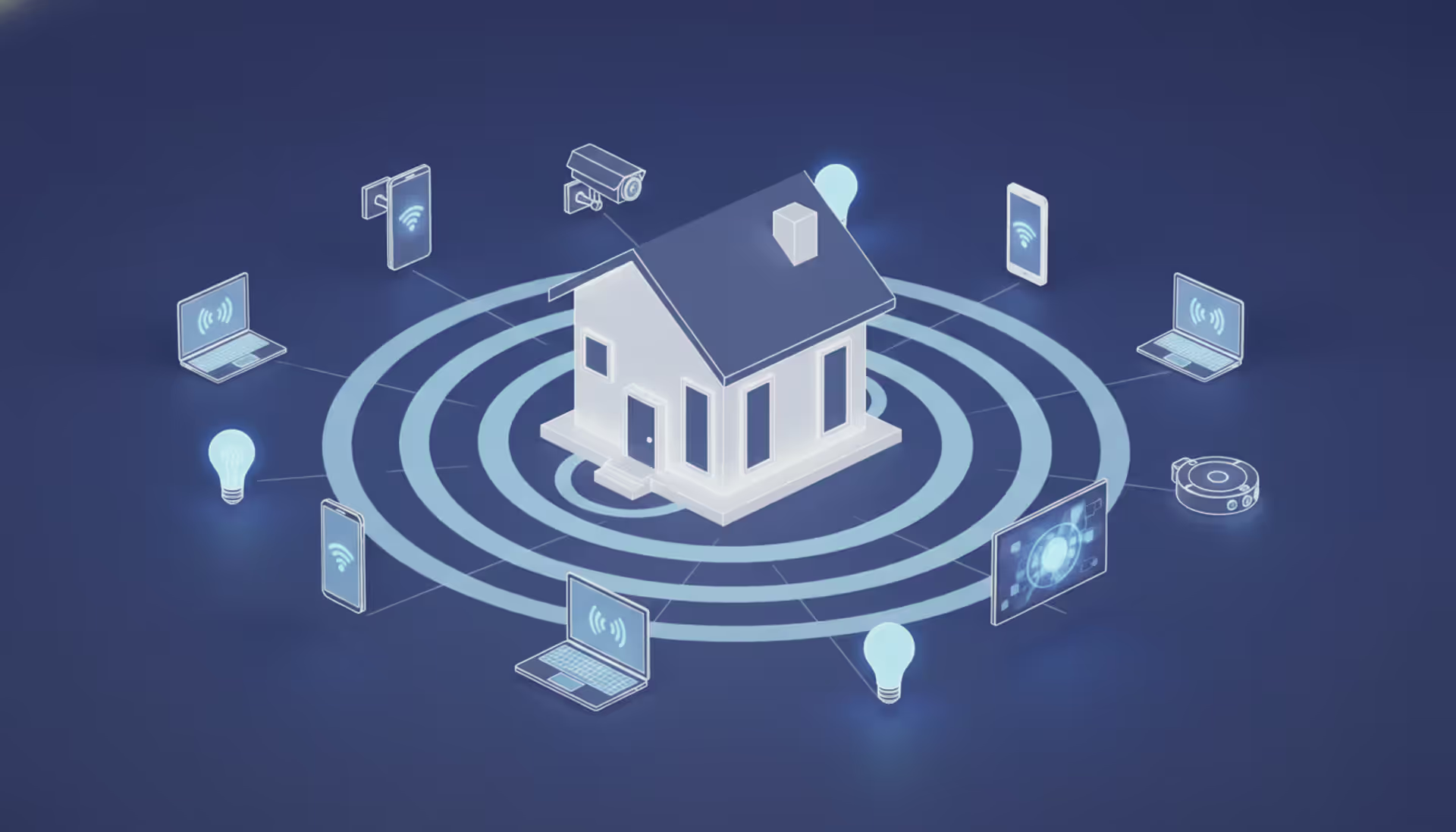
Your wireless connection probably handles more traffic than you realize. Right now, mine's juggling four phones, three laptops, two TVs, a dozen smart bulbs, three security cameras, and a robot vacuum that insists on uploading maps at 3 AM. That's just Tuesday. Getting all this working smoothly—without dead zones in the bathroom or buffering during the big game—takes more than plugging in whatever router Best Buy had on sale.
What Is a Wifi Network and How Does It Work
Think of your wireless setup as an invisible highway system filling your house. Radio frequencies carry your data instead of cables. Your router grabs the internet signal from your ISP's modem, then broadcasts it throughout your space. Every device with a wireless adapter—your phone, laptop, that smart fridge you're still not sure why you bought—picks up these signals and communicates back.
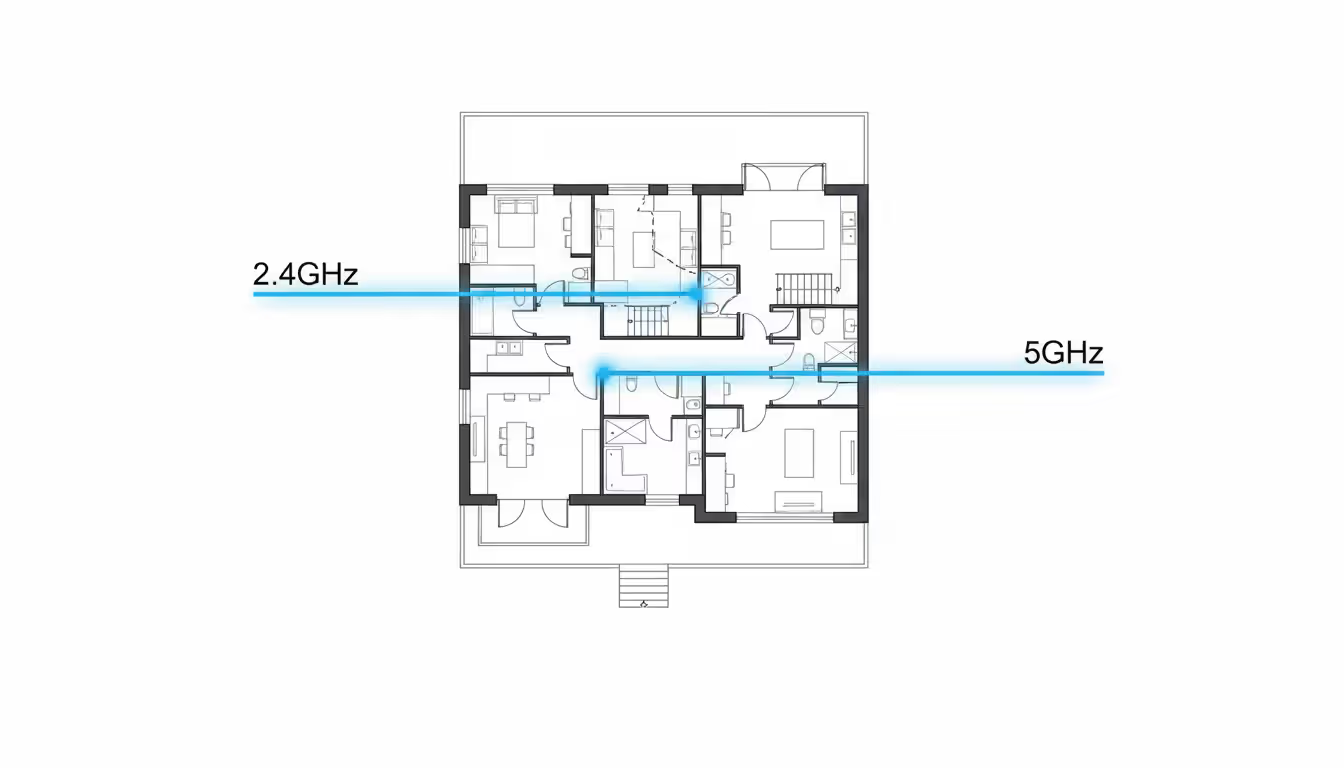
Two main frequency bands handle most of the work. The 2.4GHz frequency acts like a slow truck that can drive through anything—walls, floors, your neighbor's questionable taste in lawn ornaments. It reaches farther but tops out around 50-100 Mbps in real situations (forget those inflated box numbers). Meanwhile, 5GHz resembles a sports car: blazing fast at 200-500+ Mbps but easily blocked by walls and distance. The bleeding-edge 6GHz band just hit mainstream in 2026, offering ridiculous speeds with almost zero interference, though you'll need newer gear to access it.
Your router doesn't just broadcast signals—it directs traffic. Every device gets a local IP address (like 192.168.1.105), and the router tracks which data belongs to which gadget. Current routers pack multiple antennas using MIMO technology, letting them chat with numerous devices at once instead of taking turns like old routers did. That's why your 2019 router choked at ten connections while 2026 models barely break a sweat at fifty.
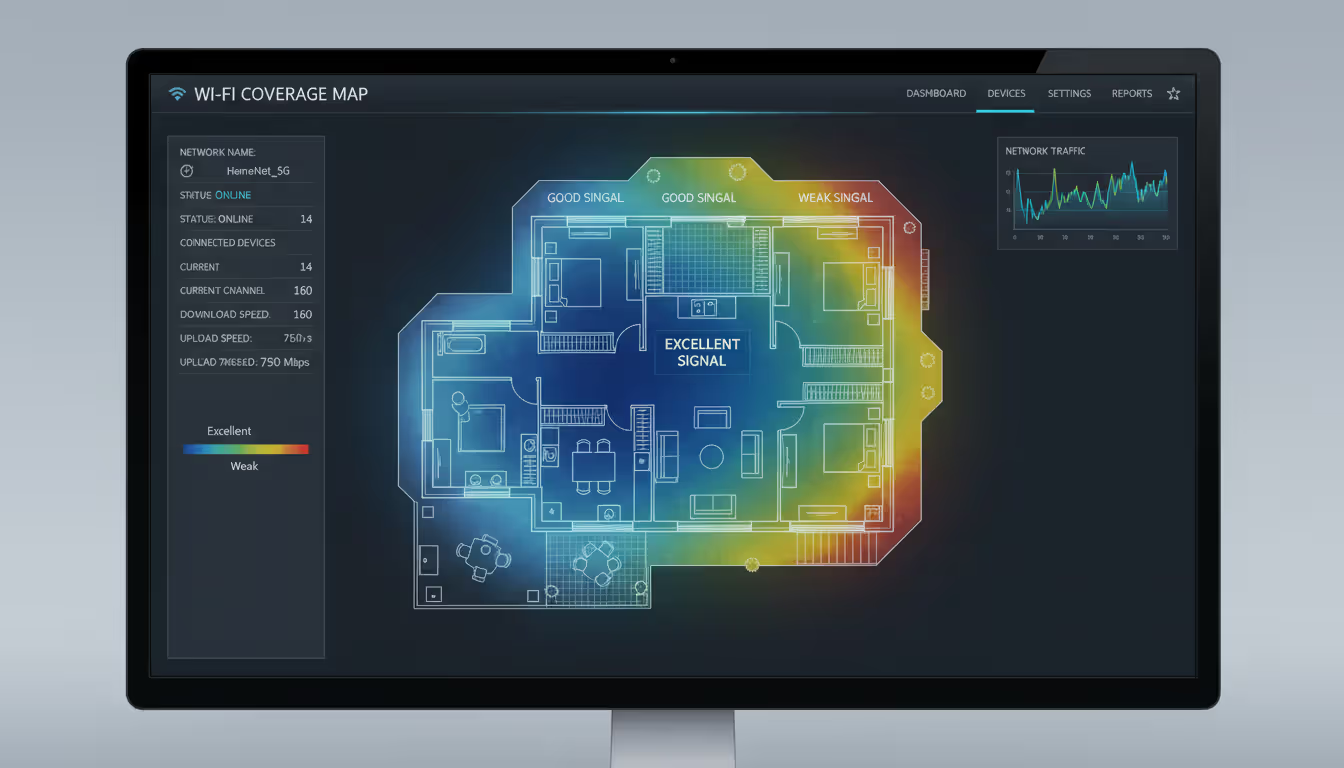
Coverage depends on your router's broadcast power, antenna quality, and what's blocking the signal. Drywall? No problem. Concrete basement? Good luck. Metal ductwork and full fish tanks murder wifi signals. Under perfect conditions—open floor plan, minimal interference, router floating in the center of an empty room—you might cover 3,000 square feet. Real houses with furniture, appliances, and actual walls? Expect half that.
Author: Nicole Bramwell;
Source: milkandchocolate.net
Planning Your Wifi Network Design
Smart design solves problems before they happen. I learned this after spending three hours troubleshooting my first setup, only to realize I'd stuck the router in a metal filing cabinet. Don't be me.
Start by walking your space with a wifi analyzer app. Check every room, especially problem areas like master bedrooms far from your current router or basements where signals go to die. Note what's between you and where the router will go—concrete, brick, and metal studs all wreck signals differently.
Count every single thing that connects. I mean everything. Last month I counted 43 devices in my 2,200 square foot house: 5 phones, 4 computers, 2 tablets, 3 TVs, 4 streaming boxes, 2 game consoles, 16 smart home devices, 3 security cameras, 2 printers, and 2 network drives. Add 25% headroom for guests and future purchases. If your router specs can't handle that comfortably, you'll see slowdowns during busy evenings.
Router location matters more than almost any other factor. Center of the main floor works best for ranch homes. Multi-story? Try placing it near the ceiling of the lower level or the floor of the upper—signals spread in a sphere, not a pancake. Keep it away from metal cabinets, brick chimneys, aquariums (seriously), and microwave ovens. That cute basket hiding your router? Remove it. Every inch of material weakens the signal.
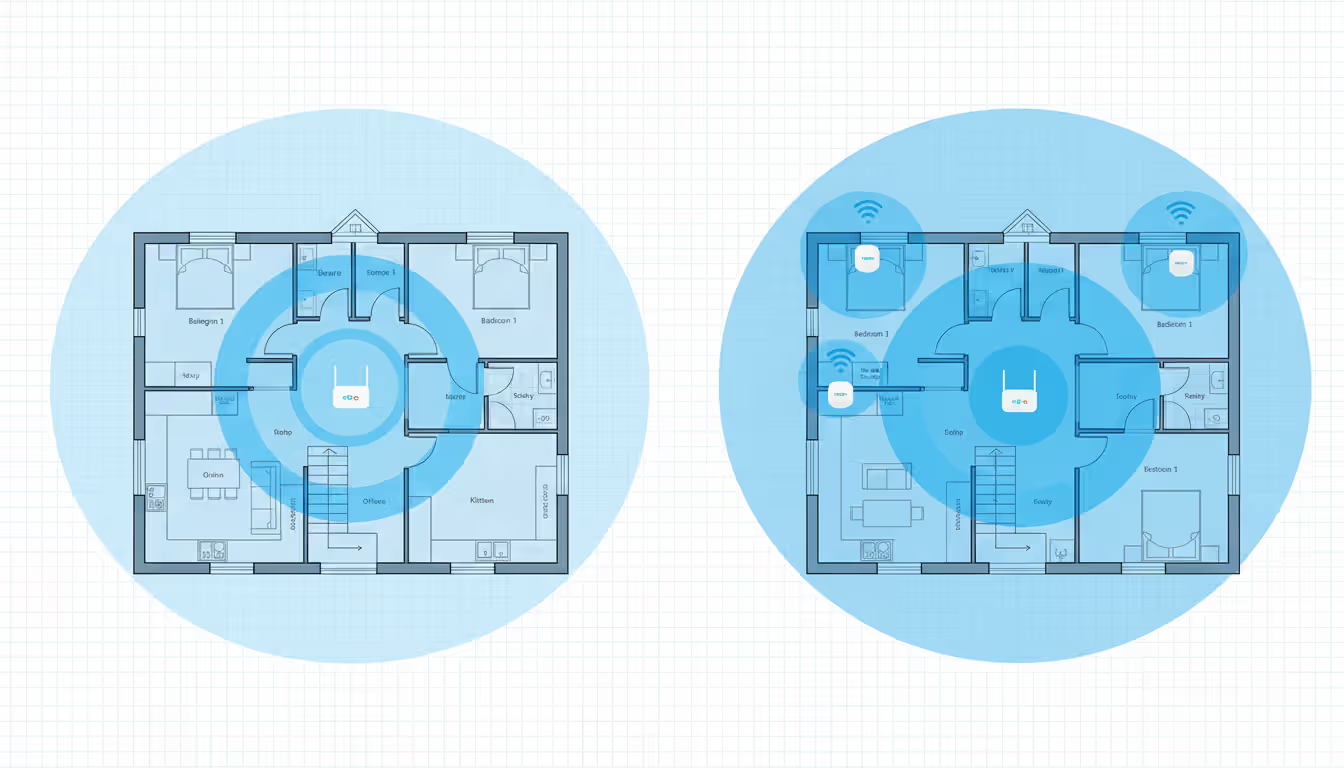
Mesh versus traditional routers trips people up. Here's my rule: apartments and houses under 1,500 square feet with typical construction? Save your money and grab a solid standalone router for $120-180. Larger spaces, multiple floors, or challenging layouts with lots of walls? Invest $250-500 in a mesh system. The satellite nodes communicate with each other, blanketing your space with coverage instead of forcing every device to reach back to one distant router.
Spaces over 3,000 square feet or with serious construction challenges—I'm looking at you, 1920s brick homes—need either mesh with wired backhaul or multiple access points connected via ethernet. Running Cat6 cable between nodes eliminates the speed penalty of wireless hops and handles heavier loads.
Author: Nicole Bramwell;
Source: milkandchocolate.net
Wifi Network Installation Step by Step
Professional installers follow a methodical process. So should you.
Choosing the Right Equipment
Your router needs to support at least WiFi 6 (802.11ax) in 2026—WiFi 5 routers still work but struggle with modern device counts. WiFi 7 (802.11be) makes sense if you've got gigabit-plus internet and compatible devices, though you'll pay $300-600 versus $120-250 for WiFi 6 gear.
Shopping checklist: - Dual-band minimum, tri-band preferred for mesh systems - MU-MIMO and OFDMA support (check the specs sheet) - At least four gigabit ethernet ports - WPA3 security (essential) - Coverage rating exceeding your square footage by 30% - QoS features for prioritizing traffic
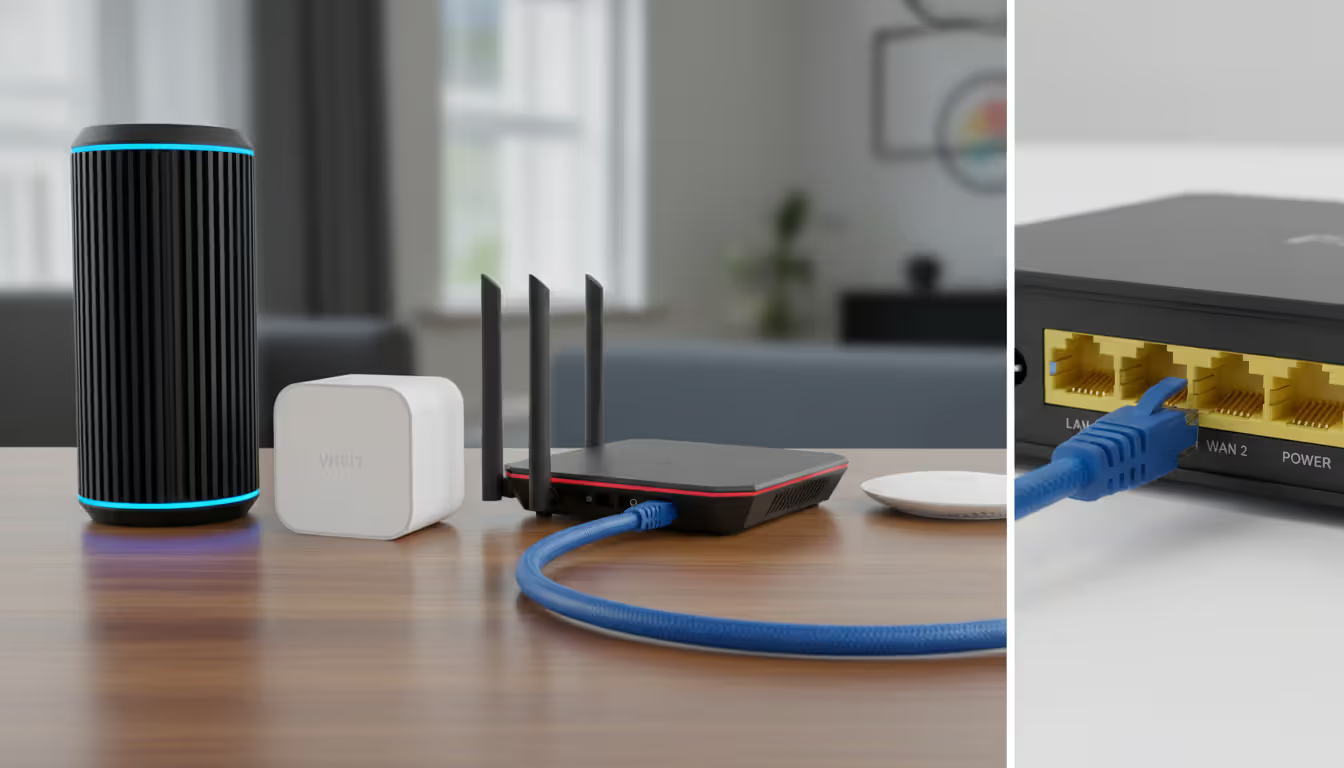
Mesh shoppers should verify dedicated wireless backhaul on a separate band—this prevents the nodes from stealing bandwidth meant for your devices. I've had good experiences with Eero, Google Nest Wifi, and TP-Link Deco for home use. Business deployments work better with Ubiquiti UniFi or Aruba Instant On gear.
Ethernet cables matter if you're running wired backhaul. Cat6 handles multi-gigabit speeds and costs about $0.50 per foot. Buy extra—you'll always need more than you measured. Grab quality connectors and wall plates while you're at it.
Author: Nicole Bramwell;
Source: milkandchocolate.net
Connecting Devices and Testing Coverage
Plug your modem into the router's WAN port using ethernet. Power everything up, then wait three full minutes for the router to initialize—don't rush this part. Grab your phone and connect to the default network name printed on the router's label.
Open a web browser and type the router's address—usually something like 192.168.1.1 or 10.0.0.1 (check your manual or the label). Most current routers also offer smartphone apps that walk you through setup. I prefer apps for initial configuration, browser interfaces for detailed tweaking later.
First action: change the admin password. This controls your router settings and has nothing to do with your wifi password. Hackers love default credentials. Create something unique and store it in a password manager.
Configure your network name and password next. Skip the personal information—"Johnson Family 2026" tells everyone whose network they're targeting. I use generic names like "Network5G" and "Network2G" to distinguish bands. Set a WPA3 password mixing uppercase, lowercase, numbers, and symbols—at least 16 characters. "TacoTuesday!2026#FridayMovieNite" beats "Password123."
Mesh systems need strategic node placement. Start with the main node at your internet connection point. Position additional nodes within range of the base or another node—most systems use LED colors to indicate connection strength. In open floor plans, space nodes 35-45 feet apart. Through walls? Cut that to 25-30 feet.
Test coverage everywhere. I use NetSpot on Mac and WiFi Analyzer on Android—both free and reliable. Walk through every room checking signal strength, measured in dBm. Strong signals fall between -30 and -50 dBm. Good coverage hits -50 to -60 dBm. Fair territory spans -60 to -70 dBm. Below -70 dBm means you need better coverage there.
Run speed tests in different locations using Speedtest.net or Fast.com. You should see at least 70% of your subscribed speed in main-use areas. Getting 100 Mbps when you're paying for 500? Either coverage is weak, interference is high, or your equipment can't handle your internet speed.
Wifi Network Setup Best Practices
Installation gets you online. Optimization keeps you there without pulling your hair out.
Neighbors' networks interfere with yours, especially in apartments and dense suburbs. The 2.4GHz spectrum offers eleven channels, but only 1, 6, and 11 avoid overlapping each other. Your router probably auto-selects channels, which works until twelve neighbors do the same thing. Run your analyzer app, identify the emptiest channel, then manually set it in your router config. The 5GHz band provides way more non-overlapping channels, making this less critical there.
Bandwidth management prevents your teenager's Fortnite updates from wrecking your Zoom calls. Enable QoS (Quality of Service) settings and prioritize video conferencing and streaming over bulk downloads. Some routers let you allocate percentages—I give work computers and streaming devices 60%, smart home gadgets 20%, and everything else fights over what's left.
Guest networks keep visitors off your main network where they can't access your security cameras, NAS drives, or computers. Set up guest mode, assign a different password (write it on a sticky note for visitors), and prevent guest devices from seeing each other or your local resources. Takes five minutes, saves potential headaches.
Parental controls help manage kids' screen time—though any tech-savvy 12-year-old will find workarounds. Schedule internet shutoff for homework or bedtime hours. Enable content filters for younger kids. Combine router controls with device-level restrictions for better coverage.
Disable WPS even though connecting via button-press seems convenient. That feature has security holes you could drive a truck through. Typing passwords takes an extra minute but closes a common attack vector.
Firmware updates patch security vulnerabilities and fix bugs. Enable automatic updates if available, or set a calendar reminder to check quarterly. I check mine the first Sunday of each quarter—takes three minutes unless there's a major update.
Wifi Network Monitoring Tools and Techniques
Networks degrade slowly. Interference creeps up. Devices multiply. Equipment ages. Monthly monitoring catches problems before they cost you productivity or sanity.
Watching your network helps detect unauthorized access (like your neighbor "borrowing" bandwidth), identify which devices hog bandwidth, spot failing equipment before it dies completely, optimize channel selection as the RF environment changes, and troubleshoot connectivity complaints before your family stages an intervention.
Professional-grade analytics, client details, performance history
Yes
Excellent
Yes
Medium
Free but needs UniFi hardware
Wireshark
Free
Deep packet inspection, protocol analysis, expert-level debugging
Yes
PhD required
No
Very steep
Free
Home users get by fine with their router dashboard plus Fing. Check weekly for strange devices, note which gadgets use the most bandwidth, watch for patterns. Sudden changes signal problems or unwanted guests.
Business environments justify paid monitoring through PRTG, UniFi, or similar platforms. These track performance across multiple access points, generate capacity planning reports, and alert admins to problems immediately. You're paying for the ability to fix issues before employees complain.
Track these metrics: how many devices connect, which ones consume bandwidth, signal strength in different areas, interference levels on your channels, failed connection attempts, and actual throughput speeds. Document everything when your network performs well—those baseline numbers help spot degradation over time.
I've spent fifteen years installing networks, and here's what I've learned: most problems start with terrible design, not bad equipment. I've walked into businesses that spent $5,000 on enterprise routers when the real issue was placing them in metal server closets. A proper site survey prevents 80% of support calls. The twenty minutes you spend monthly checking your network saves hours of emergency troubleshooting later—usually at 4:45 PM on Friday
— Marcus Chen
Common Wifi Network Problems and Solutions
Dead zones happen in multi-story homes and anywhere with concrete or brick construction. Mesh nodes fix most coverage problems. Wired access points work better for permanent installations. Powerline adapters—which push data through your electrical wiring—split the difference when running ethernet seems impossible. They're inconsistent (older wiring performs poorly) but beat nothing.
Interference shows up as slow speeds despite strong signals. Check your analyzer app for crowded channels and switch to clearer ones. Microwave ovens, baby monitors, and 2.4GHz cordless phones create temporary interference—move your router or switch affected devices to 5GHz. USB 3.0 cables near routers generate interference too (seriously—I spent two hours diagnosing this once).
Slow speeds have multiple causes. Test wired speeds directly from your modem first—if those match your plan, the problem lives in your wireless network. Old routers, too many devices, poor channel selection, and distance all kill speeds. Address issues systematically: upgrade ancient equipment, disconnect unused devices, optimize channel selection, improve coverage with mesh or access points.
Connection drops frustrate everyone. Overheating routers fail intermittently—ensure good airflow around your equipment. Consider a small USB fan if your router runs hot enough to fry an egg. Firmware bugs cause random disconnections; update to the latest version or roll back if problems started after a recent update. Conflicting IP addresses happen when your DHCP pool runs out—expand the address range or assign static IPs to critical devices.
Security vulnerabilities let attackers access your network. WPA2 encryption provides basic protection but has known weaknesses. Upgrade to WPA3 if every device supports it (older gadgets might not connect). Change default admin passwords the moment you unbox your router. Disable remote management features unless you specifically need them. Hiding your SSID doesn't help much—focus energy on strong passwords instead.
Devices refusing to connect usually need simple fixes. Restart the device and router—seriously, try this first. Forget the network on the device, then reconnect fresh with your password. Check if MAC filtering is blocking new devices. Update network drivers on Windows machines. Smart home devices often need the 2.4GHz band during initial setup since many don't support 5GHz—switch to 2.4GHz-only mode temporarily.
Author: Nicole Bramwell;
Source: milkandchocolate.net
When to Hire a Professional vs. DIY
Most home installations work fine as DIY projects. Houses under 2,500 square feet with standard drywall construction rarely need paid help. If you can follow instructions, navigate settings menus, and use a drill for mounting brackets, you'll save the $250-500 installation fee.
Hire professionals for these scenarios: - Spaces exceeding 4,000 square feet or multiple buildings - Heavy construction materials blocking signals (concrete, brick, metal framing) - Running ethernet through walls, attics, or ceilings - Business operations requiring maximum uptime - Zero interest in troubleshooting or limited time - Warranty coverage including installation issues
Professional site surveys add value for complex spaces. Technicians use specialized RF measurement tools, understand building codes for cable runs, and integrate with existing infrastructure properly. They map optimal access point locations based on real measurements, not guesswork.
Cost breakdown: DIY mesh installation costs $250-600 for equipment plus your time (figure 2-4 hours). Professional installation adds $300-800 for labor, totaling $550-1,400. Business deployments with multiple access points, proper cable runs, and enterprise-grade gear run $2,000-5,000 complete.
Business environments justify professional work through reduced downtime and proper documentation. Installers provide network diagrams, label every cable, configure network segmentation for security, and establish baseline metrics. The upfront cost prevents expensive troubleshooting when half your office can't access the cloud.
Hybrid approaches work great—buy and configure equipment yourself, then hire an electrician for cable runs if needed. This avoids installer markup on equipment (usually 30-50%) while ensuring clean, code-compliant installations. I've done this twice and saved about $400 each time.
Frequently Asked Questions
What is the difference between 2.4GHz and 5GHz wifi networks?
The 2.4GHz frequency travels farther and punches through walls better, making it ideal for devices distant from your router or separated by obstacles. Real-world speeds max out around 50-100 Mbps, and you'll face more interference from neighbors' networks, microwaves, and cordless phones. The 5GHz frequency delivers substantially faster speeds—200-500+ Mbps depending on your router and conditions—but over shorter ranges with weaker wall penetration. Current routers broadcast both frequencies simultaneously. Your devices automatically choose whichever works better, though you can manually select bands in device settings. Use 2.4GHz for smart home gadgets that don't need speed, 5GHz for streaming and gaming.
How many devices can a wifi network support?
WiFi 6 and WiFi 7 routers handle 50-100+ simultaneous connections thanks to technologies like OFDMA and MU-MIMO that efficiently allocate bandwidth across devices. Real capacity depends on what those devices actually do—50 phones occasionally checking email differs massively from 50 devices streaming 4K video. Most family homes perform fine with 30-40 active devices. Experiencing slowdowns with fewer? Your router probably uses older WiFi 5 or earlier standards that choke under modern device counts. Upgrade to current-generation equipment rated for at least 25% more devices than you currently own.
Do I need a mesh system or is a regular router enough?
Regular routers handle apartments and homes under 1,500 square feet with open layouts just fine. Consider mesh systems for spaces exceeding 2,000 square feet, homes with multiple floors, or buildings with signal-blocking construction like brick, concrete, or metal framing. Mesh costs more—$250-600 compared to $100-200 for quality standalone routers—but eliminates dead zones by spreading coverage through multiple communicating nodes. The 1,500-2,000 square foot range goes either way depending on your layout. Try a solid standalone router first since you can always add mesh later if coverage disappoints.
How often should I monitor my wifi network performance?
Home networks need monthly check-ins: log into your router dashboard, scan for unfamiliar devices, verify speeds match expectations in key locations. Every three months, run deeper analysis with wifi analyzer apps checking for channel interference and signal strength distribution. When you notice performance dropping, immediately run diagnostics before assuming hardware failure—configuration issues and interference cause most problems. Business networks demand continuous automated monitoring through dedicated platforms that alert IT staff to problems the moment they develop, since connectivity downtime directly impacts revenue and productivity.
What security settings should I enable on my wifi network?
Activate WPA3 encryption if all your devices support it; fall back to WPA2 for mixed device compatibility. Create network passwords with at least 16 characters mixing uppercase letters, lowercase letters, numbers, and symbols. Change default admin credentials immediately—never leave "admin/admin" or "admin/password" active. Set up guest networks isolating visitors from your main devices and data. Turn off WPS (Wi-Fi Protected Setup) despite its convenience—known vulnerabilities make it risky. Disable remote management unless you specifically need external access. Enable automatic firmware updates or manually check quarterly. Businesses should add MAC address filtering, VLAN segmentation for traffic isolation, and 802.1X authentication for enterprise-grade protection.
Can I install a wifi network myself or do I need a professional?
Most residential setups work perfectly fine as DIY projects. If you can plug in cables, navigate web interfaces, and follow setup wizards, you'll succeed with home networks. Modern mesh systems include smartphone apps guiding you through each step—companies recognize most buyers aren't network engineers. Hire professionals for spaces exceeding 4,000 square feet, complex multi-building layouts, installations needing extensive cable runs through walls or attics, or business environments where network downtime costs real money. Professional installation typically adds $300-800 for residential labor, while business deployments run $2,000-5,000 depending on equipment choices, space complexity, and integration with existing systems.
Building reliable wireless infrastructure requires planning, proper execution, and ongoing attention. You can't just unbox the cheapest router, plug it in wherever there's an outlet, and expect consistent performance across your entire space. Coverage assessment identifies problem areas before they frustrate users. Equipment selection matches capabilities to your specific needs rather than marketing hype. Methodical installation ensures security and performance from the first connection. Regular monitoring catches degradation early when fixes are simple.
Quality equipment and proper configuration deliver years of trouble-free connectivity—the investment pays for itself through reduced frustration and higher productivity. Whether you tackle installation yourself or hire professionals, understanding these fundamentals helps you make informed decisions and communicate effectively with technicians. Your wireless network forms the foundation of modern digital life at home and work. Treat it with appropriate attention, and it'll serve reliably for years without demanding constant troubleshooting.
A virtual network is a software-defined networking environment that replicates physical network infrastructure without dedicated hardware. This guide covers core components, virtual network functions, gateways, security best practices, cloud provider services, and a practical 6-step setup process
MQTT brokers route messages between IoT devices using publish-subscribe architecture. This guide covers selecting the right broker, comparing free options like Mosquitto and EMQX, testing online brokers, and avoiding security and scalability mistakes that derail IoT projects
Choosing secure cloud storage requires understanding encryption types, privacy policies, and security features that actually protect your personal files. This guide compares top zero-knowledge providers and explains the technical differences between genuine privacy protection and basic security
Network visibility isn't optional anymore—it's essential. Whether you manage corporate infrastructure or a home network, knowing how to map your network gives you control, security, and troubleshooting power. This comprehensive guide covers network mapping tools, step-by-step processes, and platform-specific instructions
The content on this website is provided for general informational purposes only. It is intended to offer insights, commentary, and analysis on cloud computing, network infrastructure, cybersecurity, and IT solutions, and should not be considered professional, technical, or legal advice.
All information, articles, and materials presented on this website are for general informational purposes only. Technologies, standards, and best practices may vary depending on specific environments and may change over time. The application of any technical concepts depends on individual systems, configurations, and requirements.
This website is not responsible for any errors or omissions in the content, or for any actions taken based on the information provided. Users are encouraged to seek qualified professional advice tailored to their specific IT infrastructure, security, and business needs before making decisions.