Think of a domain controller as the gatekeeper for your Windows network. It's the server that decides whether Sarah from accounting actually has permission to access that financial report, or whether the new laptop IT just configured can join the corporate network. Every time someone types their password at a Windows login screen in a domain environment, a domain controller verifies that credential and determines what resources they're allowed to touch.
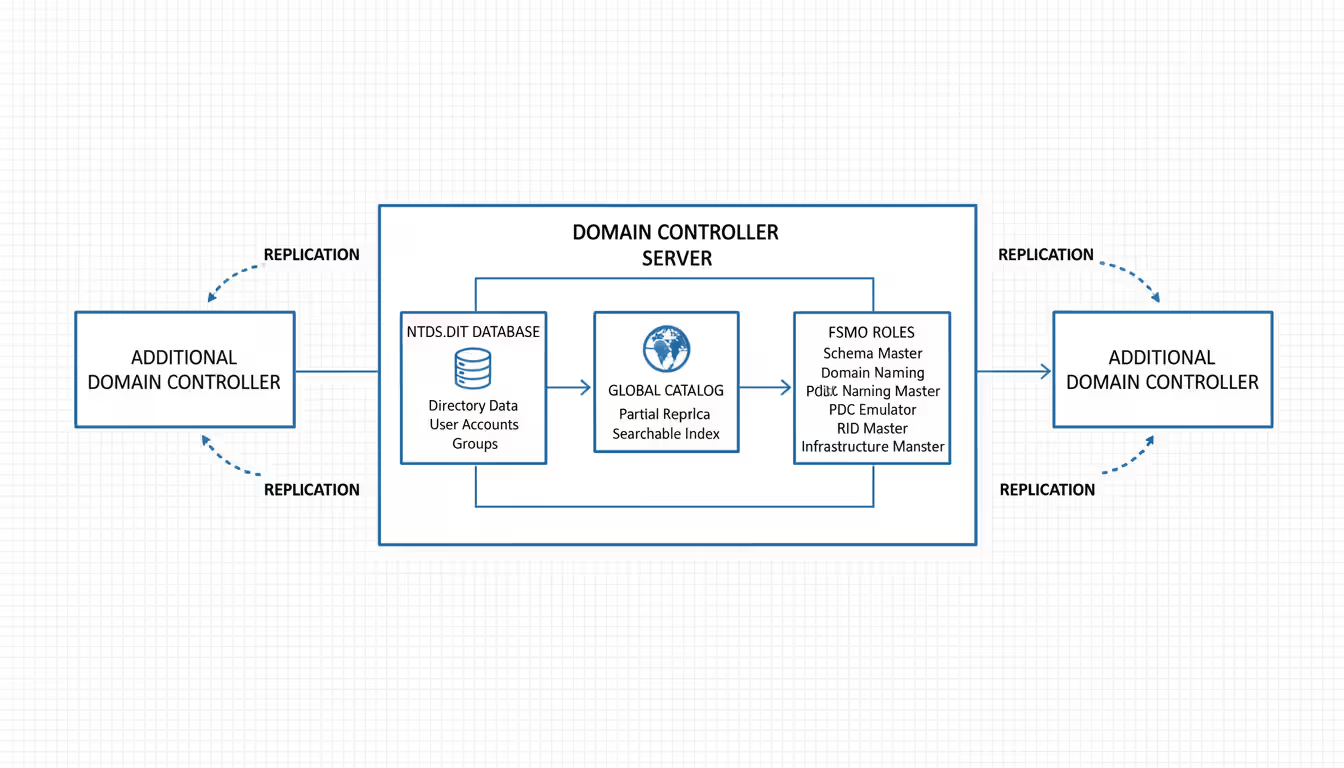
Here's what makes these servers critical: they hold the master copy of your Active Directory database. That's the comprehensive list of every user account, every computer, every security group, and every permission setting in your organization. The domain controller doesn't just store this information—it actively manages authentication requests using Kerberos and NTLM protocols, keeps multiple copies synchronized across your network, and pushes out policy changes to thousands of devices simultaneously.
Most companies run several domain controllers instead of just one. Why? Because authentication stops completely if your only domain controller crashes. Users can't log in, applications can't verify permissions, and your help desk phone starts ringing off the hook. With multiple domain controllers sharing the workload, one can go offline for maintenance or experience hardware failure while the others handle authentication requests seamlessly.
Domain Controller Server Architecture and Core Functions
A domain controller runs Active Directory Domain Services (AD DS)—essentially a specialized database engine that's optimized for directory queries rather than typical SQL transactions. Everything gets stored in a file called NTDS.dit, which might occupy 500 MB in a small business or balloon to 10 GB in an enterprise with 100,000+ objects.
Here's the authentication flow: Someone boots their laptop and enters credentials. The domain controller receives that authentication request, checks the username and password against its database, then issues a Kerberos ticket-granting ticket. This TGT acts like a temporary ID badge that lets the user request access to specific resources—file shares, email servers, SharePoint sites—without typing their password repeatedly. The entire process completes in under a second on a healthy network.
Group Policy Objects represent one of the most powerful domain controller features. A single GPO can simultaneously configure password complexity requirements on 5,000 workstations, deploy software to specific departments, or lock down USB ports across the entire organization. Administrators define these policies once, and domain controllers enforce them automatically whenever computers refresh their policy settings (every 90 minutes by default, plus at startup).
The Global Catalog deserves special attention. It's a searchable index containing partial information about every object across all domains in your forest. Microsoft Exchange leans heavily on Global Catalog servers to resolve email addresses and locate mailboxes. Without accessible Global Catalog servers, users experience painfully slow logons—sometimes 5-10 minutes instead of the usual 15 seconds—particularly in environments spanning multiple domains.
FSMO roles split certain administrative responsibilities among domain controllers rather than letting every server perform every task. The Schema Master handles any modifications to the directory's structure. The Domain Naming Master controls adding or removing domains. The RID Master hands out blocks of security identifiers so each domain controller can create unique user and group accounts. The PDC Emulator manages the time synchronization hierarchy and processes urgent password changes. The Infrastructure Master keeps cross-domain object references updated. Each role runs on one domain controller at a time, and losing access to specific roles blocks particular administrative operations (though regular authentication continues working).
Author: Evan Crossfield;
Source: milkandchocolate.net
Domain Controller Best Practices for Security and Performance
Microsoft's official guidance says run at least two domain controllers per domain, but that's really the bare minimum. I'd recommend three for any organization where downtime costs real money—one can fail, another can undergo maintenance, and you've still got authentication running. Spread them across different physical locations or cloud availability zones whenever possible.
Never combine domain controller duties with other server roles. I've seen too many companies run file shares, print servers, or even web applications on their domain controllers to save on licensing costs. Bad idea. A file server gets accessed constantly, faces different security threats, and needs different patch schedules. When someone compromises your file server through a vulnerability, you don't want that attacker automatically gaining access to every credential in your Active Directory database.
Geographic placement significantly impacts user experience. A branch office with 75 employees authenticating across a 10 Mbps WAN link to headquarters will experience 3-5 second delays on every login. Install a Read-Only Domain Controller at that branch, and authentication happens locally in under a second. RODCs make sense for remote locations with less stringent physical security—they cache credentials but don't replicate changes back to headquarters, limiting the damage if someone steals the server.
Physical vs. Virtual Domain Controllers
About 80% of domain controllers nowadays run as virtual machines. Virtualization delivers huge advantages: snapshot capabilities for testing changes, simplified disaster recovery, efficient resource utilization, and quick provisioning of new domain controllers. Hyper-V and VMware vSphere both handle domain controller workloads reliably when configured properly.
Watch out for these gotchas: Never use VM snapshots on production domain controllers. I can't stress this enough. Snapshots capture the Active Directory database at a specific moment, and reverting to an old snapshot causes USN rollback—a condition where the domain controller thinks it has sent replication updates that other servers never received. This corrupts replication across your entire domain and requires rebuilding the affected domain controller from scratch.
Turn off time synchronization between the guest VM and the hypervisor host. Domain controllers use a hierarchical time synchronization model where the PDC Emulator syncs with external sources like time.windows.com, and other domain controllers sync from the PDC. Hypervisor time sync interferes with this carefully designed hierarchy. Kerberos authentication fails when time drift exceeds five minutes, so this configuration detail matters more than it might seem.
Distribute your virtual domain controllers across different physical hosts and storage arrays. Running all three domain controllers on the same ESXi host defeats the entire redundancy strategy—one hardware failure or storage outage takes down your entire authentication infrastructure simultaneously.
Security Hardening Essentials
Domain controllers are the crown jewels attackers target first. Compromise one domain controller, and attackers can extract password hashes for every account, create backdoor administrator accounts, and establish persistence that survives typical remediation efforts.
BitLocker encryption should be non-negotiable for domain controller volumes. Without encryption, someone with physical access can boot from a USB drive, copy the NTDS.dit database file, and crack passwords offline at their leisure. I've watched penetration testers extract domain admin credentials in under 20 minutes from an unencrypted domain controller database using freely available tools.
Restrict who can actually log onto domain controllers locally or via Remote Desktop. Many organizations give their entire help desk staff domain admin rights or permission to access domain controllers directly. That's 15-20 people who could be targeted through phishing, social engineering, or credential theft. Only your most senior system administrators need this access—maybe three to five people in a mid-sized company.
Privileged Access Workstations changed the security game for domain controller management. Administrators should never manage domain controllers from the same laptop where they check email, browse websites, or read PDF attachments. Separate the administrative tasks onto locked-down workstations that only access management interfaces. When someone clicks a phishing link on their regular laptop, the attack can't automatically pivot to your domain controllers.
I've investigated breaches at 30+ companies over the past decade.The pattern repeats constantly—attackers establish a foothold through phishing, escalate privileges by exploiting poorly secured service accounts, then make a beeline for domain controllers. Companies that isolate domain controller access using administrative tiering and PAWs contain breaches in hours instead of watching attackers roam freely for months
— Marcus Chen
Implement tiered administration where your most privileged accounts never touch less secure systems. Create three separate accounts per administrator: one for email and regular work, another for managing member servers and applications, and a third exclusively for domain controller and Active Directory tasks. This segmentation contains damage when credentials get compromised.
How to Check Domain Controller Replication Status
Checking replication health should happen at least weekly, not just when users start complaining. I've seen scenarios where replication quietly failed for three weeks before someone noticed that newly created accounts only worked on some computers but not others.
The fastest check uses repadmin, a command-line utility included with Windows Server. Open PowerShell or Command Prompt with administrative privileges and run:
repadmin /replsummary
You'll see a summary showing replication success percentages across all domain controllers. Look for 100% in the success columns and 0% in the failure columns. Any failures demand immediate investigation. The output also shows the largest delta (time since last replication)—anything exceeding 60 minutes suggests problems.
Want more detailed information about replication partnerships? Try this:
repadmin /showrepl
This command lists every naming context (domain partition, configuration partition, schema partition, application partitions) and when each one last replicated successfully with partner domain controllers. Under normal circumstances, replication completes every 15 minutes within a site and based on site link schedules between sites. Seeing a "last successful replication" timestamp of four hours ago means something's broken.
PowerShell offers cleaner output that's easier to parse in automated monitoring scripts:
This queries every domain controller in your current domain and returns structured data about replication status. Build this into a monitoring script that alerts your team when replication age exceeds 30 minutes or when LastReplicationResult shows anything other than 0 (success).
Active Directory Sites and Services provides a GUI alternative for administrators who prefer clicking over typing. Expand Sites, drill down to your specific site, expand Servers, select your domain controller, and right-click on NTDS Settings. Choose "Replicate Now" to force immediate replication and surface any errors. The "Check Replication Topology" option verifies that connection objects are properly configured.
For comprehensive health validation, run the domain controller diagnostic tool:
dcdiag /v
This performs 30+ tests covering DNS registration, FSMO availability, replication health, service status, and connectivity. The output can scroll for pages, so focus initially on any tests marked "failed" in red. The replication-specific tests like "Replications" and "KnowsOfRoleHolders" catch most common issues.
Domain Controller Replication Status Monitoring and Troubleshooting
Replication failures create bizarre symptoms that confuse both users and administrators. Someone changes their password successfully but still can't log into certain computers. A new security group gets created but doesn't appear when assigning file permissions. Group Policy updates apply to half the organization but not the other half. These inconsistencies scream "replication problems."
Error 8453 means "Replication access was denied"—domain controllers can't authenticate with each other. Nine times out of ten, this traces back to time synchronization issues or DNS problems. Check that the Kerberos Key Distribution Center service is running. Verify time sync across all domain controllers using w32tm /query /status. Confirm DNS resolves domain controller hostnames to correct IP addresses. Sometimes this error appears after restoring a domain controller from backup—the computer account password in Active Directory doesn't match what the restored server thinks it should be.
Error 1722 indicates "RPC server unavailable"—network connectivity is broken between domain controllers. Start by checking firewalls. Windows domain controllers need RPC dynamic ports (49152-65535 on Server 2019/2022) open between them. Use Test-NetConnection to verify connectivity on port 135 initially. DNS misconfigurations cause this error frequently—if your domain controllers are using 8.8.8.8 or other public DNS servers instead of internal DNS servers, replication fails because they can't resolve each other's names properly.
Error 8606 says "Insufficient attributes were given to create an object"—usually a schema version mismatch. This happens when administrators extend the Active Directory schema on one domain controller (perhaps during an Exchange installation) but the schema changes haven't replicated to other domain controllers yet. Force schema replication across all domain controllers using repadmin /syncall CN=Schema,CN=Configuration,DC=domain,DC=com /d /e /a.
Error 8524 warns "DSA operation unable to proceed"—the database has corruption or inconsistency issues. Run repadmin /showrepl to identify which specific partition is failing. Check database integrity using esentutl /g "C:\Windows\NTDS\ntds.dit" (after stopping Active Directory services). If corruption is confirmed, you're looking at restoring from backup or rebuilding that domain controller.
Set up proactive monitoring rather than discovering replication failures when users complain. Create a PowerShell script that runs repadmin /replsummary every hour and sends email alerts when failures appear or replication deltas exceed 60 minutes. Enterprise monitoring tools like SCOM or SolarWinds include management packs specifically designed for Active Directory health with dozens of pre-configured alerts.
Replication topology breaks sometimes leave domain controllers isolated without replication partners. The Knowledge Consistency Checker automatically generates connection objects between domain controllers every 15 minutes, but manual modifications or misconfigured site links can disrupt this automation. If you see a domain controller with no inbound or outbound connections in Active Directory Sites and Services, delete all existing connection objects under NTDS Settings and wait 20 minutes for the KCC to regenerate them automatically.
Domain Controller Backup Strategies and Recovery Planning
Backing up domain controllers isn't optional—it's the difference between recovering from ransomware in four hours versus rebuilding Active Directory from scratch over three days. A corrupted domain controller can replicate bad data to every other domain controller in minutes. Without clean backups, you're facing a catastrophic scenario.
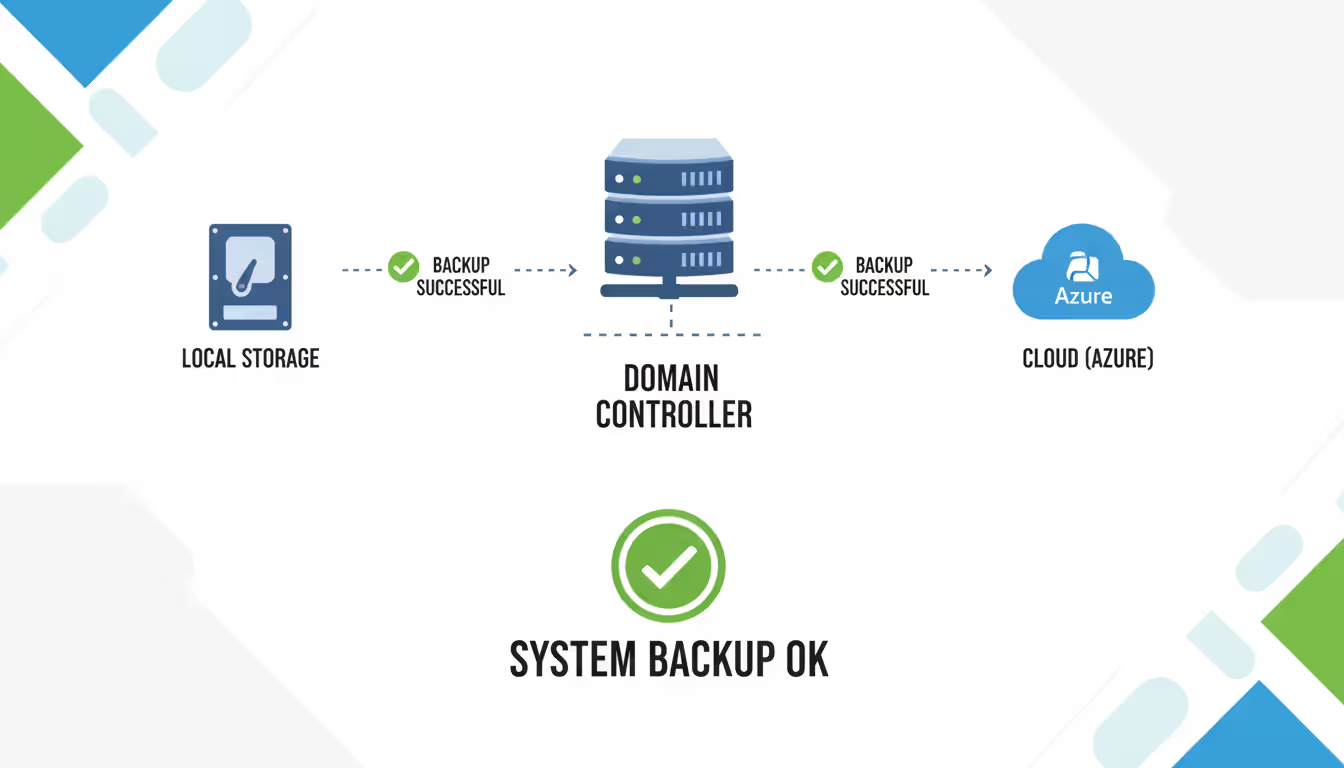
System state backups capture everything needed to restore domain controller functionality: the NTDS.dit database, the SYSVOL folder (containing Group Policy Objects), registry settings, boot files, and certificate services data if installed. Windows Server Backup handles system state backups without requiring third-party software or additional licensing costs.
Configure Windows Server Backup through Server Manager or PowerShell. Install the feature if it's not already present, open Windows Server Backup, and set up a recurring schedule. Select "Custom" configuration and add "System State" to the backup selection. Point backups to a dedicated volume or network share—never back up to the same volume containing NTDS.dit because that provides no protection against disk failure. Schedule backups daily at minimum, preferably twice daily during business hours and after hours.
System state backups consume significant storage—plan for 10-20 GB per backup copy depending on your database size. Retain enough versions to provide recovery options if corruption goes undetected initially. Microsoft's technical guidance says keep backups within the tombstone lifetime (180 days default), though most organizations practically retain 30-90 days of backup history before storage costs force older backups to be deleted.
Backup Approach
Licensing Cost
Automation Capabilities
Bare-Metal Recovery
Cloud Integration
Restoration Complexity
Windows Server Backup
Included with OS
Basic scheduling via Task Scheduler
Supported
None—local only
Moderate—requires command-line recovery
Third-Party Enterprise Solutions
$500-$5,000 annually per server
Full automation with health monitoring and reporting
Fully supported
Varies—some vendors offer cloud targets
Low—wizard-driven restoration
Azure Backup Service
Consumption-based ($5-$50 monthly typical)
Native Azure automation and monitoring
Supported
Complete—backups stored in Azure
Low—managed through Azure portal
Third-party backup solutions from vendors like Veeam, Commvault, and Veritas deliver capabilities beyond native Windows Server Backup. They provide centralized management dashboards for backing up dozens of domain controllers across multiple sites simultaneously. Application-aware backups verify Active Directory consistency before finalizing the backup. Automated backup testing periodically restores backups to isolated VMs and validates their integrity. Faster restoration procedures let you recover a failed domain controller in 20 minutes instead of two hours. The investment makes sense when you're managing five or more domain controllers.
Azure Backup extends domain controller protection to the cloud without maintaining on-premises backup infrastructure. Install the Microsoft Azure Backup Server agent on domain controllers, configure backup policies through the Azure portal, and encrypted backups automatically transfer to an Azure Recovery Services vault. This approach provides geographic redundancy automatically—your backups survive even if your entire datacenter burns down.
Recovery procedures vary dramatically based on what failed. Restoring a single domain controller in an environment with multiple healthy domain controllers follows different steps than recovering the last remaining domain controller in a domain.
Non-authoritative restore handles the most common scenario—one domain controller failed and you need to bring it back. Boot into Directory Services Restore Mode (press F8 during startup and select DSRM), authenticate using the DSRM password set during dcpromo, restore the system state backup using Windows Server Backup or your chosen tool, restart normally into standard Active Directory mode, and let replication update the database with changes that occurred since the backup timestamp. Other healthy domain controllers provide current data automatically.
Authoritative restore forces specific objects or entire organizational units to replicate from the restored domain controller to all others, overwriting conflicting data. Use this technique for recovering accidentally deleted users or groups. Perform a non-authoritative restore first, boot back into DSRM, run ntdsutil to mark specific objects as authoritative (increasing their version numbers above all other replicas), then restart and allow replication to propagate the authoritatively restored objects throughout the forest.
Test your domain controller recovery procedures annually at minimum. Schedule a maintenance window, restore a recent backup to an isolated test environment (separate network segment or disconnected virtual network), verify authentication works, check replication health, test Group Policy application, and document any deviations from expected procedures. Organizations that skip testing discover during actual emergencies that backup media is corrupted, DSRM passwords got lost during an IT staff transition, or documentation references servers that were decommissioned two years ago.
Author: Evan Crossfield;
Source: milkandchocolate.net
Common Domain Controller Issues and How to Fix Them
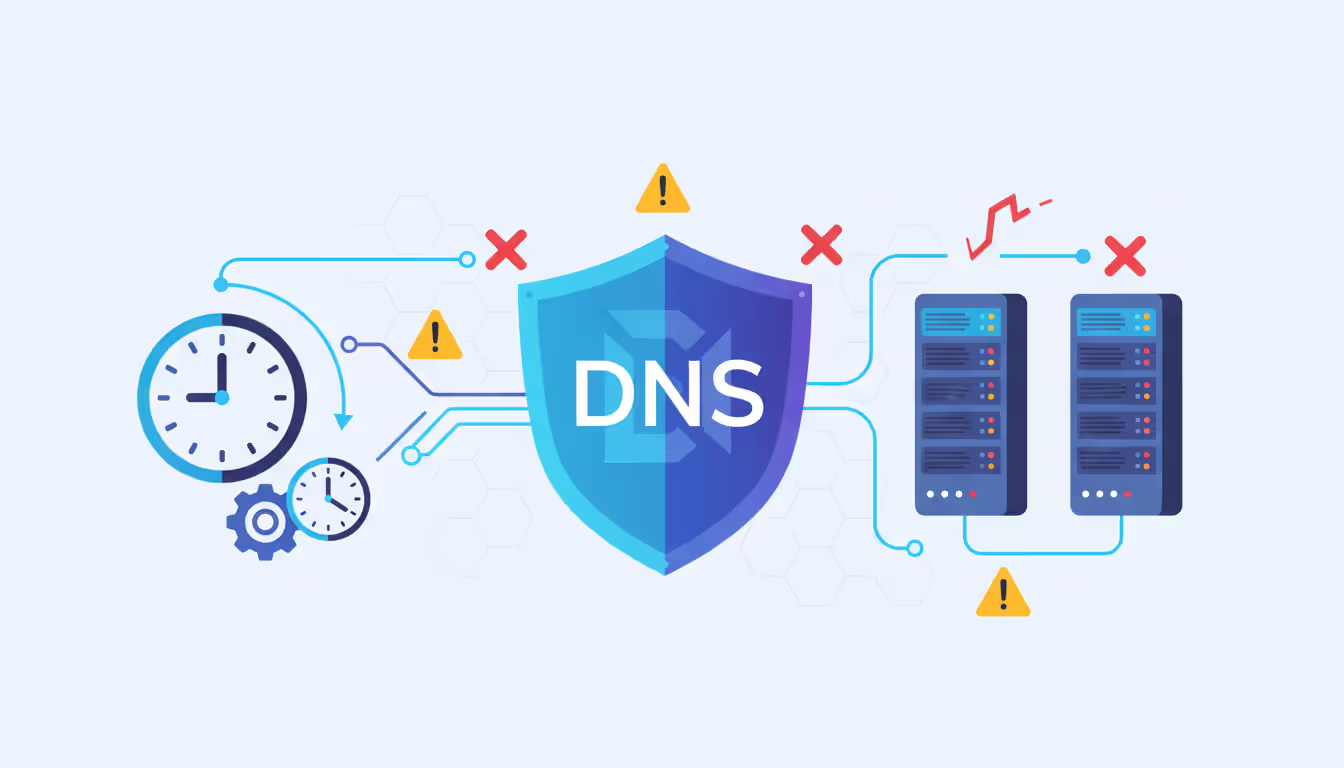
DNS configuration problems cause about 70% of domain controller issues I've troubleshooted over the years. Active Directory and DNS are inseparable—domain controllers rely on DNS for locating authentication partners, clients use DNS to find domain controllers, and replication requires DNS to resolve partner hostnames.
Verify DNS health using:
dcdiag /test:dns /v
This validates that your domain controller successfully registered its A records (hostname to IP mapping), CNAME records (alias records), and SRV records (service location records). Missing SRV records make the domain controller invisible to clients—users experience "domain controller cannot be contacted" errors even though the server is running perfectly. Open DNS Manager, navigate to your domain zone, expand the _msdcs subdomain, and verify that _tcp and _udp folders contain numerous SRV records pointing to each domain controller.
When DNS records are missing, check the network adapter configuration. DNS servers should point to domain controllers—often including its own IP address as primary or secondary DNS server. I've seen administrators mistakenly configure domain controllers with 8.8.8.8 or other public DNS servers. Public DNS servers can't host Active Directory integrated zones, so DNS record registration fails completely.
Time synchronization breaks Kerberos authentication spectacularly. The default Kerberos maximum time tolerance is five minutes—exceed that threshold and authentication requests fail with cryptic "time skew" errors. Configure the PDC Emulator to synchronize with reliable external time sources:
FSMO role failures disrupt specific administrative functions. Losing access to the RID Master prevents creating new security principals—no new user accounts, groups, or computer accounts can be created until the RID Master returns or you seize the role to another domain controller. PDC Emulator failures impact password changes (they may not replicate correctly) and time synchronization. Infrastructure Master unavailability affects cross-domain group membership updates.
Identify current FSMO role holders:
netdom query fsmo
If a role holder permanently failed (hardware destroyed, not coming back), seize the roles to a surviving domain controller using ntdsutil. Critical warning: Never seize roles from a domain controller that might return to the network later—that creates split-brain conflicts requiring extensive cleanup or forest recovery.
Authentication failures occasionally stem from corrupted secure channels between domain controllers and their computer accounts. Event ID 5805 appears in the System log, and replication authentication fails. Reset the computer account password to re-establish the secure channel:
This resets the local domain controller's computer account password and synchronizes it with Active Directory on the target server.
Author: Evan Crossfield;
Source: milkandchocolate.net
FAQ: Domain Controller Management
How many domain controllers should I have in my network?
Start with two domain controllers minimum for any production domain—that's essential redundancy. Small organizations operating from a single location can function effectively with two domain controllers. Larger environments should scale based on user population and geographic distribution—budget roughly one domain controller per 5,000-10,000 users for adequate capacity. Branch offices exceeding 25 users benefit from local domain controllers (or at least RODCs) to eliminate WAN dependency for authentication. I've seen companies with 200 employees running six domain controllers (overkill) and enterprises with 10,000 users running only two domain controllers (asking for trouble).
Can a domain controller also be a file server?
Microsoft's official guidance says don't combine these roles, and I agree completely. File servers face constant access requests, different security exposures, and distinct patching requirements. Mixing file services onto domain controllers expands the attack surface unnecessarily—compromise the file server through a vulnerability in SMB or a malicious document, and attackers immediately access your entire Active Directory database. Separate roles improve security posture and simplify troubleshooting dramatically. If budget constraints prevent buying separate hardware, virtualize and run dedicated VMs for each role on the same physical host.
What happens if all domain controllers fail simultaneously?
Users already logged in continue working with locally cached credentials until they log out—their existing Kerberos tickets remain valid for accessing resources (typically 10 hours). New authentication requests fail completely. Users can't log in to workstations, applications can't query Active Directory, and network resource access breaks as tickets expire. Organizations must restore at least one domain controller from backup to resume authentication services. This catastrophic scenario underscores why geographic distribution matters—spread domain controllers across different data centers or cloud regions so no single event (fire, flood, power outage, ransomware attack) takes them all offline simultaneously.
How often should I back up my domain controller?
Daily backups represent the absolute minimum frequency. Organizations with high change rates—frequent user creation, group modifications, OU restructuring, or GPO updates—should implement twice-daily backups (business hours and overnight). System state backups typically complete in 15-30 minutes depending on database size and storage performance. Schedule backups during periods of lower activity to minimize performance impact. Retain 30-90 days of backup history to provide recovery options if database corruption goes undetected initially. Test restorations quarterly to verify backup integrity.
Do I need to restart a domain controller after replication changes?
No—replication happens continuously in the background without requiring restarts. Active Directory automatically synchronizes changes between domain controllers every 15 minutes within sites and according to site link schedules between sites. Restart domain controllers only after installing Windows updates requiring reboots, making certain network configuration changes, or troubleshooting specific service failures where clean initialization helps. Rebooting domain controllers unnecessarily disrupts authentication services and creates brief outages while clients locate alternative domain controllers.
What is the difference between a domain controller and Active Directory?
Active Directory is the directory service software—the application that stores and manages network objects like user accounts, computers, groups, and organizational units. A domain controller is the Windows Server computer (physical or virtual) that runs Active Directory Domain Services. Think of it like the difference between Microsoft SQL Server (the database application) and the server hardware running SQL Server. Multiple domain controllers each host synchronized copies of the same Active Directory database, with changes replicating between them automatically.
Domain controllers form the authentication backbone supporting your entire Windows infrastructure. They verify user credentials, enforce security policies, and provide directory services that applications depend on for basic functionality. Small configuration mistakes or inadequate monitoring can cascade into authentication outages affecting hundreds or thousands of users simultaneously.
Security deserves top priority—run domain controllers on dedicated hardware or isolated VMs, restrict administrative access tightly, and maintain aggressive patching schedules. Regular replication monitoring catches subtle failures before they impact users. Tested backup procedures provide confidence that you can recover quickly from hardware failures, corruption, or attacks.
The specific commands and techniques covered here provide practical starting points for managing domain controllers effectively. Implement these practices consistently, and you'll reduce unplanned downtime, strengthen security posture, and build more resilient Active Directory environments. Your users might never thank you for reliable authentication (they only notice when it breaks), but your organization benefits from the stability these practices deliver.
A reliable wireless connection has become as essential as electricity. This comprehensive guide covers wifi network design, installation, monitoring, and troubleshooting. Learn how to choose equipment, optimize performance, and decide between DIY and professional installation for your home or business
A virtual network is a software-defined networking environment that replicates physical network infrastructure without dedicated hardware. This guide covers core components, virtual network functions, gateways, security best practices, cloud provider services, and a practical 6-step setup process
MQTT brokers route messages between IoT devices using publish-subscribe architecture. This guide covers selecting the right broker, comparing free options like Mosquitto and EMQX, testing online brokers, and avoiding security and scalability mistakes that derail IoT projects
Choosing secure cloud storage requires understanding encryption types, privacy policies, and security features that actually protect your personal files. This guide compares top zero-knowledge providers and explains the technical differences between genuine privacy protection and basic security
The content on this website is provided for general informational purposes only. It is intended to offer insights, commentary, and analysis on cloud computing, network infrastructure, cybersecurity, and IT solutions, and should not be considered professional, technical, or legal advice.
All information, articles, and materials presented on this website are for general informational purposes only. Technologies, standards, and best practices may vary depending on specific environments and may change over time. The application of any technical concepts depends on individual systems, configurations, and requirements.
This website is not responsible for any errors or omissions in the content, or for any actions taken based on the information provided. Users are encouraged to seek qualified professional advice tailored to their specific IT infrastructure, security, and business needs before making decisions.