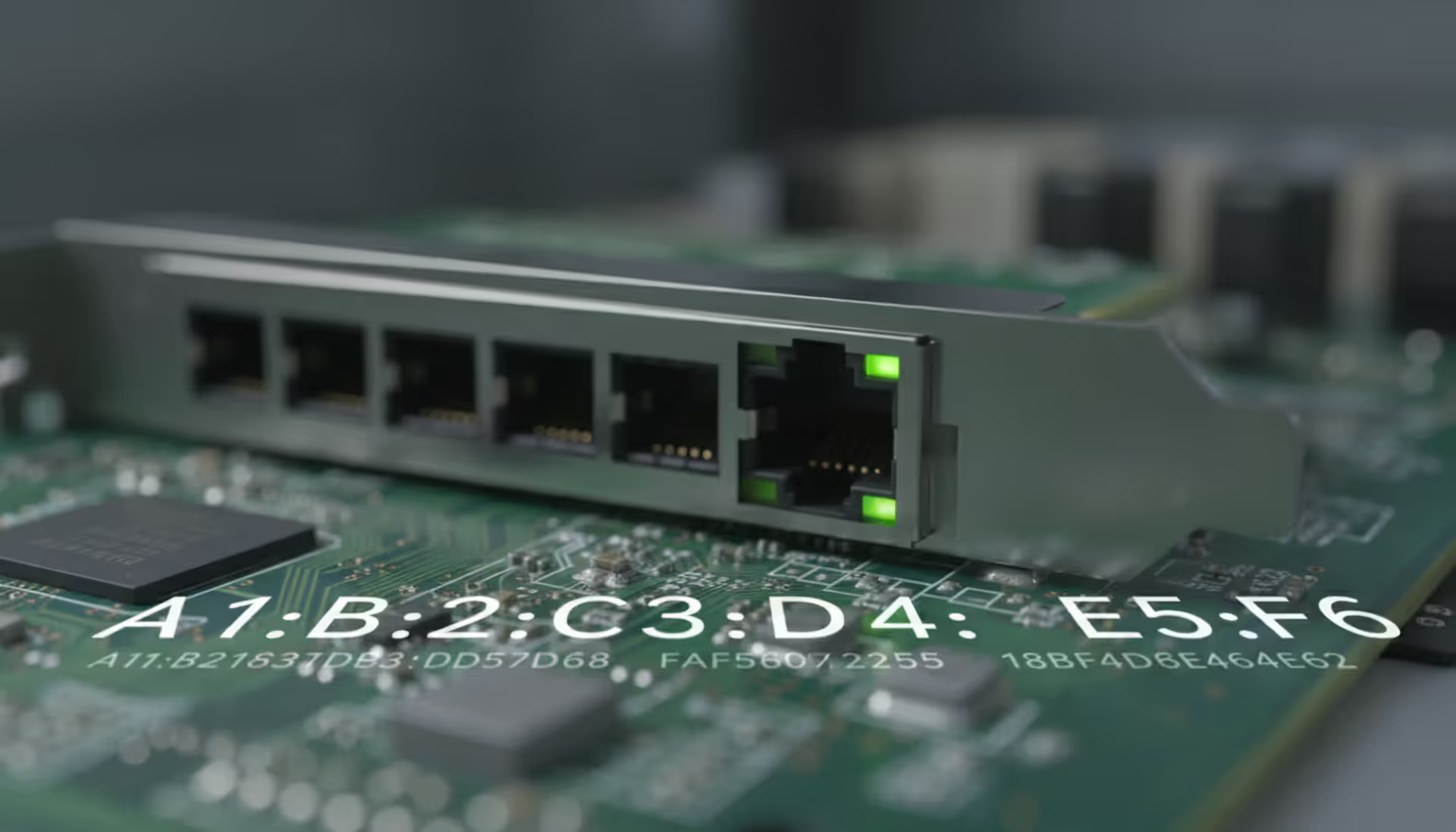
Your laptop connects to Wi-Fi at a coffee shop. Your router needs to know: is this the same laptop that connected yesterday, or a different device? That's where MAC addresses come in. Built right into your network card's circuitry during manufacturing, this hardware identifier doesn't change when you move between networks or reboot your system.
Finding this identifier matters when you're filtering devices on your home router, calling tech support about connection problems, or setting up a printer to always grab the same IP address. Let's walk through exactly how to locate yours.
What Is a MAC Address and Why Find It?
Think of MAC addresses as serial numbers for network hardware. Every Wi-Fi card, Ethernet port, and Bluetooth radio gets assigned a unique 12-digit code written in hexadecimal. You'll see them formatted as 00:1A:2B:3C:4D:5E or with hyphens instead: 00-1A-2B-3C-4D-5E.
Here's what makes them useful: IP addresses tell you where a device sits on a network right now. MAC addresses tell you which specific piece of hardware you're dealing with—period. Your phone keeps its MAC address whether it's connected to your home network, your office Wi-Fi, or sitting in airplane mode.
The structure reveals interesting information. Those first six characters? They're registered to the company that made your network adapter—Apple, Intel, Broadcom, whoever. The IEEE (Institute of Electrical and Electronics Engineers) maintains this manufacturer registry. The remaining six digits make your specific adapter unique.
Why would you actually need this information? Several scenarios pop up regularly:
Your router lets you create device whitelists or blacklists based on MAC addresses—only allowing specific hardware to connect. Internet service providers sometimes require your modem's MAC address during setup or troubleshooting calls. Network administrators track which devices appear on corporate networks for security audits. Parents set up per-device internet schedules using MAC addresses since kids can rename devices but can't change hardware identifiers. Smart home enthusiasts assign permanent IP addresses to security cameras or media servers by linking them to MAC addresses in router settings.
The MAC address represents the most fundamental layer of network identity. While IP addresses describe where a device is on a network, the MAC address describes what the device is. This distinction becomes critical when diagnosing layer-2 switching issues or implementing zero-trust security models
— Network Warrior
How to Find Your MAC Address Using Command Prompt
Windows hides your MAC address a few menus deep in the Settings app, but Command Prompt shows it instantly. Both methods below work on Windows 10, Windows 11, and Windows Server without installing anything extra.
Using ipconfig /all
This command dumps every network detail Windows knows about your adapters—IP addresses, DNS servers, default gateways, and yes, MAC addresses.
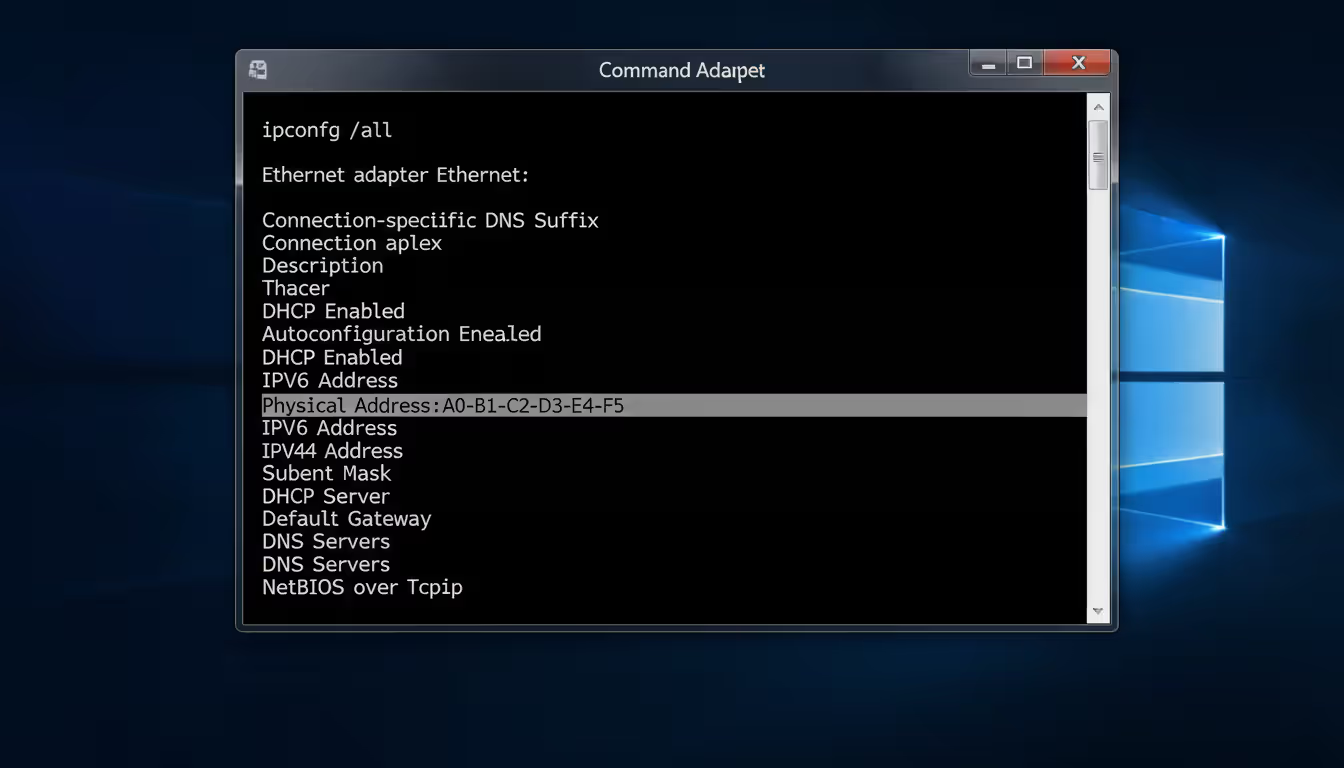
Hit the Windows key, type "cmd" in the search box, and press Enter. When that black terminal window opens, type this:
ipconfig /all
You'll see a wall of text. Don't panic. Scroll through looking for your active connection—it'll say "Ethernet adapter Ethernet" if you're plugged into a cable, or "Wireless LAN adapter Wi-Fi" if you're on wireless. Under that section, find the line labeled "Physical Address." That string of six pairs of characters? That's your MAC address.
Here's where people mess up: laptops typically show five or six different adapters. You've got your actual Ethernet and Wi-Fi hardware, plus virtual adapters from VPN software, Bluetooth, and maybe VMware or VirtualBox if you run virtual machines. Each one lists a Physical Address. Grab the one that matches how you're actually connecting. If an adapter says "Media disconnected," that's not your active connection.
The command shows context too. You'll see whether DHCP assigned your IP or it's static. You'll spot your router's address. It's more information than you strictly need for just the MAC address, but network troubleshooting often requires those other details anyway.
Author: Nicole Bramwell;
Source: milkandchocolate.net
Using the getmac Command
Want just the MAC addresses without wading through fifteen lines of IP configuration per adapter? Try getmac instead.
Back in Command Prompt, type:
getmac /v /fo list
The /v flag tells Windows to be verbose—show connection names and adapter descriptions. The /fo list part formats everything as a readable list instead of cramming it into a table. Without those flags, plain getmac works fine but looks messier.
You'll see each adapter's MAC address paired with its name. Much cleaner when you just need to copy the address and move on. Network admins often use getmac /v /fo csv to export lists from multiple computers into spreadsheets—handy when you're inventorying fifty laptops.
Both commands run with regular user permissions. Even on locked-down work computers where IT restricts some network diagnostics, these basic commands typically still function.
Finding MAC Addresses on Other Operating Systems
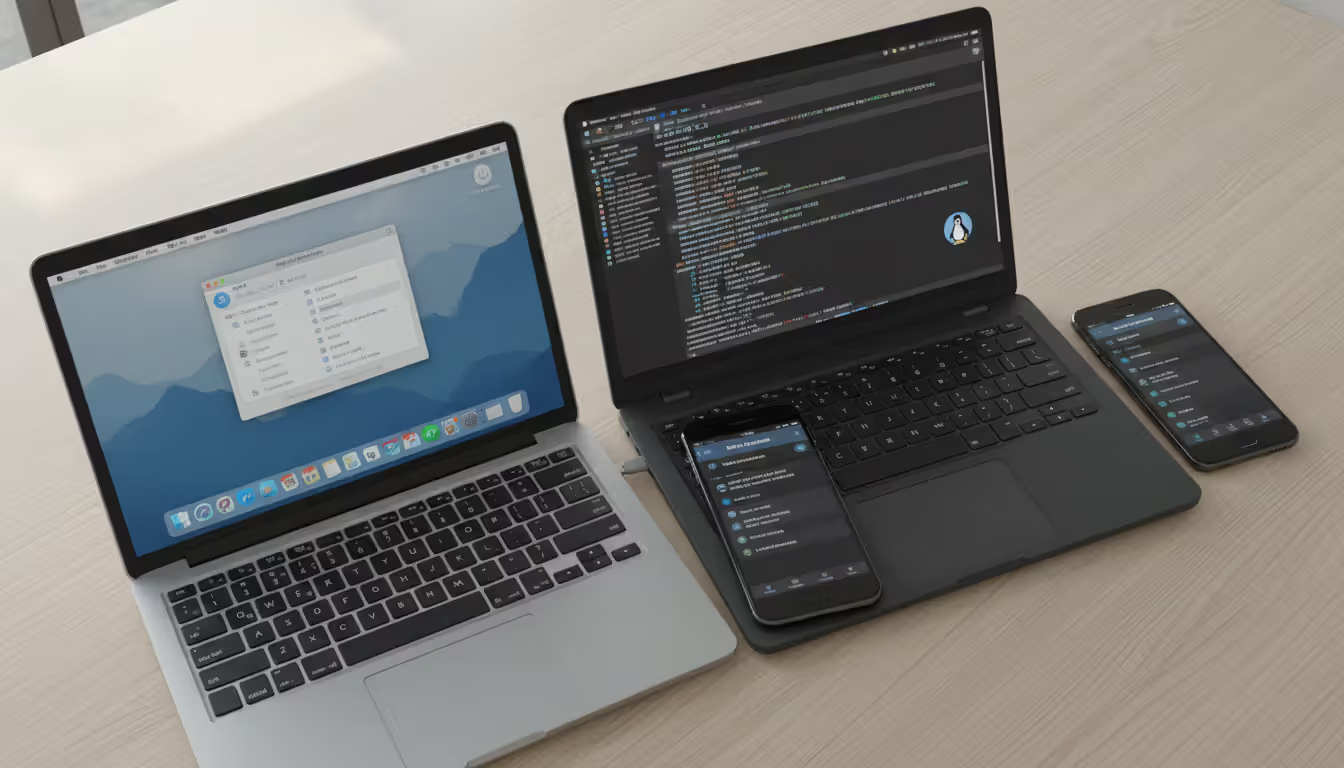
macOS: Launch Terminal (easiest way: hit Command+Space, type "terminal," press Enter). Type ifconfig and look for the "ether" line under your connection—usually en0 for built-in Ethernet or en1 for Wi-Fi. Not a terminal person? Click the Apple logo, open System Settings, select Network, pick your active connection, click Details, then switch to the Hardware tab. Your MAC address sits right there.
Linux: Pop open any terminal and run ip link show. Your MAC address appears after "link/ether" for each interface. Older Linux guides mention ifconfig, which still works on many distros but isn't installed by default anymore. Interface names look weird these days—instead of simple "eth0" or "wlan0," systemd's predictable naming gives you "enp3s0" or "wlp2s0" based on hardware location.
iOS: Navigate Settings > General > About and scroll down to "Wi-Fi Address." That's your permanent identifier. The "Bluetooth" entry in that same list shows your Bluetooth MAC—they're different addresses. Apple randomizes MAC addresses during network scanning (since iOS 14) to prevent tracking, but the address in Settings remains constant.
Android: Open Settings > About phone > Status. Some manufacturers bury it deeper—try Settings > System > About phone on Pixel devices. You'll see separate listings for Wi-Fi and Bluetooth MAC addresses. Android 10 and newer randomize MAC addresses per network by default (a privacy feature), though network administrators can still see your real address once you've connected.
Author: Nicole Bramwell;
Source: milkandchocolate.net
How to Use a MAC Address Vendor Lookup Tool
Remember how those first six digits identify the manufacturer? You can look that up. The IEEE publishes the complete registry of OUI (Organizationally Unique Identifier) assignments—currently over 40,000 entries covering everyone from Samsung and Dell to obscure industrial sensor manufacturers.
Websites like the IEEE's official lookup tool, MACVendors.com, or WhatIsMyIPAddress.com let you paste any MAC address (or just the first six characters) and instantly see which company registered that range. Type in 3C:22:FB:xx:xx:xx and you'll learn it's Apple hardware. Spot 00:50:56 on your network? That's VMware virtual machines.
This helps identify mystery devices. You check your router's connected device list and see an unknown gadget. Pull its MAC address, run it through a vendor lookup, discover it's manufactured by Samsung. Now you're narrowed down to "probably someone's phone or tablet" instead of totally clueless.
For offline use—say you're building network monitoring scripts—download the complete OUI database from ieee-standards.org. It comes in CSV and text formats. Tools like Wireshark include built-in copies of this database and automatically label network traffic by manufacturer as you capture packets.
Keep in mind: the vendor lookup tells you who made the network chip, not necessarily the final product's brand. You might search a MAC address and get "Foxconn" or "Lite-On Technology"—companies that manufacture components for dozens of brands. A device labeled "Hon Hai Precision Ind." could be anything from an Amazon tablet to a smart doorbell, since Hon Hai (Foxconn) produces hardware for countless companies.
The database gets updated constantly as companies register new address blocks or merge with competitors. Good lookup tools refresh their databases monthly.
MAC Address Tracking and Network Management
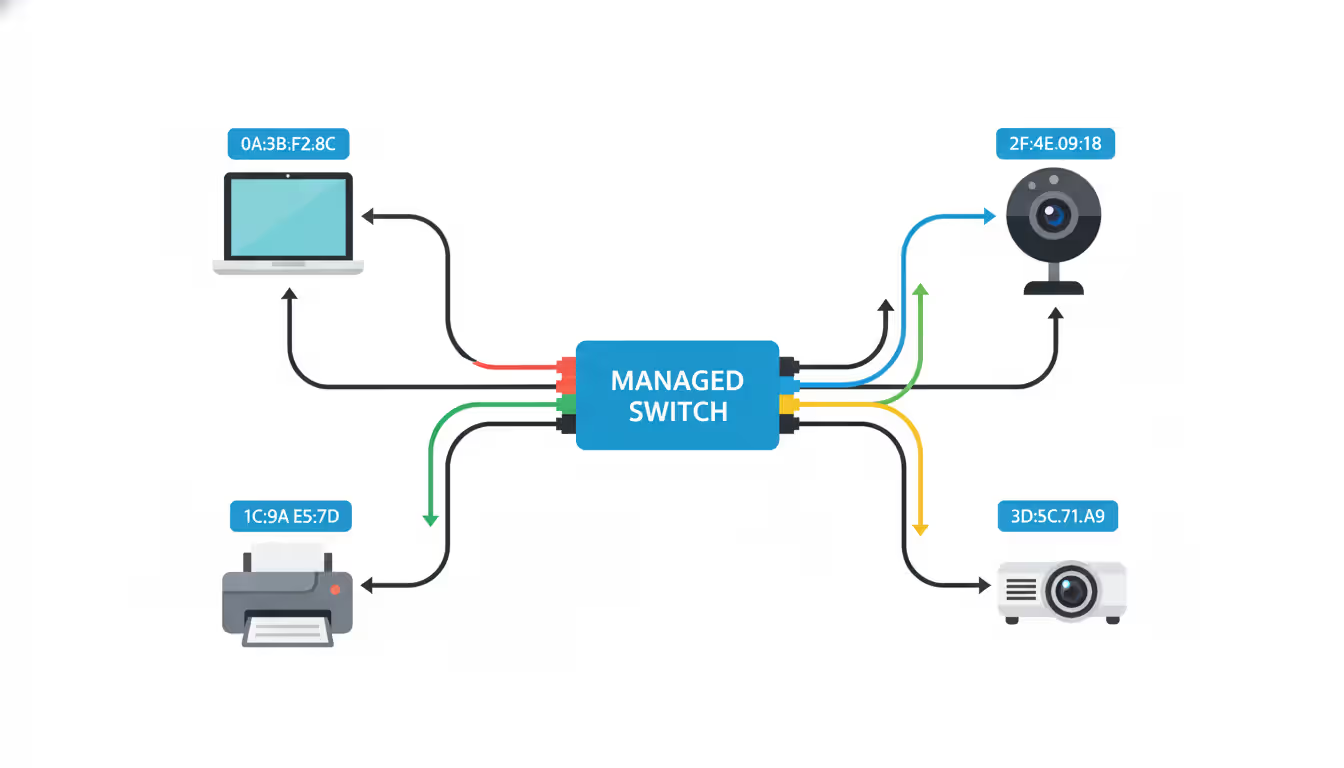
Enterprise networks track MAC addresses for legitimate operational reasons. Managed switches log which MAC addresses appear on which physical ports, creating a map of device locations across office buildings. When someone reports "the third-floor printer isn't working," IT checks the MAC address database to see exactly which switch port feeds that printer.
DHCP servers maintain MAC-to-IP assignment logs. Configure your server to always hand IP address 192.168.1.50 to the MAC address belonging to the conference room projector, and that projector gets the same address every time—even if someone unplugs it and moves it to a different room. No static IP configuration required on the device itself.
Security teams monitor for unauthorized MAC addresses. In healthcare facilities, government offices, or financial firms, systems alert when unknown hardware joins the network. Some implement NAC (Network Access Control) that outright blocks devices unless their MAC address appears on an approved whitelist.
Retail stores and airports use Wi-Fi analytics platforms that detect MAC addresses from phones scanning for networks—measuring foot traffic patterns and dwell times. Privacy advocates fought back against this practice, leading Apple, Google, and Microsoft to implement MAC randomization during scanning. Modern phones broadcast randomized addresses until they actually connect to a network.
Important limitations: MAC addresses only work on local networks. Routers strip them from packets when forwarding traffic between networks, so you absolutely cannot track a device across the internet using its MAC address. They're also trivial to spoof—anyone with system access can change their MAC address in software, making it unreliable as a sole authentication mechanism.
One more privacy note: while your phone randomizes its MAC when scanning, it still transmits the real hardware address after connecting to a network. The randomization prevents tracking across different locations, but the Wi-Fi network you're actively using sees your actual identifier.
Author: Nicole Bramwell;
Source: milkandchocolate.net
Common Issues When Looking Up MAC Addresses
Seeing too many addresses: Modern computers list separate MAC addresses for each radio and virtual adapter. Ethernet, Wi-Fi, Bluetooth—each gets its own. Virtualization software like VirtualBox creates virtual network adapters. VPN clients add TAP adapters. Running ipconfig /all might show six or eight different Physical Addresses. Which one matters? Whichever matches your actual connection method right now. On Wi-Fi? Use the wireless adapter's MAC. Plugged into Ethernet? Use that one instead.
Virtual adapter confusion: Adapters named "TAP-Windows Adapter V9" or "VMware Network Adapter VMnet8" aren't real hardware. Those virtual interfaces serve VPN connections and virtual machines. Your actual network card comes from Intel, Realtek, Broadcom, Qualcomm, or similar hardware manufacturers. Look for those names in the adapter descriptions.
Modified addresses: Some people change their MAC address through Device Manager or third-party utilities for privacy or to bypass router restrictions. If you've done this (or someone else configured your machine), commands might show the spoofed address instead of what's burned into the chip. Open Device Manager, expand Network adapters, right-click your adapter, choose Properties, go to Advanced, and check if "Network Address" or "MAC Address" has a custom value entered.
Permission problems: Most MAC address commands work without administrator rights, but occasionally you'll hit "Access Denied" errors. Right-click Command Prompt and select "Run as administrator" to solve that.
Bluetooth versus Wi-Fi confusion: Your laptop has different MAC addresses for different radios. The Bluetooth MAC differs from the Wi-Fi MAC differs from the Ethernet MAC. Troubleshooting Bluetooth pairing? Make absolutely sure you're using the Bluetooth address, not accidentally copying the Wi-Fi one.
Randomized mobile addresses: Smartphones show one MAC in settings but broadcast different randomized addresses to networks (unless you disable this feature per-network). Setting up MAC filtering on your home router? You might need to turn off MAC randomization for that specific saved network in your phone's Wi-Fi settings, otherwise the router sees a different address each time and blocks the connection.
Comparison of MAC Address Lookup Methods
Lookup Approach
Works On
How Fast
Skill Level
Identifies Manufacturer
Windows Command Prompt (ipconfig or getmac)
Windows only
Immediate
Beginner-friendly
No—needs separate vendor search
System Settings interface
Windows, Mac, iOS, Android
Takes 3-4 clicks
No technical knowledge
No—needs separate vendor search
Terminal/shell commands
macOS, Linux
Immediate
Comfortable with command line
No—needs separate vendor search
Network utility software
Any platform
Quick
Beginner to intermediate
Usually yes—databases included
Web-based MAC tools
Any device with browser
Few seconds (needs internet)
Zero technical skill
Yes—that's the main feature
Frequently Asked Questions
Can two devices have the same MAC address?
They're supposed to be globally unique, but duplicates happen. Manufacturers that skip proper IEEE registration sometimes ship products with cloned addresses. Budget Chinese electronics occasionally duplicate addresses across production runs. When users manually spoof MAC addresses, they might pick one already in use. Duplicate MAC addresses on the same network cause chaos—devices randomly disconnect, IP conflicts pop up, packets reach the wrong machine. Duplicates on separate networks worldwide don't matter since MAC addresses only function locally.
Is it possible to change a MAC address?
Absolutely. On Windows, open Device Manager, find your network adapter under Network adapters, right-click for Properties, switch to Advanced, and modify the "Network Address" field. Mac and Linux users change MAC addresses through terminal commands. This spoofs the software-reported address—the original factory-burned address stays in the hardware. Networks sometimes detect spoofing through packet analysis and fingerprinting. Check your employer's acceptable use policy before changing MAC addresses at work—some organizations prohibit this, and circumventing network controls with spoofed addresses might violate laws in certain jurisdictions.
What's the difference between an IP address and a MAC address?
They operate at different network layers serving different purposes. Your MAC address identifies the physical hardware—think of it as your network card's fingerprint. It doesn't change when you move between locations (unless manually spoofed). IP addresses identify your position on networks. You get a different IP at home versus the library versus your office. Routers use MAC addresses to shuffle data within local networks—your home Wi-Fi network, for example. They use IP addresses to route traffic between networks and across the internet. Both matter, but they're not interchangeable or redundant—networking requires both.
How accurate are MAC address vendor lookups?
For identifying manufacturers, extremely accurate—the data comes straight from IEEE's official registry. But knowing "Apple manufactured this adapter" doesn't tell you whether it's an iPhone, iPad, MacBook, HomePod, or Apple Watch. Large manufacturers own dozens of registered OUI blocks, and you might see contract manufacturers (ODMs) instead of the brand printed on your device. A lookup returning "Foxconn" could mean anything since Foxconn builds products for hundreds of brands. The database needs periodic updates as companies register new blocks—good lookup sites refresh monthly or quarterly. Stale databases miss recent assignments.
Can someone track my location using my MAC address?
Not like GPS or even IP-based geolocation. MAC addresses broadcast only across local networks—they physically cannot traverse the internet. Someone on the same Wi-Fi network could correlate "this MAC address is here right now," which prompted smartphone makers to implement MAC randomization during network scanning. Retail analytics companies used to track shoppers by detecting phones scanning for Wi-Fi—that's mostly dead now thanks to randomization. Once you connect to a network, administrators on that network see your real MAC address and know you're present. But tracking you across different cities or finding your home address from a MAC address? Impossible with MAC addresses alone.
Why do I see multiple MAC addresses on my computer?
Every network interface gets its own MAC address. Laptops have separate identifiers for Ethernet jacks, Wi-Fi cards, and Bluetooth radios. Virtual machines create virtual network adapters with unique addresses. VPN software installs TAP adapters that show up with their own MAC addresses. Windows Subsystem for Linux adds virtual interfaces. A typical laptop easily shows four to eight different addresses when running network commands. This is completely normal hardware behavior. When you need "your" MAC address for router configuration or support calls, use the address from whichever adapter you're actually using to connect—ignore the virtual adapters, disconnected interfaces, and unused radios.
Finding your MAC address takes seconds once you know the shortcuts—whether that's Command Prompt on Windows (ipconfig /all or getmac), Terminal on Mac/Linux, or diving into Settings on mobile devices. This hardware identifier serves crucial roles in network management, from router whitelists to DHCP reservations to security monitoring.
The command-line approach on Windows gives instant access without clicking through settings menus. Pair that quick lookup with vendor identification tools, and you've got a complete picture—not just the address itself, but which company manufactured that network adapter.
Privacy features in modern operating systems now randomize MAC addresses during Wi-Fi scanning, addressing tracking concerns while preserving the identifier's utility for actual network operations. Whether you're managing dozens of enterprise switches or just trying to configure parental controls on your home router, understanding how to quickly locate and interpret MAC addresses remains essential networking knowledge.
Migrating to the cloud doesn't always require reimagining your entire infrastructure. Lift and shift migration moves applications to the cloud with minimal modifications—a pragmatic approach for organizations facing data center deadlines or managing legacy systems
Network failures don't announce themselves politely. For small and medium businesses, disruptions translate directly into lost revenue and damaged reputation. This guide explains IT network support services, when you need professional help, and how to choose between in-house teams and managed providers
Building your own cloud storage gives you complete control over your data while potentially saving money compared to subscription services. This comprehensive guide covers hardware requirements, software platforms like Nextcloud, step-by-step installation, security best practices, and common mistakes to avoid
Network administrators on tight budgets can achieve comprehensive visibility with free SNMP monitoring software. This guide compares leading platforms like Zabbix, LibreNMS, and PRTG Free, covering setup requirements, feature trade-offs, and common deployment mistakes to avoid
The content on this website is provided for general informational purposes only. It is intended to offer insights, commentary, and analysis on cloud computing, network infrastructure, cybersecurity, and IT solutions, and should not be considered professional, technical, or legal advice.
All information, articles, and materials presented on this website are for general informational purposes only. Technologies, standards, and best practices may vary depending on specific environments and may change over time. The application of any technical concepts depends on individual systems, configurations, and requirements.
This website is not responsible for any errors or omissions in the content, or for any actions taken based on the information provided. Users are encouraged to seek qualified professional advice tailored to their specific IT infrastructure, security, and business needs before making decisions.