

SSL TLS Port Guide
Understand SSL and TLS port numbers for secure communication. Covers port 443 for HTTPS, 465/587 for email, 993/995 for IMAP/POP3, plus configuration, troubleshooting, and hardening best practices for system administrators
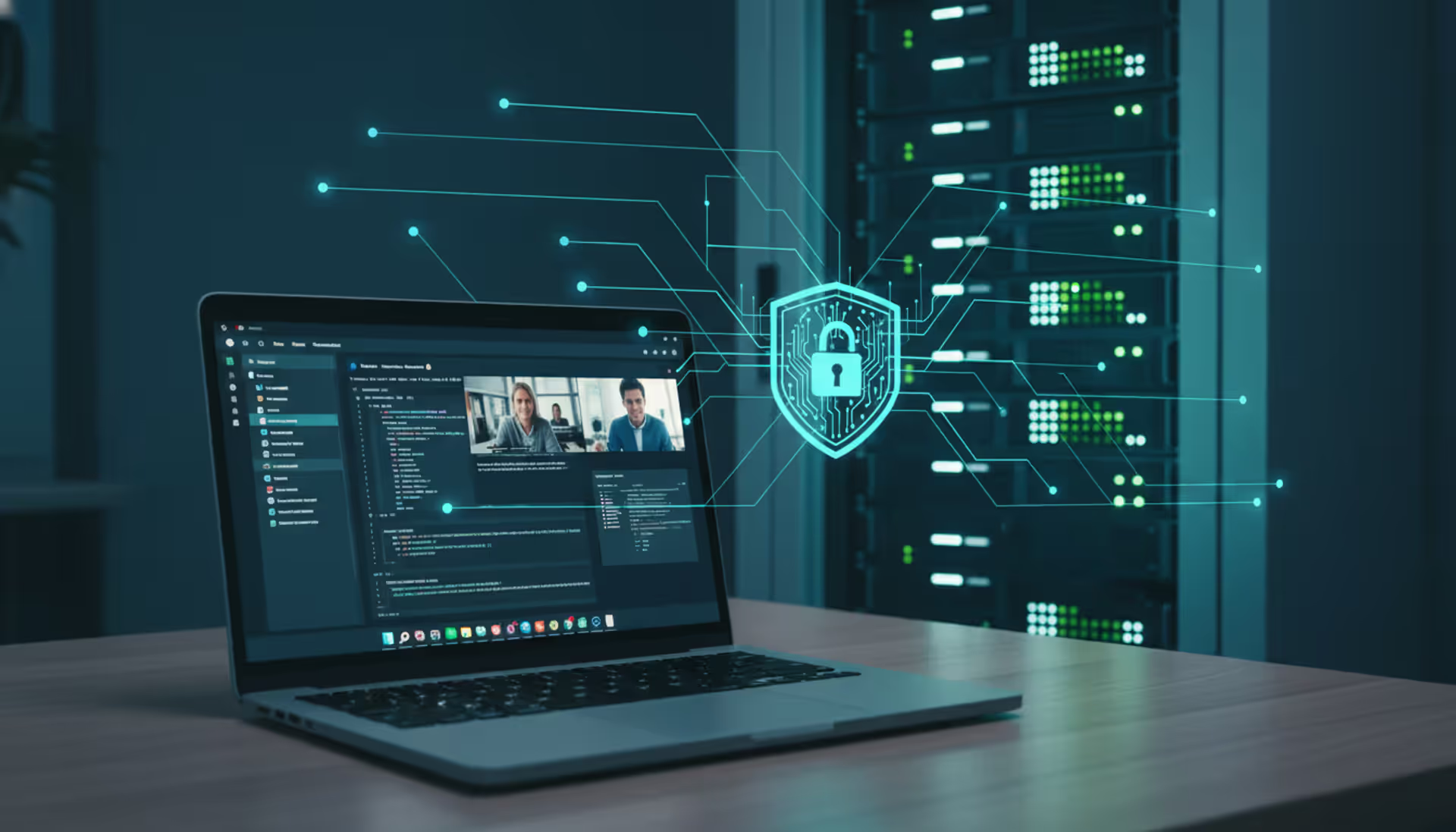
Secure remote desktop connection from home laptop to office server protected by digital shield with lock icon
Content
Your marketing director needs to access her workstation from home. Your developers want to run resource-intensive builds without lugging laptops back and forth. Your accountant just asked if he can work from his cabin next month.
Standard Remote Desktop Protocol makes this possible—but it also made headlines when Colonial Pipeline got ransomware through an exposed RDP connection. One compromised credential led to a $4.4 million payout and fuel shortages across the East Coast.
The gap between "remote desktop is enabled" and "remote desktop is actually secure" involves authentication systems, encryption standards, gateway architecture, and monitoring tools that weren't part of RDP when Microsoft designed it in 1996. You'll need more than checking a box in Windows settings.
We're covering platform selection, configuration walkthroughs, and the specific mistakes that turn remote access into attack vectors. By the end, you'll know exactly which security components matter and why skipping any of them creates risk.
Think of remote desktop as transmitting your office computer's screen to wherever you're sitting. You move the mouse, click applications, type in spreadsheets—everything happens on the office machine, but you see and control it from your laptop at the coffee shop.
Standard RDP does this with surprisingly little protection. Windows includes it for free, which explains why it's everywhere. The protocol opens port 3389 and waits for connections. No gateway. No mandatory second authentication factor. Encryption exists but uses older standards unless you manually configure better options.
Here's the problem: attackers know port 3389 means potential access. Automated tools continuously probe IP addresses looking for that open port. They'll try default credentials, leaked passwords from data breaches, or known exploits like the BlueKeep vulnerability that affected millions of Windows machines in 2019.
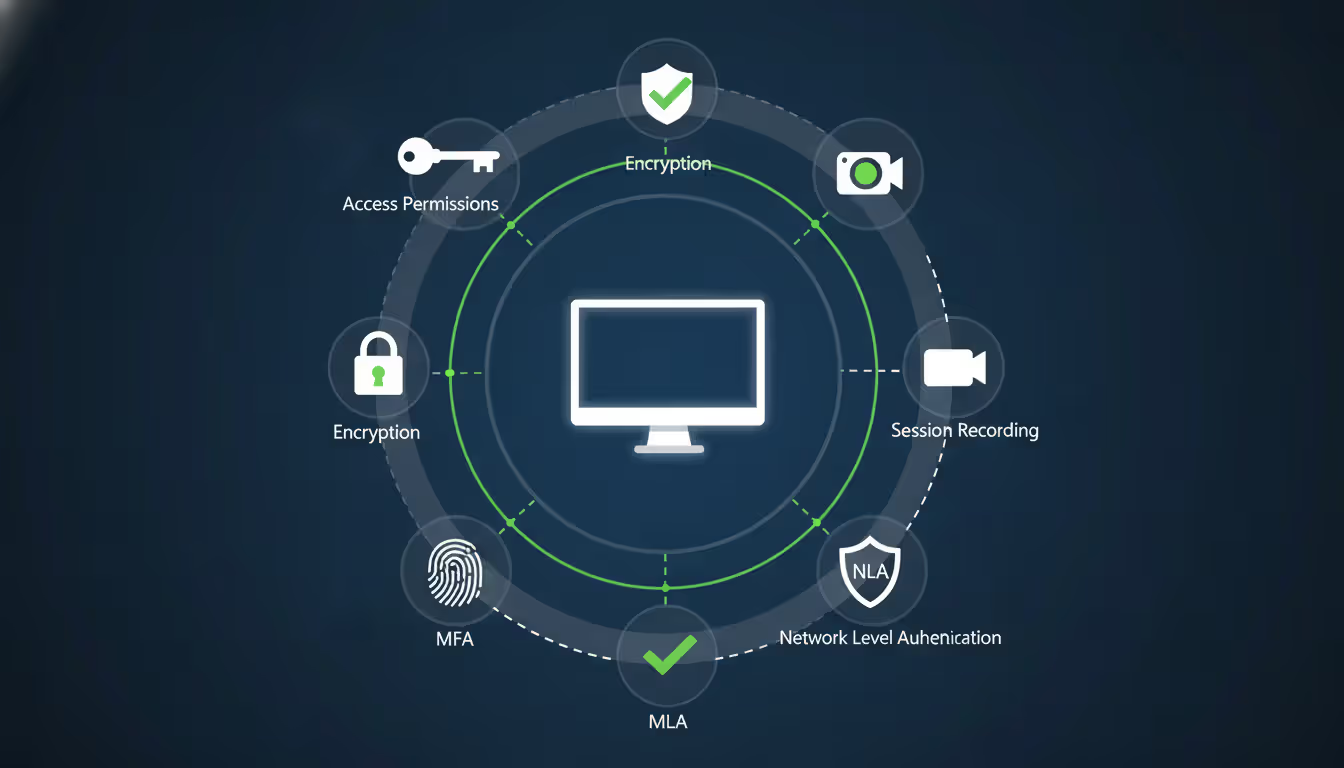
Secure implementations add protective layers RDP lacks:
Author: Rachel Denholm;
Source: milkandchocolate.net
The architecture changes too. Instead of exposing every office computer to the internet, you expose one hardened gateway. Employees authenticate there, and the gateway brokers connections to internal machines. Compromise one employee account and attackers get access to that person's workstation—not the entire network.
This matters because RDP was designed assuming connections came from trusted corporate networks. That assumption died when remote work became permanent and home networks became attack surfaces.
People confuse these constantly. Your CFO might say "we need VPN" when she really means "I need to run QuickBooks from home." Or IT might deploy remote desktop when employees actually need access to the file server.
Here's what each one actually does:
| Feature | Remote Desktop Solution | VPN Solution | Works Best For |
| What you're accessing | One specific office computer | Everything on the office network | RD: Running design software on powerful workstations; VPN: Checking documents on the file share |
| Primary use cases | Heavy applications, sensitive data that stays centralized | File servers, internal web tools, network printers | RD: Video editing that needs GPU acceleration; VPN: Viewing the company intranet |
| Where security applies | Individual session controls | Depends on the connecting device security | RD: Contractors with unknown device security; VPN: Full-time employees with managed laptops |
| Network impact | Only screen updates cross the connection | Every bit of data routes through the tunnel | RD: Slow hotel WiFi; VPN: Fast home fiber connection |
| Who manages what | IT controls the endpoint machines | Users responsible for their device security | RD: Healthcare data that can't touch personal devices; VPN: Sales team accessing CRM from anywhere |
| Typical monthly cost | $20-80 per user | $8-20 per user | RD: When compliance requires centralized data; VPN: Standard remote access needs |
Use VPN when your team needs the network itself. They're uploading files to shared drives, joining internal Teams meetings, printing to office printers, or accessing web applications hosted on local servers. The VPN makes their device function as if plugged into an office network jack.
Remote desktop makes sense when processing power or data must stay in the office. The architect running AutoCAD needs your high-end workstation's GPU. The bookkeeper accessing financial records can't have that data syncing to her personal laptop. The contractor shouldn't join your network but needs specific application access.
Many organizations run both. Someone might VPN in to access Outlook and the file server, then launch a remote desktop session to use Adobe Premiere on the editing workstation. Different tools, different security policies, different use cases.
The fundamental trade-off: VPN trusts the remote device and brings it onto your network. Remote desktop keeps everything inside your controlled environment, just sending screen images back and forth.
Requiring two forms of identification before granting access stops most credential-based attacks cold. Passwords leak constantly—data breaches dump millions monthly. But stealing someone's password doesn't help attackers if they also need the time-based code from that person's phone.
Microsoft Authenticator generates six-digit codes that change every thirty seconds. Google Authenticator does the same. Hardware tokens like YubiKeys go further—they respond to cryptographic challenges that can't be phished or intercepted because nothing crosses the network that attackers could steal.
Modern encryption scrambles everything between the employee's device and your systems. TLS 1.3 is the current standard, encrypting not just the data but connection metadata too. Nobody snooping WiFi traffic at Starbucks can tell which specific systems someone accessed or reconstruct their activity. Compare this to older SSL 3.0, which has documented vulnerabilities that let attackers decrypt traffic.
Network-level authentication creates a critical ordering change. The old way: remote desktop displays a login screen, then checks credentials. The new way: credentials get verified before establishing the full session. This matters because it eliminates an attack window where exploits could target the login process itself before any authentication happened.
Recording sessions creates video evidence of activity during connections. Yes, this raises privacy concerns—employees notice when they're recorded. But when someone's account gets compromised at 3 AM and ransomware starts spreading, those recordings show exactly what the attacker did. They're also invaluable for training, demonstrating workflows, and investigating data exfiltration claims.
Permission systems control who accesses what. Marketing shouldn't see the finance server. Contractors shouldn't access HR systems. Role-based controls assign permissions by job function automatically. Just-in-time access goes further—it grants temporary permissions for specific tasks, then automatically revokes them after two hours or when the task completes.
Port 3389 sitting open to the internet is like leaving your front door unlocked with a neon sign saying "office equipment inside." Attackers don't manually search for these—automated tools scan millions of IP addresses daily, logging every exposed RDP port they find. Then the credential stuffing begins.
Password requirements that check complexity boxes without demanding actual strength create false security. "Winter2024!" meets most policies—uppercase, lowercase, number, symbol—but appears in password cracking dictionaries. Four random words like "envelope-parakeet-dashboard-saxophone" provides more entropy and greater memorability.
Skipping patches means vulnerabilities stay exploitable long after fixes ship. BlueKeep let attackers execute code remotely without any credentials whatsoever. Microsoft released patches in May 2019. Security researchers found over 900,000 systems still vulnerable months later. Those organizations essentially gave attackers permission to walk in.
Flat network architecture means compromising one system compromises everything. The intern's remote desktop session shouldn't provide a path to the database server. Proper segmentation isolates systems by function and sensitivity—development separated from production, finance separated from marketing.
We investigate dozens of ransomware incidents yearly. At least 60% trace back to compromised RDP credentials or unpatched vulnerabilities. Organizations deploy expensive security tools while leaving port 3389 exposed with weak passwords. It's like installing a vault door but leaving the window open
— Marcus Chen
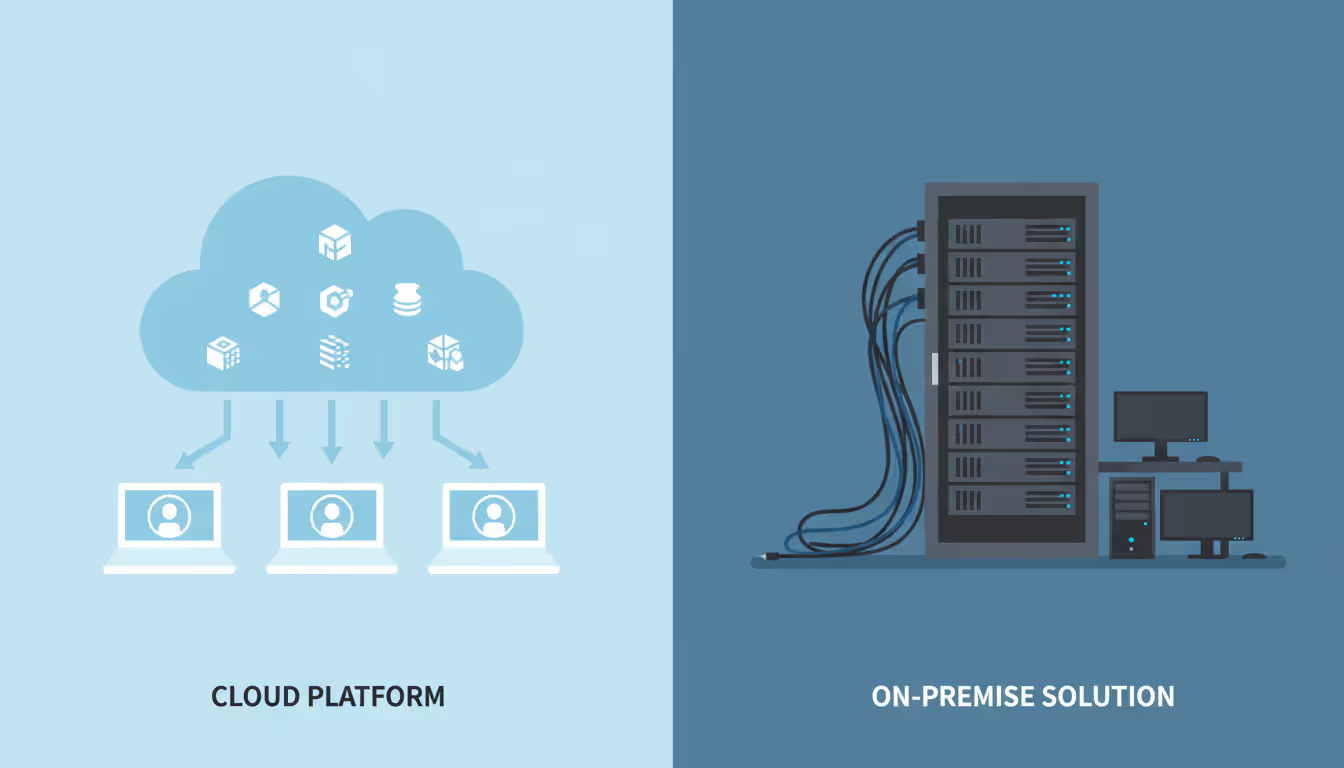
Cloud platforms like AWS WorkSpaces or Azure Virtual Desktop eliminate infrastructure headaches. No servers to buy, no hardware to maintain, no patches to schedule manually. You pay monthly per user and Microsoft or Amazon handles the rest. This works brilliantly for companies under 100 employees or those without dedicated IT infrastructure teams.
On-premise solutions like Citrix Virtual Apps give you complete control. Data never leaves your building. You configure every detail exactly how you want. You integrate with existing systems without vendor API limitations. But you're buying servers, managing updates, and handling 3 AM outages yourself.
Pricing models hide costs if you don't calculate carefully. Per-concurrent-user pricing seems cheap until you realize everyone logs in between 8-10 AM. Twenty concurrent licenses for a 50-person company means thirty people waiting in queue every morning. Per-named-user pricing costs more upfront but eliminates contention.
Author: Rachel Denholm;
Source: milkandchocolate.net
Think through actual usage patterns. If you run three shifts and workers never overlap, concurrent licensing saves money. If everyone works 9-5 simultaneously, named licensing costs less overall.
Integration complexity determines how fast you'll deploy. Can the platform authenticate against your existing Active Directory? Does it work with your current MFA system? Will it run alongside your endpoint protection software? Platforms requiring separate user databases and parallel authentication systems create administrative nightmares and security gaps where credentials don't match.
Compliance requirements aren't optional. Healthcare organizations must verify HIPAA compliance—which means encryption at rest, audit logging with specific retention periods, and business associate agreements. Financial services need SOC 2 Type II attestation. Government contractors need FedRAMP authorization. These certifications take vendors months or years to achieve, so "we're working on it" isn't acceptable.
Calculate total three-year cost including:
A platform charging $35 monthly per user but requiring minimal implementation might cost less over three years than a $25 per user platform needing $40,000 in professional services to deploy correctly.
Start by cataloging what actually needs remote access. Which applications run on which servers? What data lives where? Who needs to access what? This sounds obvious but organizations routinely expose systems nobody uses remotely, creating unnecessary attack surface.
Classify data by sensitivity. Customer credit card numbers demand different protection than marketing slide decks. Financial forecasts need tighter controls than product brochures. Map these classifications to systems so you know which machines require the strongest security configurations.
Document compliance obligations affecting remote access. HIPAA requires audit logs showing who accessed patient records. PCI-DSS requires multi-factor authentication for cardholder data access. GDPR affects personal data processing regardless of where employees sit. These requirements shape configuration decisions.
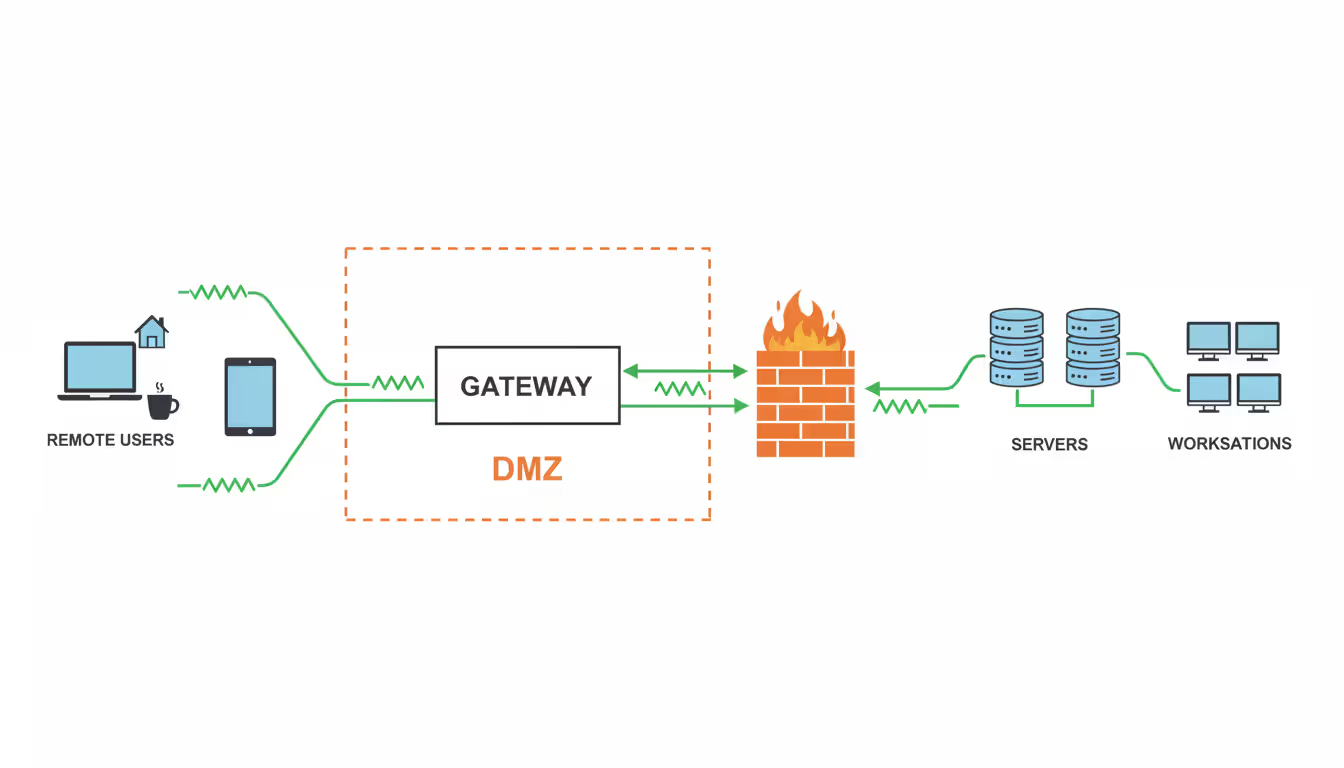
Gateway placement matters enormously. Position it in a DMZ—a network segment isolated from both the internet and your internal systems. This creates two security boundaries an attacker must cross. The gateway authenticates users and brokers connections but doesn't directly touch sensitive data.
Configure the gateway to accept connections only from expected sources when possible. If employees have static IP addresses at home, whitelist those. For dynamic IPs, implement device certificates that authenticate the employee's laptop itself before accepting the connection.
Author: Rachel Denholm;
Source: milkandchocolate.net
For the actual workstations people will access remotely:
Testing catches problems before employees discover them frustrated and late for deadlines. Create test accounts matching your different role types—manager, regular employee, contractor. Try connecting from home networks, coffee shops, hotels. Attempt bypassing MFA to verify it's actually enforced, not just enabled but optional.
Test session timeouts by walking away. Verify you get disconnected automatically. Simulate network interruptions by toggling WiFi off and on to confirm reconnection behavior works smoothly.
Load testing prevents launch-day disasters. Simulate fifty simultaneous connections if that's your expected peak. A system performing beautifully for three users might crawl when thirty connect. Better to discover this during testing than during your product launch when everyone needs access simultaneously.
Employee training shouldn't be a PDF attachment. Schedule live sessions where people install software, configure MFA, and practice connecting while you're available to help. Record these sessions for people who miss them or need refreshers later.
Cover the practical details:
Create quick-reference guides with screenshots. A two-page PDF showing the five-step connection process prevents repeated support calls.
Leaving 3389 exposed to the internet invites constant attack traffic. Bots scan every IPv4 address daily, logging exposed RDP ports. They'll hammer your server with login attempts using credential databases from old breaches. Even with strong passwords and MFA, why absorb this attack load? Change the port and hide systems behind a gateway.
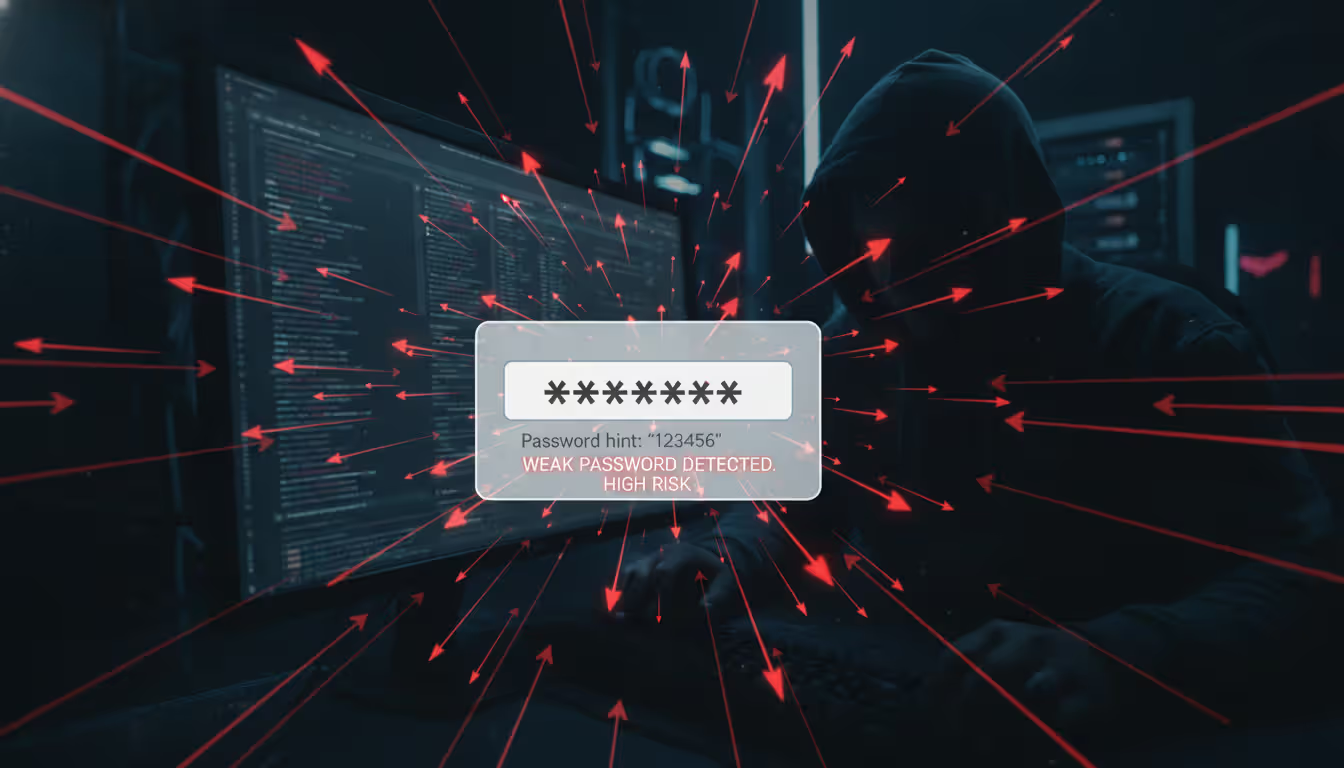
Password policies that require "one uppercase, one number, one symbol" while allowing short passwords create weakness masquerading as security. "Password1!" meets the requirements. It's also in every password cracker's dictionary. Better approach: require fifteen characters minimum or three random unrelated words. Implement password managers so employees don't resort to reusing the same password everywhere.
Author: Rachel Denholm;
Source: milkandchocolate.net
Organizations skip patches for ridiculous reasons—"we can't schedule downtime" or "that system runs legacy software." Meanwhile, exploit code for known vulnerabilities circulates freely online. Enable automatic updates for client software. Schedule monthly maintenance windows for servers. Subscribe to vendor security bulletins to learn about critical vulnerabilities requiring immediate attention.
Missing logs blind you during incidents. You can't detect compromises you can't see. You can't investigate breaches without evidence. Configure logging to capture:
Store these logs on a separate system with different credentials. Otherwise, attackers who compromise remote desktop can erase evidence of their activity.
Ignoring endpoint security on the devices people use to connect creates backdoors. If someone's laptop runs malware, that malware can capture credentials, hijack sessions, or spread to systems accessed remotely. Require endpoint protection software that actually works—not just installed but running with current definitions. Consider endpoint detection and response tools that identify suspicious behavior patterns, not just known malware signatures.
Secure remote desktop evolved from convenience feature into business requirement over the past few years. But scanning Reddit's sysadmin forums reveals horror stories weekly—ransomware spreading through exposed RDP, stolen credentials from missing MFA, or breaches through systems nobody remembered to patch.
Implementation quality matters more than feature lists. The most expensive platform won't protect you from leaving default ports exposed, skipping multi-factor authentication during deployment, or ignoring patches for six months.
Begin with honest assessment of what systems need remote access and what data requires protection. Choose platforms matching your compliance requirements and IT team capabilities—cloud-based for smaller organizations without infrastructure depth, on-premise when data location control matters more than convenience. Then implement every security layer we've covered: gateway architecture, multi-factor authentication, current encryption, network-level authentication, session monitoring, and proper network segmentation.
Most critically, treat this as ongoing security practice rather than one-time project. Review access logs weekly for geographic anomalies or unusual timing patterns. Test configurations quarterly by attempting to bypass security controls. Update policies as new attack techniques emerge. Train employees continuously because even the strongest technical controls fail when someone clicks the phishing link and hands over their credentials.
Companies succeeding with remote work don't just enable remote access. They secure it properly from the beginning, then maintain that security as threats evolve.
Understand SSL and TLS port numbers for secure communication. Covers port 443 for HTTPS, 465/587 for email, 993/995 for IMAP/POP3, plus configuration, troubleshooting, and hardening best practices for system administrators
Self hosted cloud storage puts you in complete control of your data. This guide explains what self hosting means, compares costs against commercial services, reviews popular platforms like Nextcloud and Syncthing, and walks through setup steps for building your own private cloud in 2026
Discover how to scan your network for connected devices and IP addresses. This comprehensive guide covers built-in tools, desktop software, mobile apps, and online scanners with step-by-step instructions for identifying every device on your home or office network
Remote computer management enables access and control of systems from any location. This comprehensive guide covers remote login processes, cross-network connections, security best practices, and troubleshooting common issues for both businesses and individuals
The content on this website is provided for general informational purposes only. It is intended to offer insights, commentary, and analysis on cloud computing, network infrastructure, cybersecurity, and IT solutions, and should not be considered professional, technical, or legal advice.
All information, articles, and materials presented on this website are for general informational purposes only. Technologies, standards, and best practices may vary depending on specific environments and may change over time. The application of any technical concepts depends on individual systems, configurations, and requirements.
This website is not responsible for any errors or omissions in the content, or for any actions taken based on the information provided. Users are encouraged to seek qualified professional advice tailored to their specific IT infrastructure, security, and business needs before making decisions.