

SSL TLS Port Guide
Understand SSL and TLS port numbers for secure communication. Covers port 443 for HTTPS, 465/587 for email, 993/995 for IMAP/POP3, plus configuration, troubleshooting, and hardening best practices for system administrators
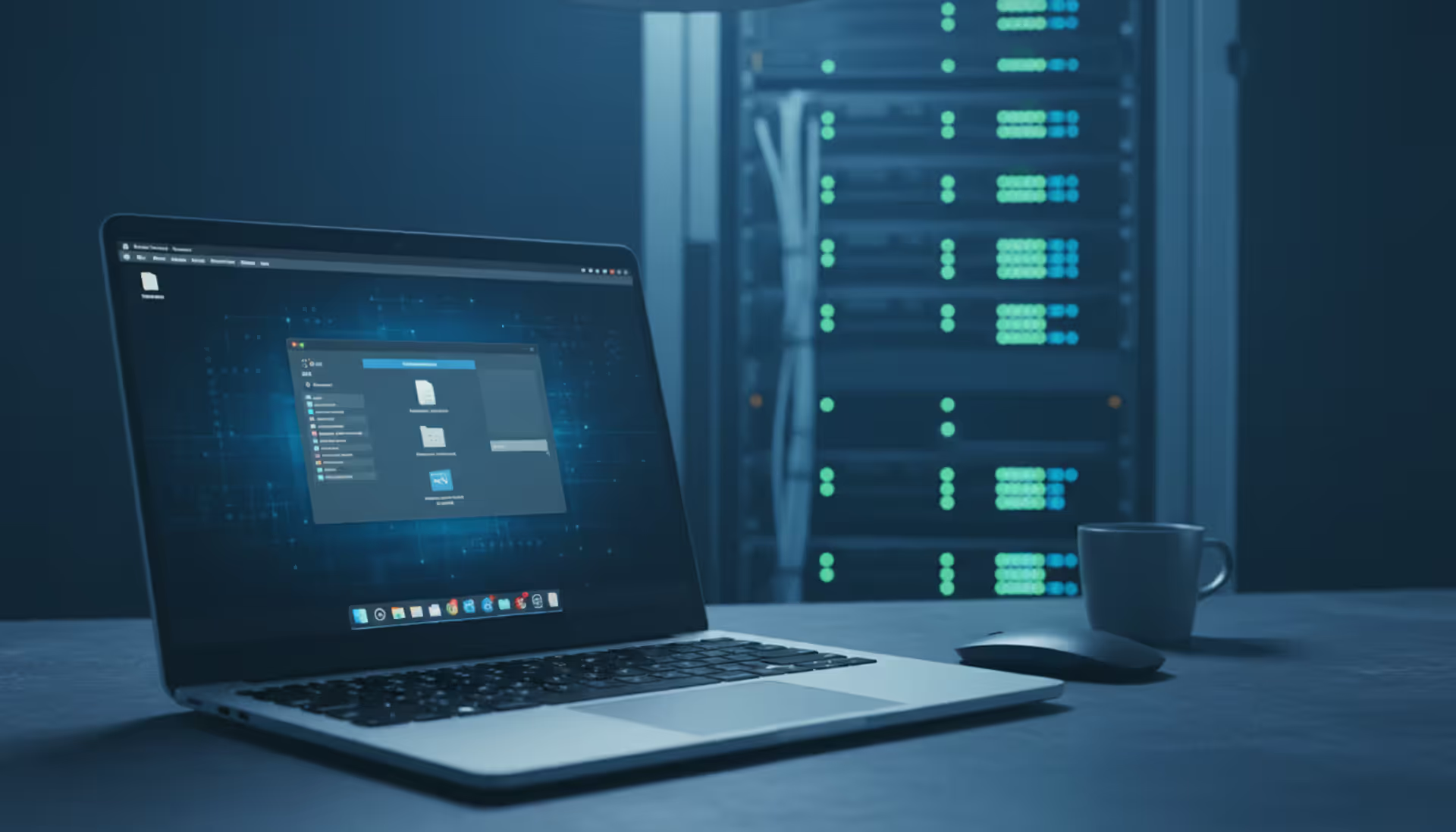
Laptop screen showing remote desktop connection to a distant server in a modern tech workspace with server rack in the background
Content
Remote computer management has become essential infrastructure for businesses and individuals who need to access systems across distances. Whether you're an IT administrator maintaining servers in multiple data centers or a freelancer accessing your home workstation from a coffee shop, understanding how remote access works and how to implement it securely determines whether you'll work efficiently or spend hours troubleshooting connection failures.
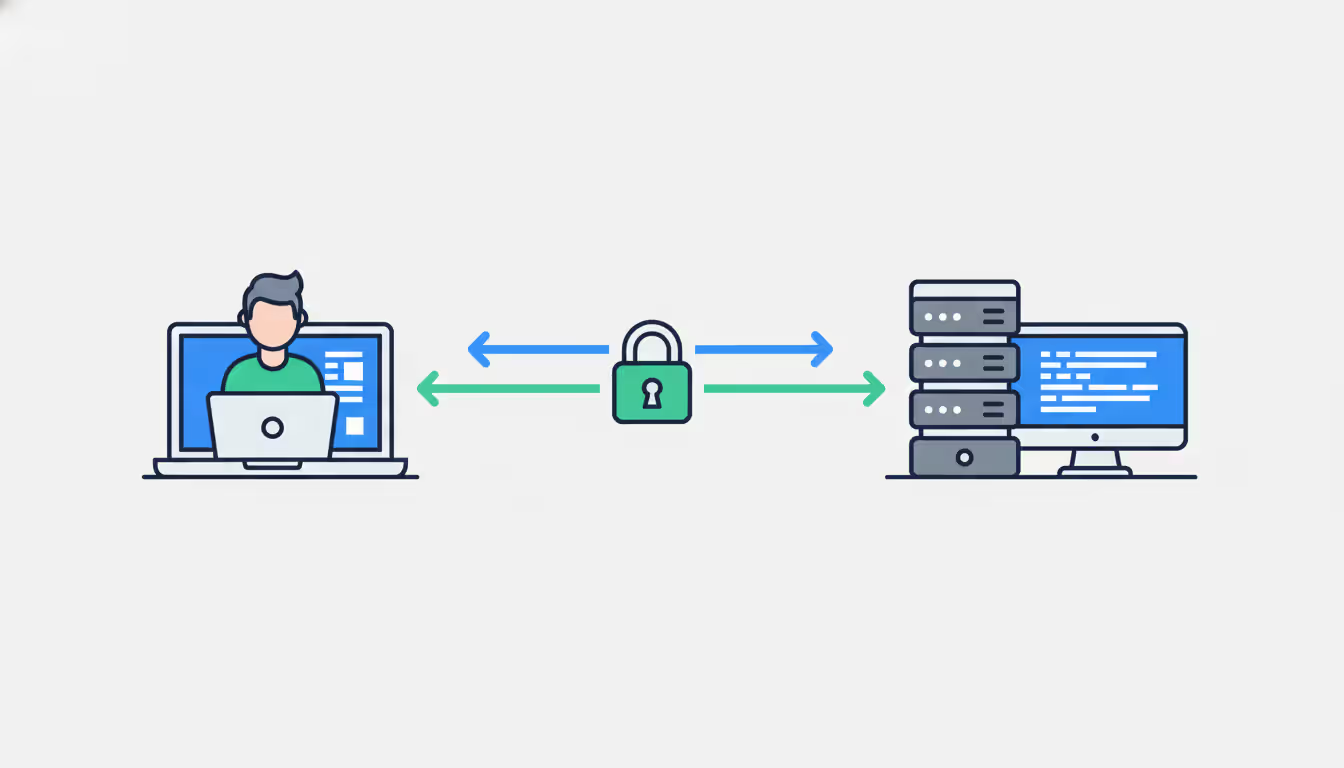
Remote computer management refers to the ability to access, control, and administer a computer system from a different physical location. The "remote computer" is the target machine you're connecting to, while the local computer is the device you're using to establish the connection. During a remote session, your keyboard inputs, mouse movements, and commands are transmitted over a network to the remote system, which executes them and sends back visual feedback to your screen.
A system qualifies as a remote computer when it's accessible through network protocols rather than direct physical interaction. This could be a desktop in the next room or a server on another continent—the defining characteristic is network-based access rather than proximity.
Businesses use remote computer management for several critical functions. IT departments troubleshoot employee computers without visiting desks, reducing resolution times from hours to minutes. System administrators manage hundreds of servers from centralized locations, applying updates and monitoring performance without entering server rooms. Development teams access build servers and testing environments from home offices. Customer support technicians demonstrate solutions by temporarily controlling customer machines.
Individuals rely on remote access to retrieve files from home computers while traveling, help elderly relatives fix computer problems from across the country, or access powerful desktop workstations from lightweight laptops. Freelancers maintain access to client systems for ongoing maintenance contracts. Students connect to university lab computers with specialized software unavailable on personal devices.
The technology eliminates geographic constraints on computer use. A graphic designer can start a rendering job on a powerful home workstation before leaving for meetings, then check progress from a tablet. An accountant can access tax software installed on an office computer during evening hours from home. These scenarios were once impossible or required expensive dedicated hardware.
When you initiate a remote computer login, several technical processes happen in rapid sequence. First, your client software contacts the remote computer using its IP address or hostname. The remote system runs a service (daemon or server process) that listens for incoming connection requests on specific network ports—typically port 3389 for RDP, 5900 for VNC, or 22 for SSH.
The initial handshake establishes communication parameters. Both systems negotiate encryption methods, compression algorithms, and authentication requirements. Modern protocols use TLS or SSH encryption to create secure tunnels that prevent eavesdropping on the connection.
Authentication comes next. You provide credentials—username and password, security key, biometric data, or multi-factor authentication tokens. The remote system verifies these credentials against its user database or directory service. Some systems implement certificate-based authentication where cryptographic keys replace passwords entirely, offering stronger security against brute-force attacks.
Once authenticated, the remote system grants you a session. It begins capturing screen updates and transmitting them to your local device. Simultaneously, it receives your input commands—keystrokes, mouse movements, clicks—and applies them as if you were sitting at the physical keyboard. This bidirectional data stream continues throughout your session.
The remote system doesn't send complete screenshots continuously, which would consume excessive bandwidth. Instead, it transmits only changed screen regions. If you're typing in a document, only the text area updates get sent. If nothing changes, minimal data flows. This differential encoding makes remote access practical even on slower connections.
Session protocols handle network interruptions differently. Some maintain session state on the server, allowing you to reconnect after brief disconnections without losing your work. Others terminate sessions immediately when connections drop, requiring fresh authentication. Understanding these behaviors helps you choose appropriate tools for unstable network conditions.
Author: Nicole Bramwell;
Source: milkandchocolate.net
Accessing another computer on your local network requires enabling remote access features on the target machine and using compatible client software. Windows includes Remote Desktop built into Professional and Enterprise editions. On the target Windows computer, open System Properties, select the Remote tab, and enable "Allow remote connections to this computer." Note the computer name displayed—you'll need this for connecting.
From your local Windows machine, launch Remote Desktop Connection from the Start menu. Enter the target computer's name or IP address. Click Connect, then provide credentials for a user account on the remote machine. The remote desktop appears in a window or full-screen, depending on your display settings.
Mac systems include Screen Sharing, Apple's implementation of VNC. On the target Mac, open System Settings, navigate to General > Sharing, and enable Screen Sharing. Note the VNC address displayed. From another Mac, open Finder, select Go > Connect to Server, and enter the VNC address. Authenticate with a user account on the target Mac.
For cross-platform access, third-party tools offer broader compatibility. TeamViewer installs on both computers, generates a unique ID for the remote machine, and establishes connections through TeamViewer's cloud infrastructure—no network configuration required. You provide the remote computer's ID and password to establish the session.
Chrome Remote Desktop works through Google's servers and requires only a Chrome browser or Chromebook. Install the extension on both computers, enable remote connections on the target machine with a PIN, and connect from any device signed into the same Google account. This approach works particularly well for helping less technical users since they only need to install one extension.
Common mistakes include forgetting to enable remote access features before leaving the remote location, using incorrect computer names (the device hostname differs from what you call it), and attempting connections with user accounts that lack remote access permissions. Windows Home editions don't include Remote Desktop server functionality—you can connect from Home editions but not to them without third-party software.
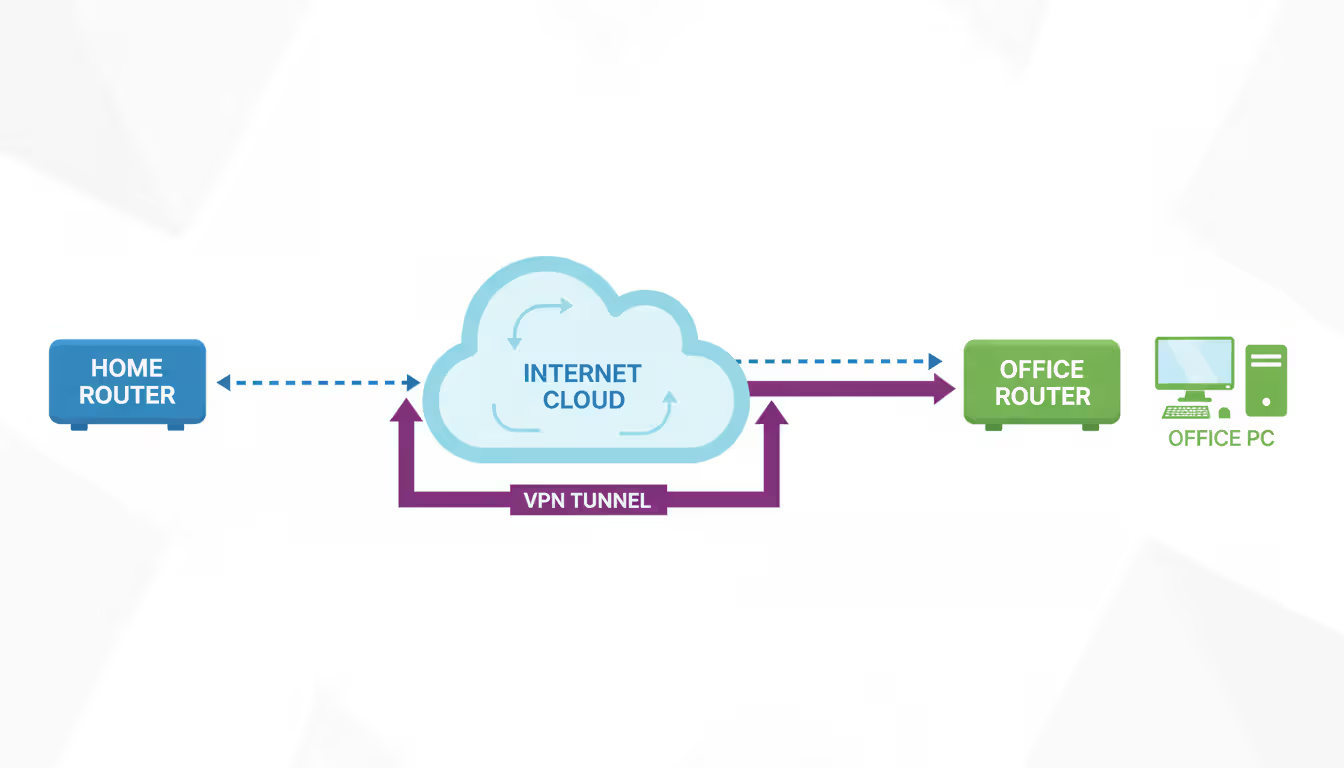
Connecting across different networks introduces complexity because residential and corporate networks use private IP addresses invisible to the broader internet. Your home computer might have IP address 192.168.1.100 on your local network, but that address means nothing outside your home. Three main approaches solve this problem.
Port forwarding configures your router to forward incoming connections on specific ports to designated internal computers. Access your router's administration interface (usually at 192.168.0.1 or 192.168.1.1), locate the port forwarding section, and create a rule forwarding external port 3389 (or a custom port for security) to your remote computer's internal IP address and port 3389. You'll need your public IP address—search "what is my IP" from the target location to find it. Connect using this public IP address from the external network.
Security concerns with port forwarding are significant. You're exposing your computer directly to internet traffic, making it vulnerable to automated attacks scanning for open remote desktop ports. Always change default ports, use strong passwords, and consider restricting access to specific source IP addresses if you'll connect from predictable locations.
VPN solutions create encrypted tunnels between networks, making external devices appear as if they're on the local network. Configure a VPN server on your home router (many modern routers include this feature) or install VPN server software on a computer that stays powered on. From remote locations, connect to the VPN first, then use local network methods to access computers. This approach provides better security than port forwarding and simplifies access to multiple computers.
Cloud-based remote access platforms eliminate network configuration entirely. Services like TeamViewer, AnyDesk, and Chrome Remote Desktop maintain persistent connections from your computer to their cloud servers. When you initiate a connection, their infrastructure brokers the session between your devices without requiring open ports or VPN setup. The trade-off is dependence on third-party services and potential privacy concerns about routing your connection through external servers.
Dynamic DNS services solve the problem of changing public IP addresses. Most residential internet connections use dynamic IPs that change periodically. Install a DDNS client on your home network that updates a hostname (like yourname.ddns.net) whenever your IP changes. Connect using the hostname instead of remembering IP addresses.
Firewall configuration requires attention on both the router and the remote computer. Windows Firewall blocks Remote Desktop by default on public networks. Verify that appropriate rules exist allowing your remote access software. Corporate networks often block outbound connections on remote desktop ports, preventing you from initiating sessions from office computers to home systems.
Author: Nicole Bramwell;
Source: milkandchocolate.net
Different remote access protocols serve distinct purposes with varying performance and security characteristics. Understanding these differences helps you select appropriate tools.
Remote Desktop Protocol (RDP), developed by Microsoft, provides full remote control of Windows systems with excellent performance. It efficiently transmits screen updates, supports audio redirection, allows printer and drive sharing, and handles multiple monitors. RDP works best on reliable networks with decent bandwidth. The protocol includes strong encryption but historically has been targeted by attackers, requiring careful security configuration.
Virtual Network Computing (VNC) offers cross-platform compatibility with implementations available for Windows, Mac, Linux, and mobile devices. VNC performance varies by implementation—some versions handle screen updates less efficiently than RDP. Security depends on the specific VNC software; many implementations require SSH tunneling or VPN for secure connections over the internet.
Secure Shell (SSH) provides command-line access to remote systems, primarily used for Linux and Unix servers. While SSH doesn't transmit graphical interfaces by default, it can tunnel X11 graphics or establish port forwards for accessing other services. SSH is the standard for server administration, offering robust security through public key authentication.
Cloud-based platforms like TeamViewer, AnyDesk, and Chrome Remote Desktop prioritize ease of use over raw performance. They handle NAT traversal automatically, work across different networks without configuration, and provide reasonable performance for typical office applications. Latency is sometimes higher than direct protocols due to cloud routing.
| Software | Cost | Platforms | Setup Difficulty | Security Features | Best Use Case |
| Microsoft Remote Desktop | Free (included with Windows Pro+) | Windows, Mac, iOS, Android | Medium (requires network config for internet access) | TLS encryption, NLA, MFA support | Windows-to-Windows on business networks |
| TeamViewer | Free personal / $50+/month business | Windows, Mac, Linux, iOS, Android, Chrome | Easy (cloud-based, no config) | 256-bit AES, 2FA, device authentication | Cross-platform, helping remote users |
| AnyDesk | Free personal / $11+/month professional | Windows, Mac, Linux, iOS, Android, Chrome | Easy (cloud-based) | TLS 1.2, RSA 2048 asymmetric encryption | Lightweight alternative to TeamViewer |
| Chrome Remote Desktop | Free | Windows, Mac, Linux, Chrome OS | Easy (requires Chrome browser) | SSL encryption, PIN authentication | Quick access from Chromebooks, casual use |
| VNC (RealVNC) | Free basic / $40+/year | Windows, Mac, Linux, Raspberry Pi | Medium (requires network knowledge) | 256-bit AES, cloud or direct connection | Cross-platform, Raspberry Pi projects |
Performance differences become noticeable during graphics-intensive tasks. RDP handles video playback and scrolling better than VNC. Cloud-based solutions introduce additional latency—typically 20-100ms depending on routing—which affects responsiveness during fast typing or precise mouse work.
Bandwidth requirements vary significantly. RDP typically uses 150-500 Kbps for office work, spiking to several Mbps during screen updates with lots of motion. VNC often requires more bandwidth for similar quality. Cloud platforms add overhead for their routing infrastructure. SSH uses minimal bandwidth since it only transmits text.
Securing remote computer connections requires multiple defensive layers. Single-factor authentication with passwords alone invites compromise—automated attacks continuously probe exposed remote desktop services with common credentials.
Implement multi-factor authentication (MFA) on all remote access systems. Windows Remote Desktop supports MFA through Network Level Authentication combined with Azure AD or third-party authentication providers. VPN services should require both passwords and time-based tokens or authenticator apps. Cloud platforms like TeamViewer include two-factor authentication options—enable them.
Use strong, unique passwords for remote access accounts, ideally generated and stored in password managers. Avoid reusing passwords across systems. Consider certificate-based authentication for SSH and RDP, which eliminates password-based attacks entirely. Certificates require both the correct private key file and typically a passphrase, providing stronger security.
Change default ports for remote access services. RDP's port 3389 receives constant automated attacks. Changing to a non-standard port (like 33891) dramatically reduces attack traffic, though security through obscurity shouldn't be your only defense. Similarly, move SSH from port 22 to a higher port number.
Implement IP address whitelisting when you connect from predictable locations. Configure firewalls to accept remote desktop connections only from your office IP range or VPN subnet. This prevents attackers from reaching your remote access services even if they discover your IP address and port.
Keep remote access software updated. Security vulnerabilities in remote desktop protocols are discovered regularly. Windows updates patch RDP flaws; third-party software releases security updates. Enable automatic updates or check monthly for new versions.
Monitor remote access logs for suspicious activity. Windows Event Viewer records failed login attempts and successful remote sessions. Review these logs periodically for unfamiliar IP addresses or login attempts at unusual hours. Many attacks begin with reconnaissance—repeated failed logins probing for weak passwords.
Limit remote access permissions to specific user accounts. Don't enable remote access for accounts with administrative privileges unless necessary. Create separate accounts for remote access with minimal required permissions, reducing damage if credentials are compromised.
Use VPNs instead of direct internet exposure when possible. VPN connections encrypt all traffic and hide your internal network structure from external observers. Even if remote desktop traffic is encrypted, VPNs provide an additional security layer and simplify firewall rules.
The biggest security mistake I see is organizations enabling remote desktop without implementing multi-factor authentication.A single compromised password becomes a direct path into your network. MFA stops 99% of automated attacks immediately. The minor inconvenience of an authentication code is trivial compared to the cost of a security breach
— Jennifer Martinez
Disable remote access when not needed. If you only require remote access during business hours, configure services to stop outside those times. Laptops taken on travel should disable remote access features until returned to secure networks.
Connection failures frustrate users attempting remote access. The most common cause is incorrect network configuration. Verify the target computer is powered on and connected to the network—remote access cannot wake sleeping computers unless Wake-on-LAN is configured. Confirm the remote access service is running; Windows Remote Desktop service sometimes stops after updates.
Firewall blocking causes many failed connections. Both the target computer's local firewall and network firewalls must allow traffic on the remote access port. Test by temporarily disabling the Windows Firewall on the target computer (only for testing on trusted networks). If connections succeed with the firewall disabled, create appropriate allow rules rather than leaving it off.
Authentication errors usually indicate incorrect credentials or permission issues. Verify you're using the correct username format—Windows often requires DOMAIN\username or username@domain.com for domain accounts. Ensure the account has remote access permissions; Windows restricts Remote Desktop to administrators and users specifically granted access.
Latency and lag make remote sessions frustrating. High latency stems from network congestion, long geographic distances, or insufficient bandwidth. Test your connection speed—remote desktop requires stable connections more than high bandwidth. Reduce quality settings in your remote desktop client; lower color depth and disable visual effects improve responsiveness. Close bandwidth-intensive applications like video streaming on both computers.
Black screens after connecting indicate display driver issues or session configuration problems. Press Ctrl+Alt+End (the remote equivalent of Ctrl+Alt+Delete) to access Task Manager and restart explorer.exe. Update graphics drivers on the remote computer. Some remote desktop software conflicts with hardware acceleration—disable it in display settings.
"Connection timed out" errors suggest network routing problems. Verify you're using the correct IP address or hostname. Test basic connectivity with ping commands. Check that port forwarding rules use the correct internal IP address—DHCP might have assigned a different address to the target computer. Consider assigning static IP addresses to computers requiring remote access.
VPN connection issues often relate to authentication or routing configuration. Verify VPN credentials are correct and the VPN server is accessible. Some networks block VPN protocols; try different protocols (OpenVPN, L2TP, IKEv2) if one fails. After connecting to VPN, you might need to access computers using their internal network names rather than IP addresses.
Clipboard sharing failures prevent copying and pasting between local and remote computers. This feature requires specific configuration in remote desktop clients. In Microsoft Remote Desktop, clipboard redirection is enabled in the Local Resources tab. Some organizations disable clipboard sharing for security reasons—check with IT departments if it's unavailable.
Audio not working remotely indicates disabled audio redirection. Remote Desktop supports audio playback on the local computer, but this feature must be enabled in connection settings. High-quality audio increases bandwidth usage; select lower quality if connections are slow.
Disconnections during sessions suggest network instability or timeout settings. Configure your remote desktop client to reconnect automatically after disconnections. Adjust idle timeout settings on the remote computer to prevent sessions from terminating during periods of inactivity. Some VPN connections drop after fixed time periods—check VPN timeout settings.
Multiple monitor support requires specific configuration. Remote Desktop Protocol supports multiple monitors, but you must enable this in advanced settings before connecting. Not all remote access software handles multiple monitors well—test different tools if this feature is critical.

Author: Nicole Bramwell;
Source: milkandchocolate.net
Remote computer management transforms how we work with distributed systems, enabling access to computing resources regardless of physical location. Success depends on understanding the technical foundations—how authentication works, which protocols suit your needs, and how to configure networks for secure access across the internet.
The choice between built-in tools like Remote Desktop and third-party solutions depends on your specific requirements. Cross-platform access, ease of setup, and connection reliability matter more than feature lists for most users. Security cannot be an afterthought—multi-factor authentication, strong passwords, and regular updates protect against the constant threat of unauthorized access attempts.
Implementation challenges are normal. Network configuration requires patience and systematic troubleshooting. Start with local network access to verify basic functionality before attempting internet connections. Document your configuration—IP addresses, port numbers, and authentication details—to simplify future troubleshooting.
Remote access has evolved from a specialized IT tool to everyday technology. Whether you're managing servers, accessing work files from home, or helping relatives fix computer problems, the principles remain consistent: secure authentication, reliable connectivity, and appropriate tools for your use case. Master these fundamentals, and geographic distance becomes irrelevant to your computing capabilities.
Understand SSL and TLS port numbers for secure communication. Covers port 443 for HTTPS, 465/587 for email, 993/995 for IMAP/POP3, plus configuration, troubleshooting, and hardening best practices for system administrators
Self hosted cloud storage puts you in complete control of your data. This guide explains what self hosting means, compares costs against commercial services, reviews popular platforms like Nextcloud and Syncthing, and walks through setup steps for building your own private cloud in 2026
Remote work demands more than enabling RDP. This comprehensive guide covers secure remote desktop implementation, from choosing the right platform to configuring multi-factor authentication, encryption, and monitoring. Learn the differences between remote desktop and VPN, avoid common security mistakes, and follow step-by-step setup procedures
Discover how to scan your network for connected devices and IP addresses. This comprehensive guide covers built-in tools, desktop software, mobile apps, and online scanners with step-by-step instructions for identifying every device on your home or office network
The content on this website is provided for general informational purposes only. It is intended to offer insights, commentary, and analysis on cloud computing, network infrastructure, cybersecurity, and IT solutions, and should not be considered professional, technical, or legal advice.
All information, articles, and materials presented on this website are for general informational purposes only. Technologies, standards, and best practices may vary depending on specific environments and may change over time. The application of any technical concepts depends on individual systems, configurations, and requirements.
This website is not responsible for any errors or omissions in the content, or for any actions taken based on the information provided. Users are encouraged to seek qualified professional advice tailored to their specific IT infrastructure, security, and business needs before making decisions.