

SSL TLS Port Guide
Understand SSL and TLS port numbers for secure communication. Covers port 443 for HTTPS, 465/587 for email, 993/995 for IMAP/POP3, plus configuration, troubleshooting, and hardening best practices for system administrators
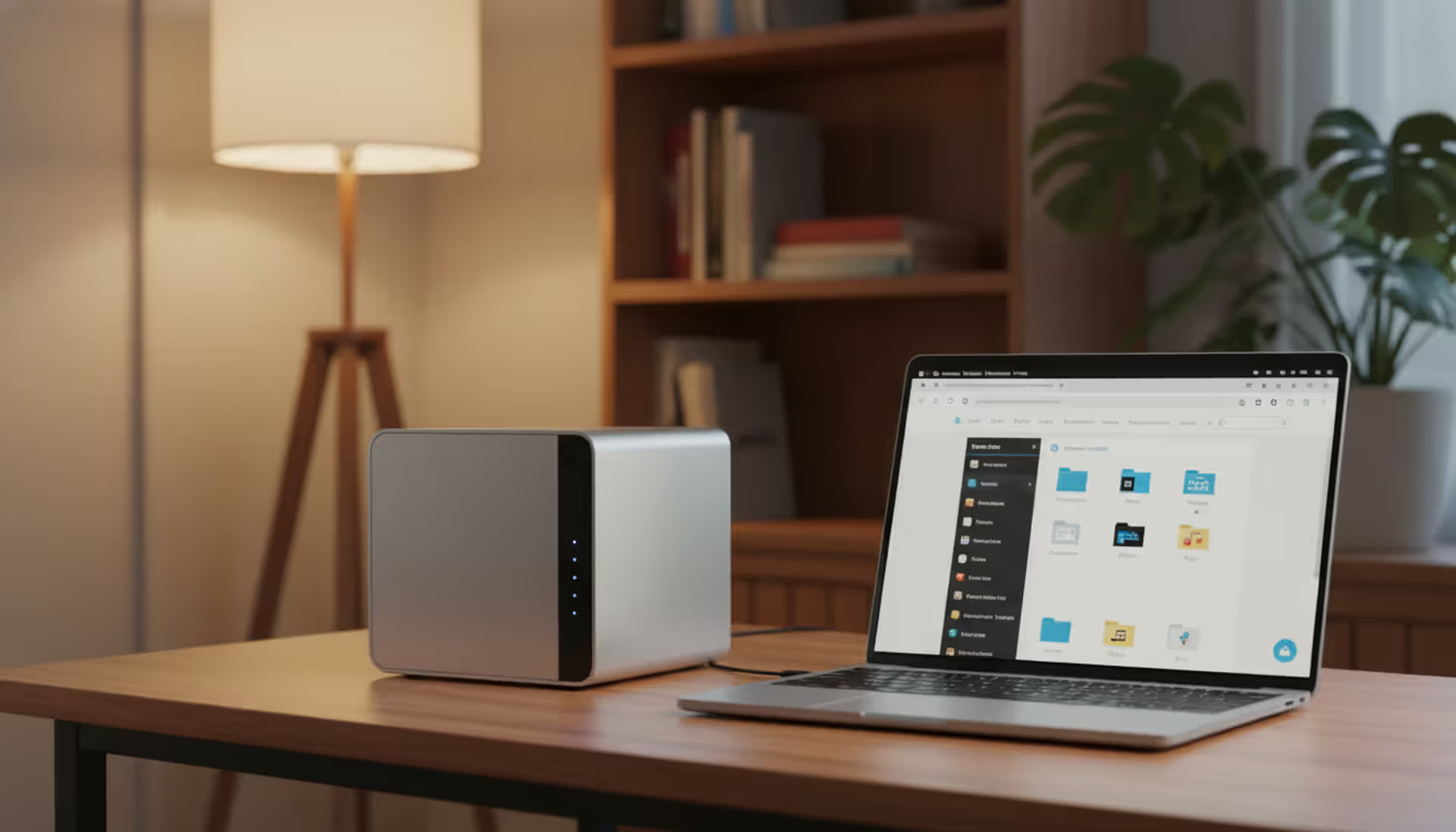
A compact home server and NAS device on a wooden desk next to an open laptop showing a file management dashboard in a cozy home office setting
Content
When you upload files to Dropbox or Google Drive, those companies decide where your data lives, who can access it, and how long it stays available. Self hosted cloud storage flips that model entirely—you own the hardware, control the software, and make every decision about your data's future.
This shift matters more in 2026 than ever before. Privacy regulations have tightened, commercial cloud providers have raised prices repeatedly, and data breaches continue making headlines. Running your own cloud storage isn't just for tech enthusiasts anymore; small businesses, families, and privacy-conscious professionals are building home servers that rival commercial offerings.
Self hosting means running software on infrastructure you control rather than subscribing to a third-party service. Instead of paying monthly fees to store files on Amazon's servers, you install cloud storage software on your own computer, old laptop, or dedicated server sitting in your closet.
The core difference lies in ownership. When you self host, you purchase or repurpose hardware once, install open-source or licensed software, and maintain the system yourself. No company monitors your usage patterns, mines your data for advertising, or changes terms of service overnight.
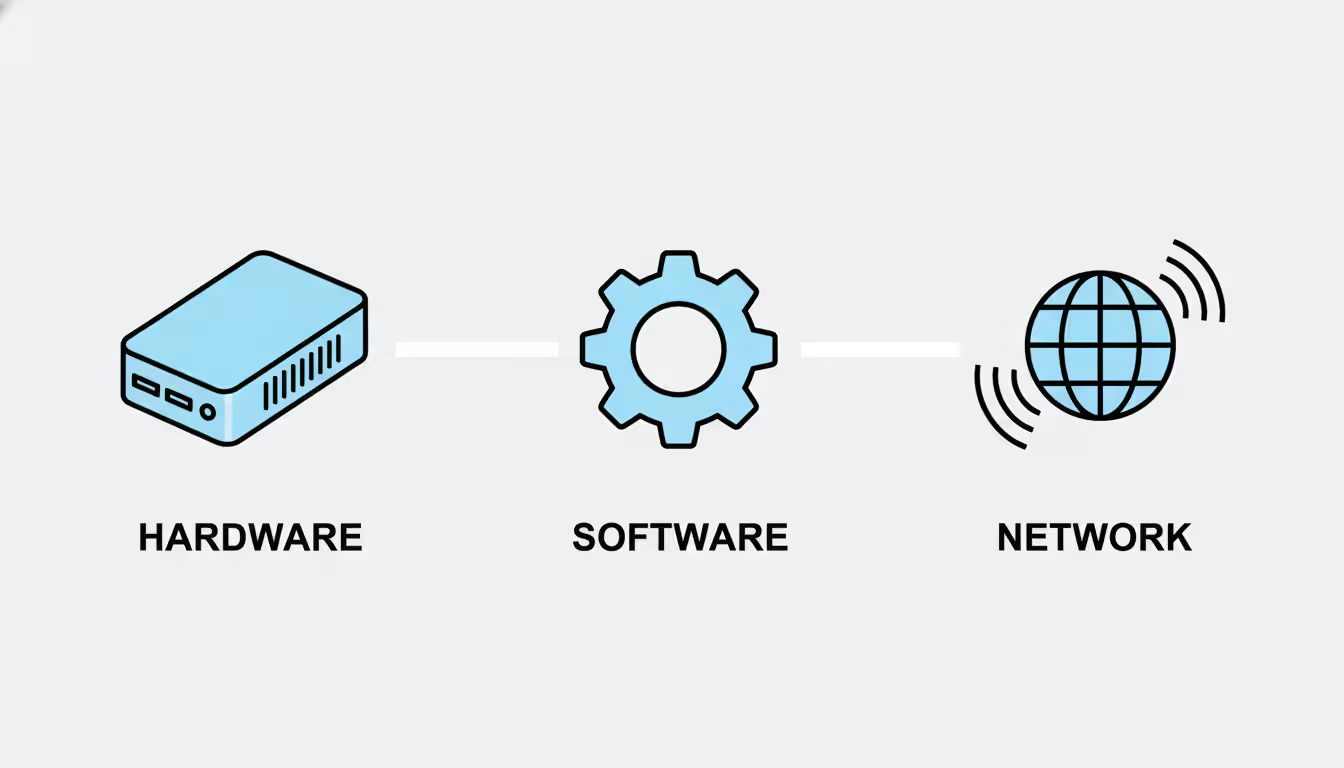
This approach requires three components: physical hardware (a computer or server), software (the application managing your files), and network connectivity (so you can access files remotely). You become both the customer and the service provider, which brings both freedom and responsibility.
Commercial cloud services abstract away complexity—you never think about hard drives failing or software updates. Self hosting exposes these realities. When your server's power supply dies at 2 AM, you're the one replacing it. When a security patch releases, you're responsible for applying it.
The trade-off attracts people who value control over convenience. A photographer might self host to avoid compression algorithms degrading image quality. A healthcare practice might self host to guarantee HIPAA compliance without trusting external vendors. A family might self host simply because they're tired of paying $15 monthly for 2TB when a $200 hard drive offers 8TB permanently.
Author: Trevor Langford;
Source: milkandchocolate.net
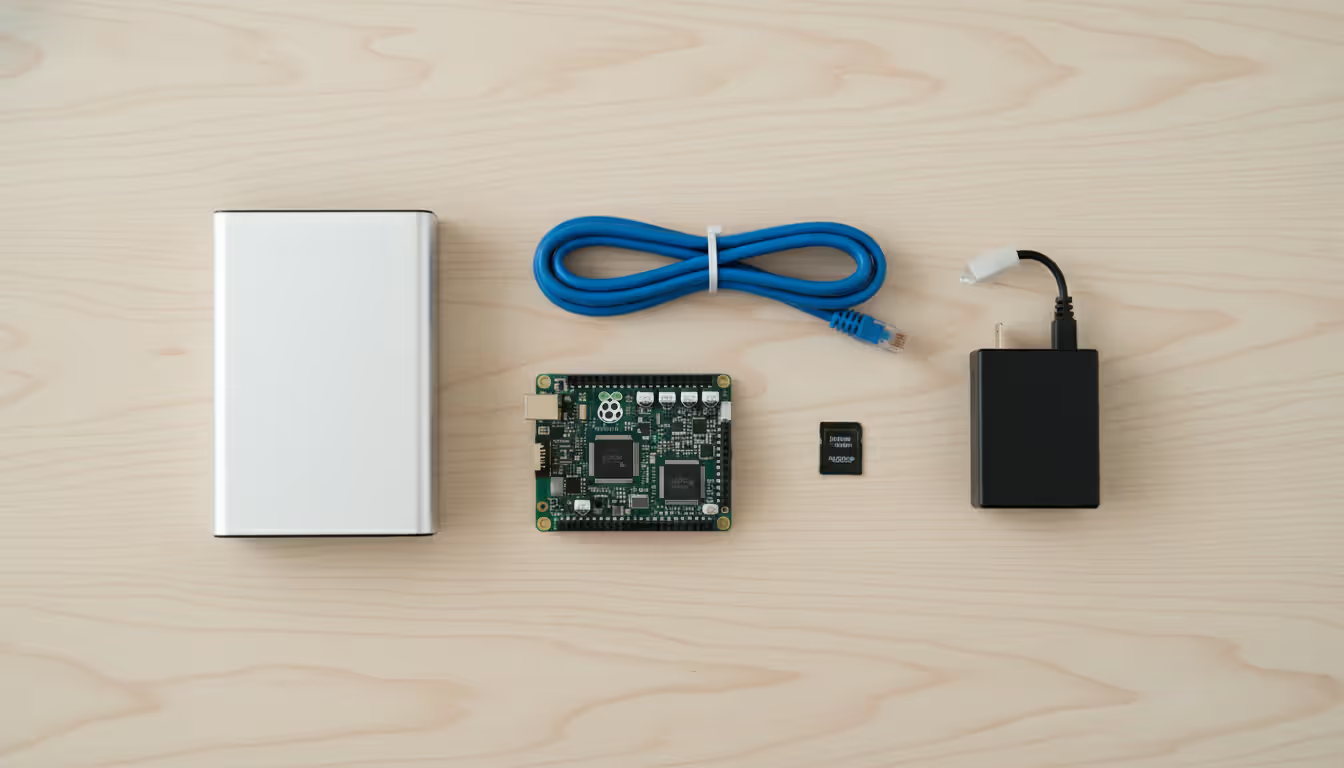
Self hosted cloud storage transforms any computer into a personal file server accessible from anywhere. The process starts with hardware—often a Raspberry Pi for beginners, a retired desktop computer for intermediate users, or a purpose-built NAS (network-attached storage) device for serious deployments.
Storage capacity matters most. A single 4TB hard drive costs around $80 in 2026 and holds roughly 800,000 photos or 2,000 hours of HD video. Serious setups use multiple drives in RAID configurations, where data duplicates across disks so one failure doesn't destroy everything.
Processing power needs vary. Nextcloud running on a Raspberry Pi 5 handles file syncing for a family of four without breaking a sweat. Streaming 4K video to multiple devices simultaneously demands something beefier—a used Dell workstation with a quad-core processor works well.
Network configuration determines accessibility. Within your home network, devices connect directly to the server's local IP address. Remote access requires exposing the server to the internet, typically through port forwarding on your router or a VPN tunnel. Dynamic DNS services solve the problem of changing home IP addresses, letting you reach your server at a consistent domain name like "mycloud.duckdns.org" even when your ISP reassigns your IP weekly.
Software handles the actual file management. After installing Linux (usually Ubuntu Server or Debian) on your hardware, you install a cloud storage application through command-line tools or pre-built packages. The software creates a web interface accessible through any browser, plus mobile apps that sync files automatically like commercial services.
Security layers protect everything. SSL certificates encrypt data traveling between your devices and server. Firewall rules block unauthorized access attempts. User accounts with strong passwords prevent family members from accidentally deleting each other's files. Two-factor authentication adds another barrier against remote attacks.
The entire system runs 24/7, drawing 15-45 watts depending on hardware—about the same as a laptop charger left plugged in. Monthly electricity costs range from $2-5 in most US states.
Author: Trevor Langford;
Source: milkandchocolate.net
The financial math shifts dramatically over time. Google Drive charges $10 monthly for 2TB, totaling $120 yearly or $600 over five years. A self-hosted system with a $300 used server, $160 in hard drives, and $25 annual electricity costs reaches $485 over five years—and you own the hardware afterward.
Privacy represents the starkest difference. Commercial providers scan files for content policy violations, respond to government data requests, and occasionally suffer breaches exposing millions of accounts. Self hosted storage keeps your data physically in your home, inaccessible to anyone without physical access or your login credentials.
| Feature | Self-Hosted | Commercial Cloud |
| Privacy/data control | Complete ownership; no third-party access | Provider can access, scan, or share data per ToS |
| Upfront cost | $200-$800 for hardware | $0 (free tiers) to $20 (premium accounts) |
| Ongoing cost | $15-$40/year (electricity, domains) | $60-$240/year for 1-2TB plans |
| Technical skill required | Moderate to high; Linux knowledge helpful | None; works out of the box |
| Maintenance burden | You handle updates, failures, security | Provider manages infrastructure |
| Scalability | Limited by hardware; requires purchasing drives | Unlimited; pay for what you use |
| Support availability | Community forums, documentation | 24/7 customer service (paid tiers) |
Technical skill requirements favor commercial services for non-technical users. Setting up Nextcloud involves editing configuration files, troubleshooting database connections, and understanding file permissions. Google Drive requires clicking "sign up."
Maintenance never ends with self hosting. Operating system updates arrive monthly. Security patches need applying within days of release. Hard drives fail after 3-5 years on average, requiring replacement and data migration. Commercial services handle all this invisibly.
Scalability works differently. Adding storage to Google Drive means clicking "upgrade plan." Adding storage to a self-hosted system means physically installing new hard drives, configuring RAID arrays, and potentially upgrading your server's power supply if it can't handle additional disks.
Reliability depends entirely on your setup. Commercial providers guarantee 99.9% uptime through redundant data centers. Your home server goes offline when the power flickers unless you've added a UPS (uninterruptible power supply). Internet outages block remote access unless you've configured failover through a cellular connection.
Nextcloud dominates self-hosted cloud storage in 2026, with over 400,000 active servers worldwide. It replicates nearly every feature from commercial clouds: file syncing, sharing via links, collaborative document editing, calendar and contact management, and video calls.
The platform shines through its app ecosystem. Hundreds of community-developed plugins add functionality like password management, note-taking, RSS readers, and music streaming. A single Nextcloud instance can replace Dropbox, Google Calendar, LastPass, and Spotify simultaneously.
Installation complexity varies. The official Snap package installs on Ubuntu with one command and runs in minutes. Docker containers offer similar simplicity. Manual installations require configuring Apache or Nginx web servers, MySQL or PostgreSQL databases, and PHP—a multi-hour process for beginners.
Resource requirements start low but climb with usage. A basic instance serves 3-5 users on a Raspberry Pi. Twenty users with collaborative editing enabled need a proper server with 8GB RAM and SSD storage for acceptable performance.
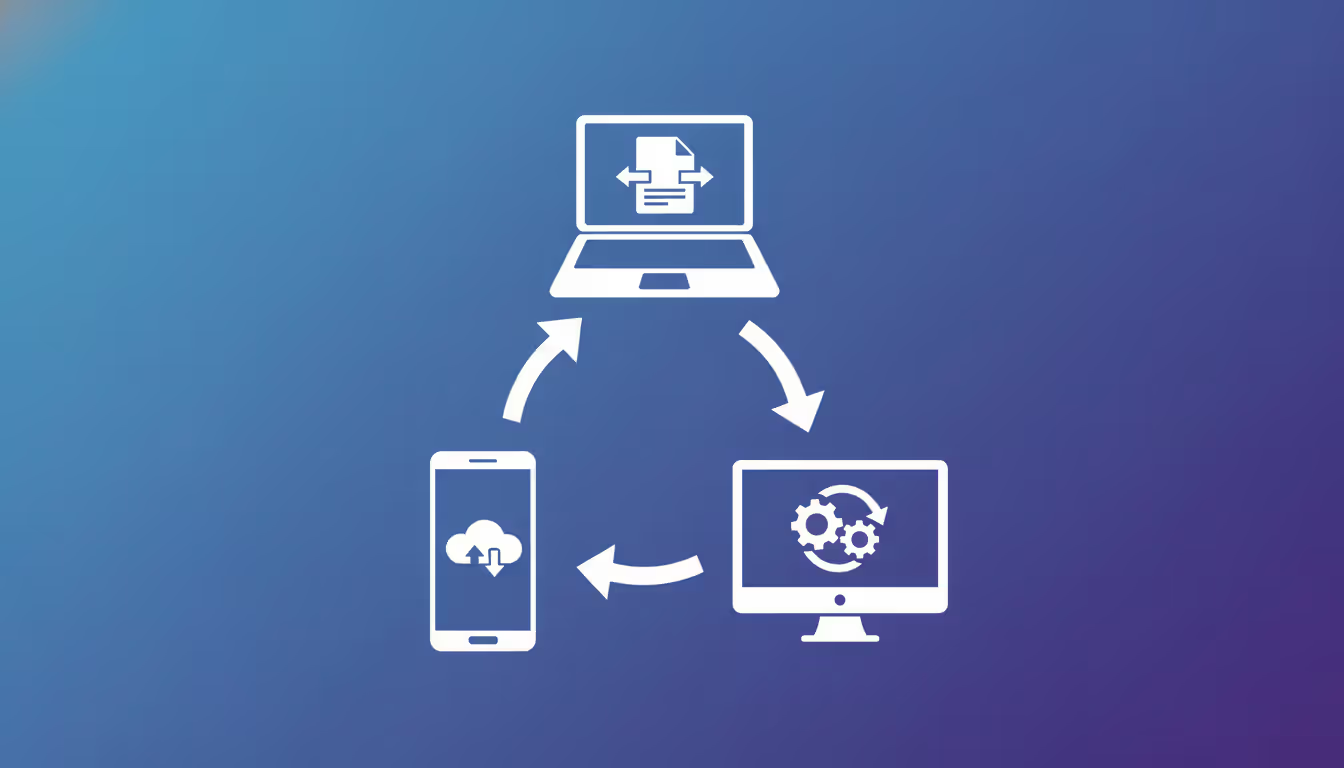
Syncthing takes a radically different approach—no central server at all. Instead, it creates peer-to-peer connections between your devices, syncing files directly between phones, laptops, and desktops without any intermediary.
This architecture eliminates single points of failure. If your laptop dies, files remain accessible on your phone and desktop. No server means no maintenance, no electricity costs for 24/7 hardware, and no remote access configuration headaches.
The trade-off is availability. Files only sync when devices are online simultaneously. If you need to access work documents from your phone while your home desktop is powered off, you're out of luck unless you've configured an always-on device as an intermediary.
Syncthing excels for users who want automatic backups between devices they already own rather than building new infrastructure. Setup takes minutes through graphical interfaces on Windows, Mac, Linux, and Android.
Author: Trevor Langford;
Source: milkandchocolate.net
ownCloud pioneered self-hosted cloud storage before Nextcloud forked from its codebase in 2016. The original project continues development, now focusing on enterprise customers with features like advanced workflow automation and compliance reporting.
For home users, ownCloud and Nextcloud offer similar capabilities. ownCloud's development moves more conservatively, prioritizing stability over cutting-edge features. Updates arrive less frequently but break existing setups less often.
The enterprise focus means better documentation and official support contracts—helpful for small businesses deploying self-hosted storage for employees. Community support remains strong but smaller than Nextcloud's ecosystem.
Start by choosing hardware that matches your needs without overbuilding. A family storing photos and documents runs fine on a Raspberry Pi 5 with a 4TB external USB drive ($110 total). A small business with ten employees sharing large video files needs something like a used HP ProDesk with 16GB RAM and multiple internal drive bays ($250 used).
Power consumption matters for 24/7 operation. Raspberry Pis sip 5-8 watts. Old gaming PCs guzzle 150+ watts, adding $10-15 monthly to electricity bills. Calculate annual costs before repurposing that power-hungry tower gathering dust.
Software selection depends on technical comfort. Nextcloud offers the richest feature set but steepest learning curve. Syncthing requires almost no configuration but lacks centralized storage. ownCloud splits the difference.
Installation methods range from one-click to manual. Pre-built solutions like Nextcloud Pi burn a complete system image to an SD card—insert it, power on, and you're running in 15 minutes. Docker containers provide clean installations with simple rollback if something breaks. Manual installations teach the most but frustrate beginners when database connections fail cryptically.
Security configuration starts before exposing anything to the internet. Change all default passwords immediately. Enable HTTPS through Let's Encrypt certificates—free and renewable automatically every 90 days. Configure the firewall to allow only necessary ports (typically 443 for HTTPS, 22 for SSH administration).
Remote access requires the most networking knowledge. Port forwarding tells your router to direct incoming connections on specific ports to your server's internal IP address. Dynamic DNS services like Duck DNS or No-IP provide consistent domain names despite changing ISP-assigned IPs.
VPN access offers superior security to port forwarding. Instead of exposing your cloud storage directly to the internet, you run a self hosted VPN (like WireGuard or OpenVPN) on the same server. Connect to the VPN first, then access your storage as if you're on your home network. This approach prevents attackers from even seeing your cloud storage service.
Test everything locally before enabling remote access. Upload files, create shares, install mobile apps. Verify backups actually work by restoring files to a different location. Simulate failures by unplugging drives while the system runs—does it recover gracefully or corrupt data?
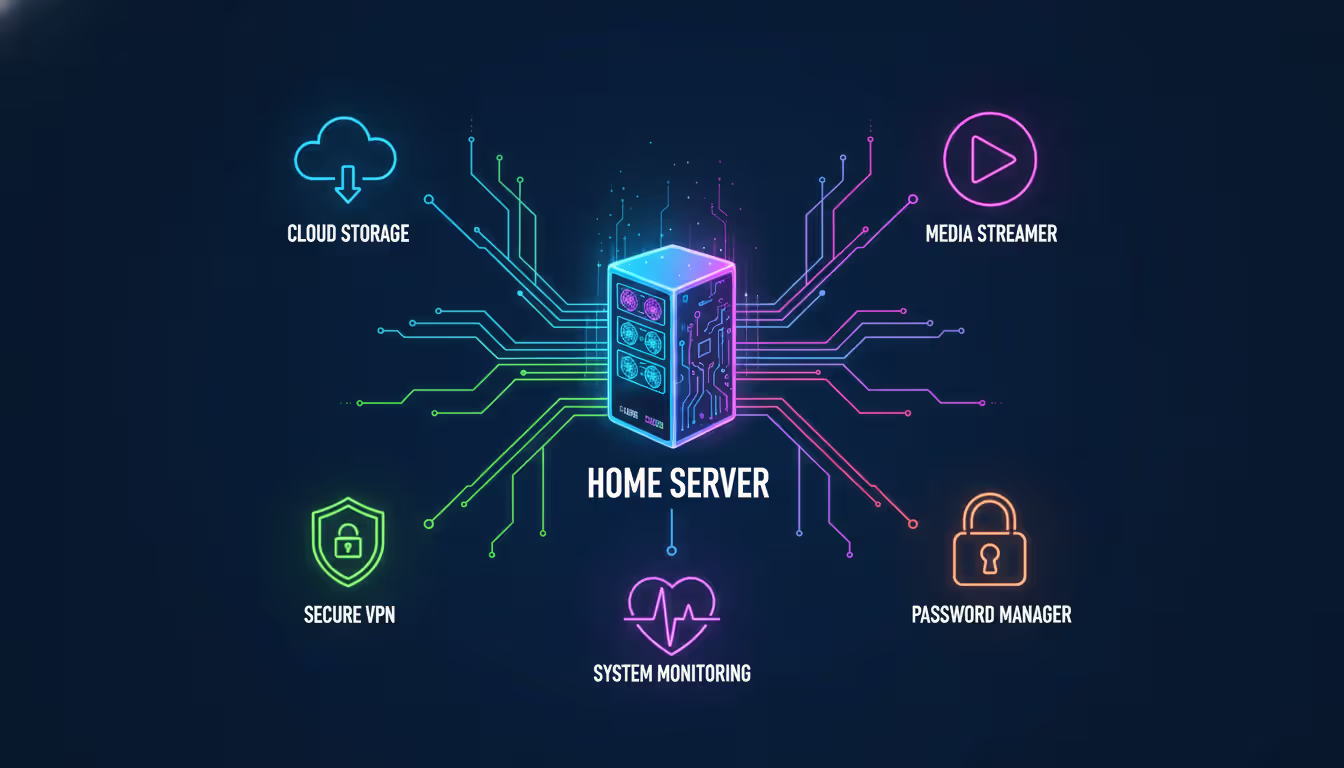
Self hosted cloud storage often becomes the gateway to running additional services on the same hardware. The server already runs 24/7, has spare CPU cycles, and you've already learned the basics of Linux administration.
A self hosted VPN transforms public WiFi from dangerous to safe. Instead of trusting coffee shop networks with unencrypted traffic, you tunnel all data through your home connection. WireGuard installs in minutes and uses minimal resources—a Raspberry Pi running both Nextcloud and WireGuard barely notices the VPN overhead.
The VPN also solves the remote access security problem mentioned earlier. Rather than exposing Nextcloud directly to internet attacks, you expose only the VPN. Attackers can't even attempt to exploit Nextcloud vulnerabilities without first authenticating through the VPN.
Self hosted network monitoring keeps tabs on system health before small problems become disasters. Tools like Uptime Kuma send alerts when your cloud storage goes offline, disk space drops below 10%, or CPU temperature climbs dangerously high. You learn about failing hard drives early enough to replace them before data loss occurs.
Monitoring also reveals usage patterns. Maybe your internet connection saturates every Tuesday at 8 PM when automatic phone backups run. Staggering backup schedules across different days prevents the bottleneck.
A self hosted CDN makes sense only for specific use cases—primarily if you're sharing large files with many people simultaneously. Running your own CDN through software like MinIO or Caddy with caching doesn't replicate Cloudflare's global edge network, but it does reduce load on your main storage server by caching frequently accessed files.
More commonly, users expand into media servers (Plex or Jellyfin for streaming), password managers (Vaultwarden), or home automation (Home Assistant). The same hardware and skills transfer across services. Once you've configured HTTPS certificates for Nextcloud, you know how to do it for everything else.
Resource planning prevents overloading a single server. A Raspberry Pi handles Nextcloud and WireGuard together fine. Adding Plex transcoding 4K video simultaneously brings it to its knees. Know your hardware's limits or plan to expand to multiple devices as your self-hosted ecosystem grows.
Author: Trevor Langford;
Source: milkandchocolate.net
Security oversights plague beginners. Leaving default passwords unchanged, skipping HTTPS configuration, or exposing SSH directly to the internet invites compromise within days. Attackers scan the entire internet constantly for exactly these mistakes.
The most dangerous assumption is "nobody cares about my data." Attackers don't care about your family photos—they want your server's processing power for mining cryptocurrency or launching attacks against others. Compromised home servers make perfect zombies for botnets because owners rarely monitor them closely.
Backup failures destroy data permanently. RAID is not backup—it protects against drive failure, not accidental deletion, ransomware, or fire. The 3-2-1 rule applies: three copies of data, on two different media types, with one copy off-site. Your self-hosted cloud counts as one copy. An external drive you back up to weekly is the second. An encrypted backup uploaded to cheap cloud storage (Backblaze B2 costs $6/TB monthly) is the third.
Testing backups matters as much as creating them. Restoration procedures fail for unexpected reasons—missing dependencies, corrupted archives, forgotten encryption passwords. Schedule quarterly restoration tests to random directories, verifying files actually recover intact.
Insufficient bandwidth planning creates frustration. Uploading 100GB of photos over a residential internet connection with 10 Mbps upload speed takes 22 hours. Users expect Dropbox-like speeds and blame the self-hosted software when physics limits their connection. Know your bandwidth limits and set expectations accordingly.
Update neglect leaves systems vulnerable. Critical security patches release regularly—Nextcloud alone issued 14 security updates in 2025. Delaying updates for months exposes your system to known exploits with public proof-of-concept code. Schedule monthly maintenance windows for updates, or enable automatic security updates with careful testing procedures.
Underestimating power requirements causes mysterious crashes. Adding a second hard drive might exceed your server's power supply capacity, causing random reboots under load. Calculate power draw for all components before upgrading hardware.
Ignoring monitoring means learning about failures when you urgently need access. Your server's hard drive might click ominously for weeks before dying completely. Without monitoring disk health through S.M.A.R.T. data, you miss the warning signs.
Self hosted cloud storage returns control of your data to you, but exchanges the simplicity of commercial services for hands-on responsibility. You'll spend time learning Linux basics, troubleshooting network configurations, and monitoring system health. In return, you'll never worry about subscription price increases, service discontinuations, or third parties accessing your files.
The decision hinges on what you value more—your time or your privacy. Commercial clouds optimize for convenience. Self hosting optimizes for control. Neither choice is wrong; they serve different priorities.
Start small if you're curious. A Raspberry Pi and external drive cost less than three months of Dropbox subscriptions. Install Nextcloud Pi and experiment with syncing files from your phone. You'll quickly discover whether self hosting excites or frustrates you. The beauty of owning the hardware is you can always repurpose it for something else if cloud storage doesn't work out.
For those who commit to self hosting, the infrastructure often expands beyond storage. The same server runs your VPN, monitors your network, manages passwords, and streams media. You're building personal infrastructure that works exactly how you want, forever, without monthly fees or terms of service changes. That independence is worth the learning curve for many people in 2026.
Understand SSL and TLS port numbers for secure communication. Covers port 443 for HTTPS, 465/587 for email, 993/995 for IMAP/POP3, plus configuration, troubleshooting, and hardening best practices for system administrators
Remote work demands more than enabling RDP. This comprehensive guide covers secure remote desktop implementation, from choosing the right platform to configuring multi-factor authentication, encryption, and monitoring. Learn the differences between remote desktop and VPN, avoid common security mistakes, and follow step-by-step setup procedures
Discover how to scan your network for connected devices and IP addresses. This comprehensive guide covers built-in tools, desktop software, mobile apps, and online scanners with step-by-step instructions for identifying every device on your home or office network
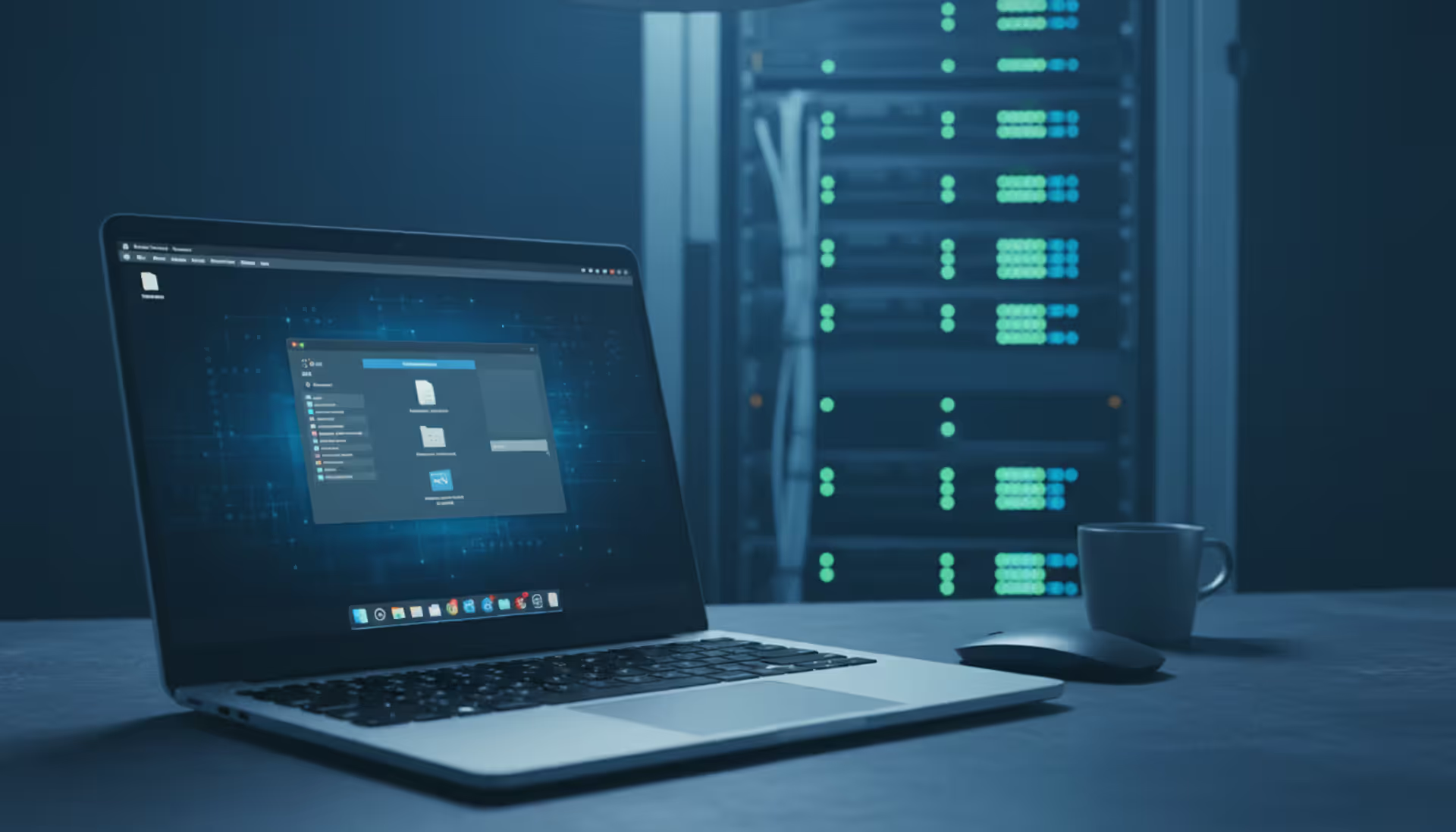
Remote computer management enables access and control of systems from any location. This comprehensive guide covers remote login processes, cross-network connections, security best practices, and troubleshooting common issues for both businesses and individuals
The content on this website is provided for general informational purposes only. It is intended to offer insights, commentary, and analysis on cloud computing, network infrastructure, cybersecurity, and IT solutions, and should not be considered professional, technical, or legal advice.
All information, articles, and materials presented on this website are for general informational purposes only. Technologies, standards, and best practices may vary depending on specific environments and may change over time. The application of any technical concepts depends on individual systems, configurations, and requirements.
This website is not responsible for any errors or omissions in the content, or for any actions taken based on the information provided. Users are encouraged to seek qualified professional advice tailored to their specific IT infrastructure, security, and business needs before making decisions.