When your browser connects to a banking website or your email client syncs messages, encrypted communication happens through specific network ports. Understanding which ports SSL and TLS use—and how they differ across services—helps system administrators configure servers correctly, troubleshoot connection failures, and maintain secure infrastructure.
What Are SSL and TLS Protocols
SSL (Secure Sockets Layer) and TLS (Transport Layer Security) are cryptographic protocols that encrypt data traveling between clients and servers. SSL was developed by Netscape in the mid-1990s, with SSL 2.0 released in 1995 and SSL 3.0 in 1996. Security vulnerabilities in SSL led to the development of TLS 1.0 in 1999, which was essentially SSL 3.1 but renamed to reflect the change in stewardship from Netscape to the IETF.
The evolution from SSL to TLS continued with TLS 1.1 (2006), TLS 1.2 (2008), and TLS 1.3 (2018). By 2026, SSL 2.0, SSL 3.0, TLS 1.0, and TLS 1.1 are deprecated across all major platforms. Modern implementations exclusively use TLS 1.2 or TLS 1.3, though the term "SSL" persists in common usage—people still say "SSL certificate" when they mean a certificate used for TLS.
SSL and TLS encryption protects data in transit through a combination of asymmetric and symmetric cryptography. The initial handshake uses public-key cryptography to authenticate the server and establish a shared secret, then switches to faster symmetric encryption for the actual data transfer.
Port numbers matter because they tell operating systems which application should handle incoming network traffic. A server listening on port 443 expects HTTPS requests, while port 25 handles unencrypted SMTP. When SSL and TLS protocols were added to existing services, they typically received dedicated port numbers to avoid conflicts with legacy unencrypted implementations.
Default SSL and TLS Port Numbers
Different services use specific port numbers for encrypted communication. These standardized ports help clients automatically connect to the right service without manual configuration.
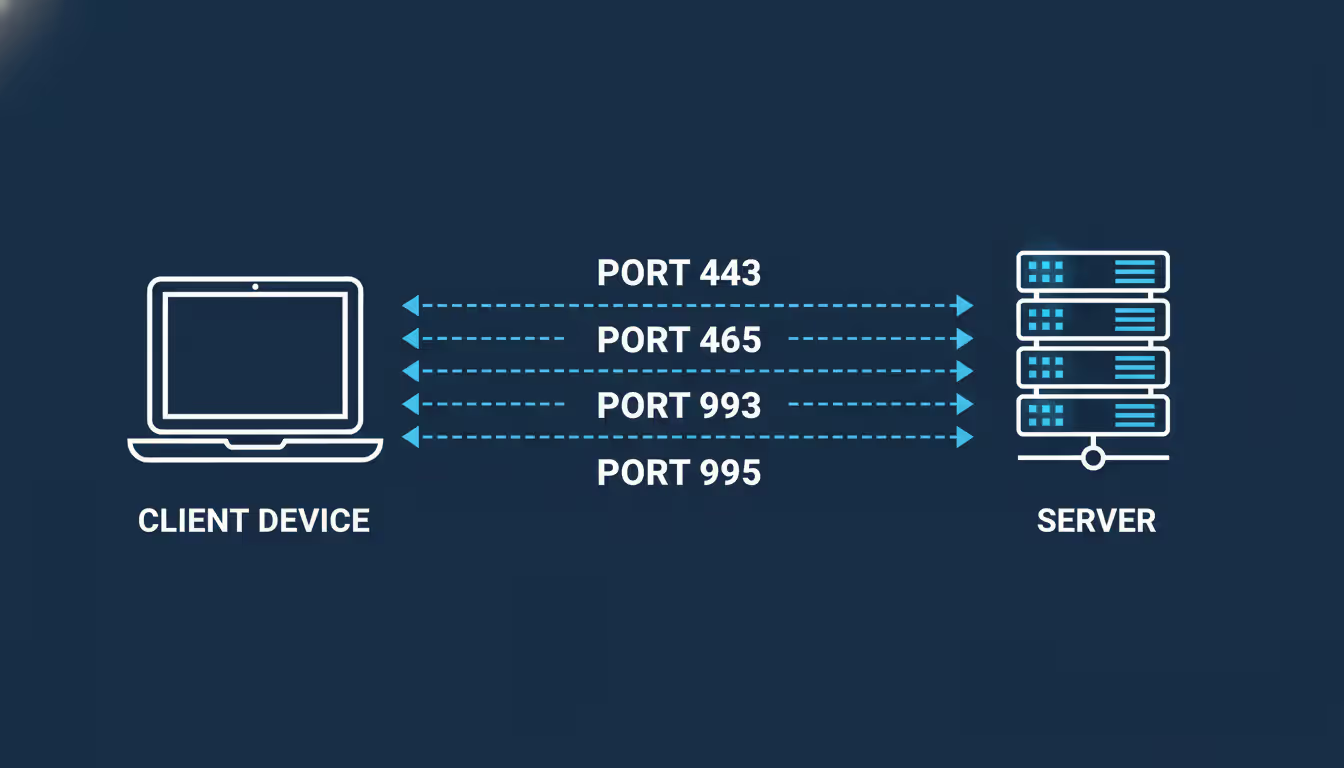
Port 443 (HTTPS) is the most widely used SSL/TLS port. Every time you visit a website starting with "https://", your browser connects to port 443 on the server. Web servers like Apache, Nginx, and IIS listen on this port for encrypted HTTP traffic. Unlike port 80 (unencrypted HTTP), port 443 requires a valid certificate before establishing the connection.
Port 465 (SMTPS) was originally designated for SMTP over SSL. Email clients connect to this port to submit outgoing messages with implicit encryption—the TLS handshake happens immediately upon connection. However, port 465 was briefly revoked by IANA in the late 1990s, creating confusion. It was officially reinstated in 2018 for implicit TLS SMTP submission, and by 2026, most major email providers support it alongside port 587.
Port 993 (IMAPS) handles IMAP with implicit SSL/TLS encryption. When your email client retrieves messages from a server using IMAP, connecting to port 993 encrypts the entire session from the start. This differs from port 143 (standard IMAP), which can optionally upgrade to encryption using the STARTTLS command.
Author: Rachel Denholm;
Source: milkandchocolate.net
Port 995 (POP3S) provides encrypted POP3 connections. While POP3 has declined in popularity compared to IMAP, port 995 remains in use for legacy systems and clients that prefer downloading messages locally rather than synchronizing with the server.
Port 636 (LDAPS) secures LDAP directory services. Organizations using Active Directory or OpenLDAP for authentication often require encrypted connections to protect credentials. Port 636 uses implicit SSL/TLS, while port 389 (standard LDAP) supports optional STARTTLS.
Ports 989 and 990 (FTPS) handle FTP over TLS. Port 990 is for implicit FTPS control connections, while port 989 is designated for FTPS data connections. In practice, many FTPS implementations use explicit TLS on port 21 (standard FTP) with STARTTLS commands, making ports 989/990 less common than their HTTP and email counterparts.
How SSL and TLS Ports Work
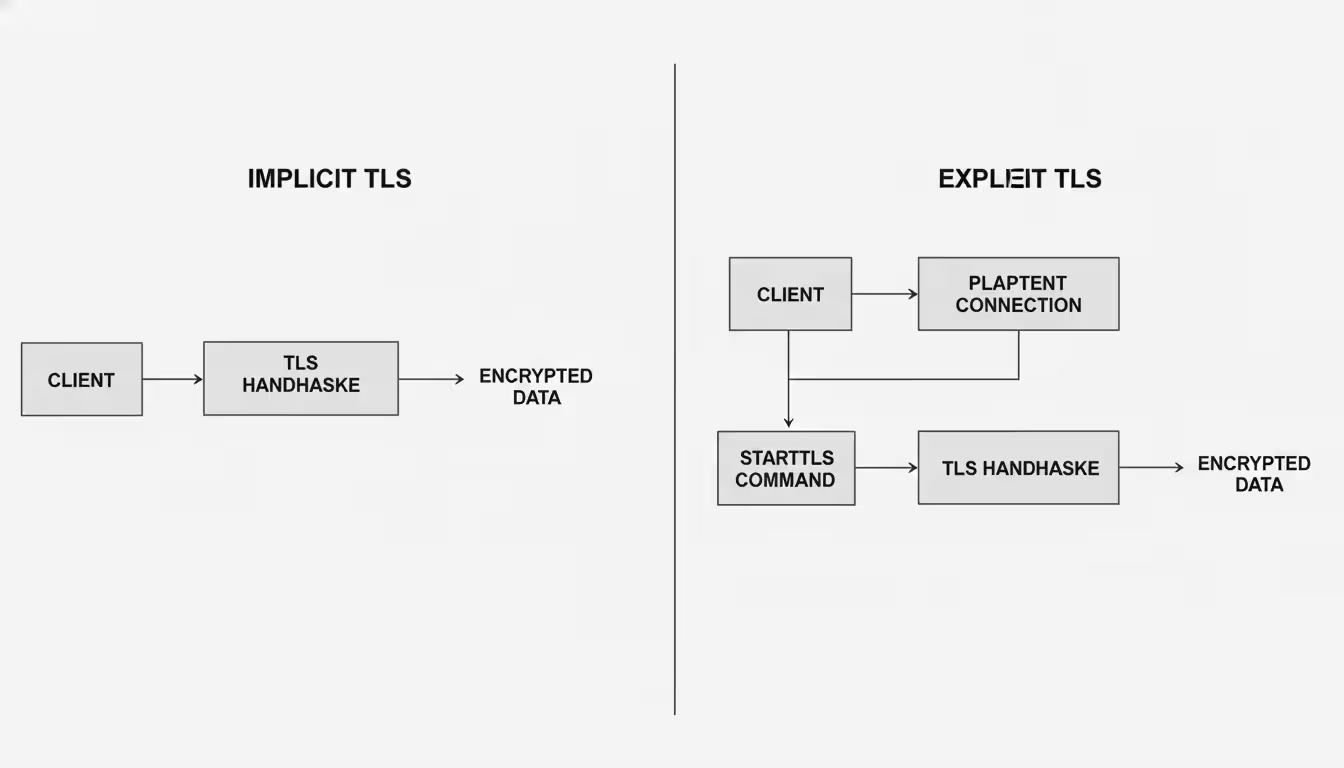
The connection handshake process differs depending on whether the port uses implicit or explicit encryption. With implicit SSL/TLS, the handshake begins immediately when the client connects. The client sends a "ClientHello" message containing supported cipher suites and TLS versions. The server responds with "ServerHello," selects a cipher suite, and sends its certificate. The client verifies the certificate, and both parties exchange keys to establish an encrypted session. Only after this handshake completes does application data transfer begin.
Explicit SSL/TLS works differently. The client first connects to a standard unencrypted port and communicates in plaintext. Then it sends a protocol-specific command—STARTTLS for SMTP/IMAP, AUTH TLS for FTP—to request encryption. If the server supports it, both sides perform the TLS handshake and upgrade the existing connection to encrypted mode.
Author: Rachel Denholm;
Source: milkandchocolate.net
A common mistake is confusing the port number with the protocol itself. The port is just a number that routes traffic to the correct application. The actual encryption happens at the application layer, regardless of which port you use. You could theoretically run HTTPS on port 8443, port 9000, or any available port—browsers would still encrypt the connection as long as they know to use HTTPS. Standard ports exist for convenience and interoperability, not technical necessity.
The distinction between implicit and explicit SSL/TLS affects firewall rules and connection reliability. Implicit encryption on dedicated ports like 443 or 993 is straightforward—either the connection is encrypted from the start, or it fails. Explicit encryption on standard ports requires the firewall to inspect traffic more carefully, since the connection begins unencrypted. Some corporate firewalls block STARTTLS upgrades, forcing administrators to use implicit TLS ports instead.
Common SSL/TLS Port Configurations by Service
Service Type
Port Number
Protocol
Encryption Type
Common Use Case
HTTPS
443
HTTP/1.1, HTTP/2, HTTP/3
Implicit TLS
Web servers, REST APIs
SMTPS
465
SMTP
Implicit TLS
Email submission
IMAPS
993
IMAP
Implicit TLS
Email retrieval
POP3S
995
POP3
Implicit TLS
Email download
LDAPS
636
LDAP
Implicit TLS
Directory authentication
FTPS
989/990
FTP
Implicit TLS
Secure file transfer
Web servers almost exclusively use port 443 for encrypted traffic. Modern web servers typically listen on both port 80 (HTTP) and port 443 (HTTPS), with port 80 configured to redirect all requests to port 443. Content delivery networks and reverse proxies handle TLS termination at the edge, decrypting traffic before forwarding it to backend servers over internal networks. High-traffic sites sometimes use port 8443 or other non-standard ports for administrative interfaces, keeping them separate from public-facing services.
Email servers have more complex configurations due to historical evolution. Port 587 (SMTP submission with STARTTLS) coexists with port 465 (implicit TLS SMTP). Best practice in 2026 is to support both: port 465 for clients that prefer implicit encryption, and port 587 for compatibility with older systems that expect explicit STARTTLS. Port 25 remains for server-to-server mail transfer, though opportunistic TLS is standard. For retrieval, port 993 (IMAPS) has largely replaced port 143 (IMAP with STARTTLS), and port 995 (POP3S) is preferred over port 110.
FTP servers face a choice between FTPS (FTP over TLS) and SFTP (SSH File Transfer Protocol). FTPS uses ports 989/990 for implicit TLS or port 21 with explicit STARTTLS. However, FTPS struggles with firewalls because FTP opens separate data connections on random high ports. SFTP runs over SSH on port 22, making it easier to secure and more popular for new deployments. Organizations still running FTPS typically configure passive mode with a restricted port range and corresponding firewall rules.
LDAP servers in enterprise environments almost always require encryption. Windows Active Directory domain controllers listen on port 636 for LDAPS and port 389 for LDAP with STARTTLS. Many organizations disable port 389 entirely or configure it to reject bind operations without encryption. Global Catalog services use port 3269 (encrypted) and 3268 (unencrypted).
Database connections vary by vendor. PostgreSQL uses port 5432 with TLS negotiated through the connection protocol rather than a separate port. MySQL/MariaDB similarly use port 3306 with optional TLS. Microsoft SQL Server uses port 1433 with encryption negotiated during login. Redis uses port 6379, with TLS support added in Redis 6.0 using the same port with a configuration flag. MongoDB uses port 27017 with TLS enabled through connection strings. The trend is toward using standard ports with protocol-level encryption negotiation rather than separate encrypted ports.
SSL/TLS Port Troubleshooting
Firewall blocking issues are the most common cause of SSL/TLS connection failures. Corporate firewalls often whitelist specific ports while blocking everything else. If clients can't connect to port 465 but port 587 works, the firewall likely blocks implicit TLS ports. Testing with telnet or netcat helps identify blocked ports: telnet mail.example.com 465 should establish a connection if the port is open, even if you can't complete the TLS handshake manually.
Cloud providers sometimes restrict outbound connections on certain ports to prevent abuse. AWS EC2 instances can't send email on port 25 by default without requesting removal of restrictions. Google Cloud blocks port 25 entirely on Compute Engine instances. When deploying applications in cloud environments, verify that both inbound and outbound rules allow your required SSL/TLS ports.
Author: Rachel Denholm;
Source: milkandchocolate.net
Port forwarding requirements affect home and small office networks. If you're running a mail server or web server behind a NAT router, you must forward external traffic on port 443, 993, etc., to the internal server's IP address. A common mistake is forwarding the port but forgetting to configure the server's firewall to accept connections on that port. Both the router and the server's local firewall need appropriate rules.
Certificate mismatch errors occur when the certificate's Common Name or Subject Alternative Name doesn't match the hostname used to connect. Browsers connecting to https://192.168.1.100:443 will show warnings if the certificate is issued for server.example.com. Using IP addresses instead of hostnames causes problems because certificates are typically issued for domain names. The solution is either accessing the server by its proper hostname or obtaining a certificate that includes the IP address as a SAN entry.
Certificate expiration causes hard failures. Unlike some warnings that users can click through, expired certificates on mail servers often prevent connections entirely. Automated certificate renewal through Let's Encrypt or other ACME providers prevents this issue, but renewal failures can go unnoticed until certificates expire. Monitoring certificate expiration dates and setting alerts for 30 days, 14 days, and 7 days before expiration prevents surprises.
Testing port connectivity requires different tools depending on the service. For HTTPS, curl with verbose output shows the full TLS handshake: curl -v https://example.com. OpenSSL's s_client command works for any SSL/TLS port: openssl s_client -connect mail.example.com:993 displays the certificate chain and negotiated cipher suite. For testing without validating certificates, add -servername hostname to specify the SNI hostname.
Nmap scans ports and identifies SSL/TLS services: nmap -p 443,465,993,995 -sV example.com. The -sV flag probes for service versions, revealing whether ports are using SSL/TLS and which protocols they support. Online tools like SSL Labs' SSL Server Test analyze HTTPS configurations and identify weak cipher suites or protocol versions.
Security Best Practices for SSL/TLS Ports
Disabling outdated SSL protocols is non-negotiable in 2026. SSL 2.0, SSL 3.0, TLS 1.0, and TLS 1.1 have known vulnerabilities and should be disabled on all servers. Major browsers and operating systems no longer support these protocols by default. Server configuration files must explicitly restrict connections to TLS 1.2 and TLS 1.3.
For Apache, this means setting SSLProtocol -all +TLSv1.2 +TLSv1.3 in the virtual host configuration. Nginx uses ssl_protocols TLSv1.2 TLSv1.3;. Microsoft IIS requires disabling older protocols through registry keys or using IIS Crypto to manage protocol settings. Email servers, FTP servers, and database servers need similar configuration changes.
Cipher suite selection matters as much as protocol versions. Weak ciphers like RC4, DES, and export-grade ciphers must be disabled. Modern configurations prefer AEAD ciphers like AES-GCM and ChaCha20-Poly1305. Forward secrecy through ECDHE key exchange protects past communications even if the server's private key is compromised. Mozilla's SSL Configuration Generator provides recommended cipher strings for various servers and compatibility levels.
Author: Rachel Denholm;
Source: milkandchocolate.net
Port security hardening goes beyond just enabling encryption. Rate limiting prevents brute force attacks against services on SSL/TLS ports. Fail2ban or similar tools can automatically block IP addresses after repeated failed authentication attempts on ports 465, 993, or any service that requires login.
Running services as non-privileged users limits damage if vulnerabilities are exploited. Web servers shouldn't run as root; they should start as root to bind to port 443, then drop privileges to a dedicated user account. Similarly, mail servers and other services should use dedicated service accounts with minimal permissions.
Network segmentation isolates SSL/TLS services from other infrastructure. Web servers in a DMZ should only communicate with backend databases through specific ports and IP addresses. Internal services like LDAPS shouldn't be exposed to the public internet—they should only accept connections from authorized internal networks or through VPN.
Monitoring and logging detect suspicious activity and help diagnose issues. Access logs should record all connections to SSL/TLS ports, including source IP addresses, timestamps, and requested resources. Failed TLS handshakes might indicate misconfigured clients or attempted attacks. Sudden spikes in traffic to port 443 could signal a DDoS attack or legitimate viral content.
Certificate transparency logs provide public records of issued certificates. Monitoring CT logs for your domains detects unauthorized certificates that could be used for man-in-the-middle attacks. Services like Facebook's Certificate Transparency Monitoring and Google's Certificate Transparency Report alert you when new certificates are issued for your domains.
The most common SSL/TLS configuration mistake in 2026 isn't using weak ciphers—most servers have fixed that. It's running multiple protocol versions unnecessarily. Every legacy protocol you enable to support one old client expands your attack surface. Be deliberate about compatibility trade-offs
— Ivan Ristić
Using non-standard ports offers security through obscurity, which isn't real security but can reduce noise from automated scanners. Running SSH on port 2222 instead of 22 eliminates most brute force attempts. Similarly, running a web admin interface on port 8443 instead of 443 makes it less discoverable.
However, non-standard ports create operational overhead. Users must remember to specify the port number, documentation must be updated, and firewall rules become more complex. Non-standard ports also break assumptions in some client software. Use them for internal services or administrative interfaces, but stick to standard ports for public-facing services where accessibility matters.
Port knocking provides an additional authentication layer before opening SSL/TLS ports. The server's firewall keeps ports closed by default. Clients must send connection attempts to a specific sequence of ports, after which the firewall temporarily opens the actual service port. This prevents even the TLS handshake from being attempted by unauthorized clients, though it requires client-side configuration.
Frequently Asked Questions
What port does SSL/TLS use by default?
SSL/TLS doesn't have a single default port—it depends on the service. HTTPS uses port 443, IMAPS uses port 993, SMTPS uses port 465, and POP3S uses port 995. Each service that adds SSL/TLS encryption typically gets a dedicated port number to avoid conflicts with unencrypted versions of the same protocol.
Is port 443 only for HTTPS traffic?
Port 443 is designated for HTTPS by convention, but technically any SSL/TLS-encrypted protocol could use it. Some VPN solutions tunnel traffic through port 443 to bypass restrictive firewalls that only allow web traffic. WebSocket Secure (WSS) connections also use port 443. However, running non-HTTPS services on port 443 can cause confusion and compatibility issues with security tools that expect HTTP/2 or HTTP/3 traffic.
Can I use SSL/TLS on custom ports?
Yes, SSL/TLS works on any port—the encryption protocol is independent of the port number. Developers often run test servers on ports like 8443 or 9443 during development. However, clients must explicitly specify custom ports in connection strings or URLs. Using standard ports improves compatibility and reduces configuration errors, so reserve custom ports for internal services or testing environments.
What's the difference between port 465 and 587 for email?
Port 465 uses implicit TLS—encryption starts immediately when the connection is established. Port 587 uses explicit TLS with STARTTLS—the connection begins unencrypted, then upgrades to TLS after the client sends the STARTTLS command. Both ports are for SMTP submission (sending mail), not server-to-server transfer. Modern mail servers should support both ports, though port 465 has become preferred in recent years due to its immediate encryption.
How do I check if an SSL/TLS port is open?
Use telnet or netcat to test basic connectivity: telnet example.com 443 or nc -zv example.com 443. For SSL/TLS-specific testing, use OpenSSL: openssl s_client -connect example.com:443 -servername example.com. This command attempts a full TLS handshake and displays the certificate and cipher information. Online tools like YouGetSignal's Port Checker test connectivity from external networks, useful for verifying firewall rules.
Should I still support SSL protocols on standard ports?
No. SSL 2.0 and SSL 3.0 are completely broken and must be disabled. The term "SSL port" persists, but these ports should only accept TLS 1.2 and TLS 1.3 connections in 2026. Even TLS 1.0 and TLS 1.1 are deprecated. The only reason to support older protocols is compatibility with legacy devices that can't be updated, and even then, those devices should be isolated on separate networks rather than compromising security for your entire infrastructure.
SSL and TLS ports form the foundation of secure network communication across web, email, file transfer, and directory services. Port 443 dominates web traffic, while ports 465, 587, 993, and 995 handle encrypted email. Understanding the difference between implicit and explicit encryption helps troubleshoot connection issues and configure services correctly.
Security in 2026 requires disabling SSL entirely and restricting connections to TLS 1.2 and TLS 1.3. Standard ports work for most public-facing services, while custom ports can reduce automated attacks against administrative interfaces. Proper firewall configuration, certificate management, and monitoring ensure that encrypted ports provide actual security rather than just the appearance of it.
The technical details matter because misconfigurations create vulnerabilities. A web server that accepts TLS 1.0 connections remains vulnerable to downgrade attacks. An email server with an expired certificate stops delivering messages. A firewall that blocks port 465 forces clients to use less secure alternatives. Getting these details right requires understanding not just which ports to use, but how the protocols work and where common mistakes happen.
Self hosted cloud storage puts you in complete control of your data. This guide explains what self hosting means, compares costs against commercial services, reviews popular platforms like Nextcloud and Syncthing, and walks through setup steps for building your own private cloud in 2026
Remote work demands more than enabling RDP. This comprehensive guide covers secure remote desktop implementation, from choosing the right platform to configuring multi-factor authentication, encryption, and monitoring. Learn the differences between remote desktop and VPN, avoid common security mistakes, and follow step-by-step setup procedures
Discover how to scan your network for connected devices and IP addresses. This comprehensive guide covers built-in tools, desktop software, mobile apps, and online scanners with step-by-step instructions for identifying every device on your home or office network
Remote computer management enables access and control of systems from any location. This comprehensive guide covers remote login processes, cross-network connections, security best practices, and troubleshooting common issues for both businesses and individuals
The content on this website is provided for general informational purposes only. It is intended to offer insights, commentary, and analysis on cloud computing, network infrastructure, cybersecurity, and IT solutions, and should not be considered professional, technical, or legal advice.
All information, articles, and materials presented on this website are for general informational purposes only. Technologies, standards, and best practices may vary depending on specific environments and may change over time. The application of any technical concepts depends on individual systems, configurations, and requirements.
This website is not responsible for any errors or omissions in the content, or for any actions taken based on the information provided. Users are encouraged to seek qualified professional advice tailored to their specific IT infrastructure, security, and business needs before making decisions.