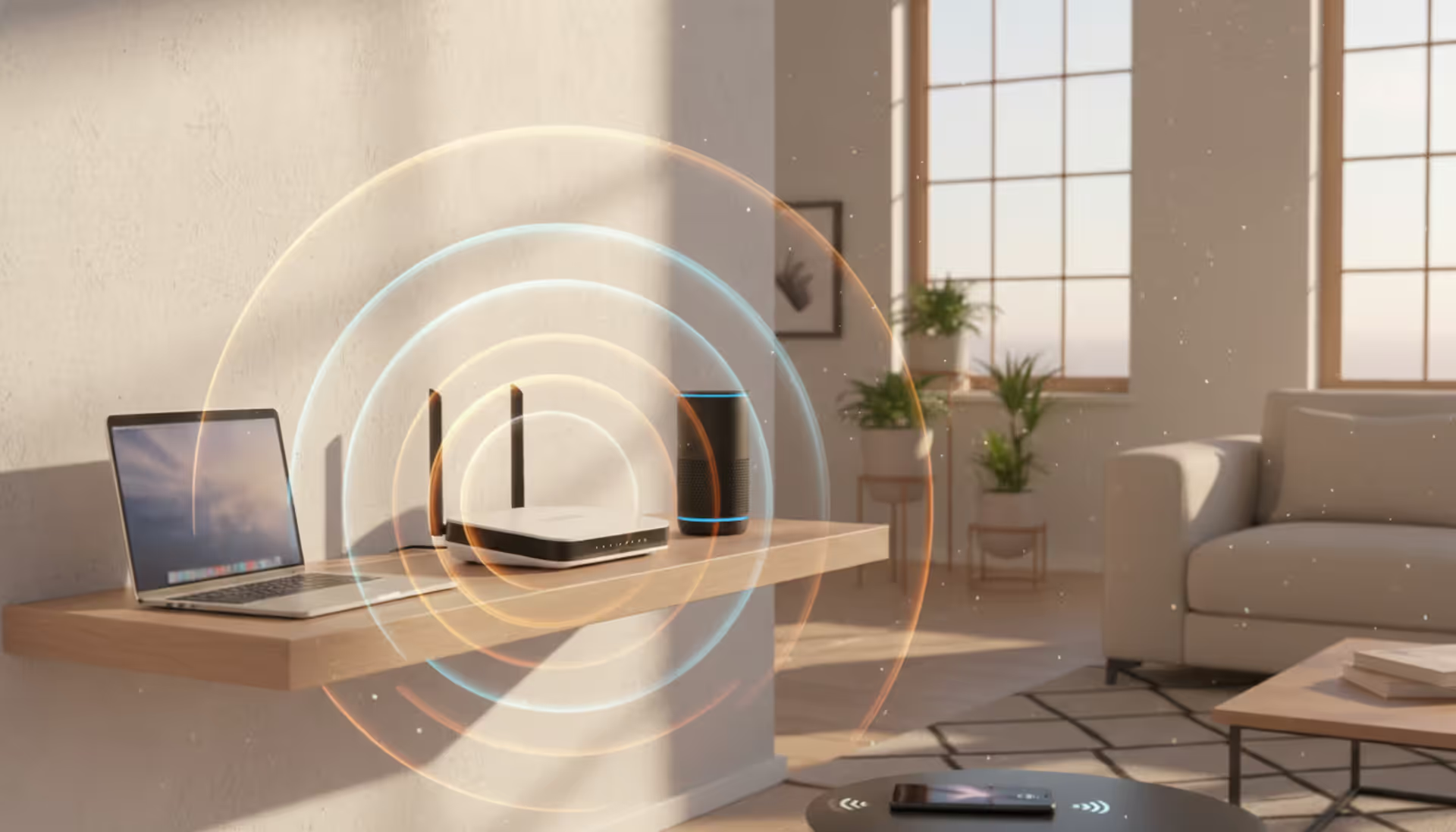
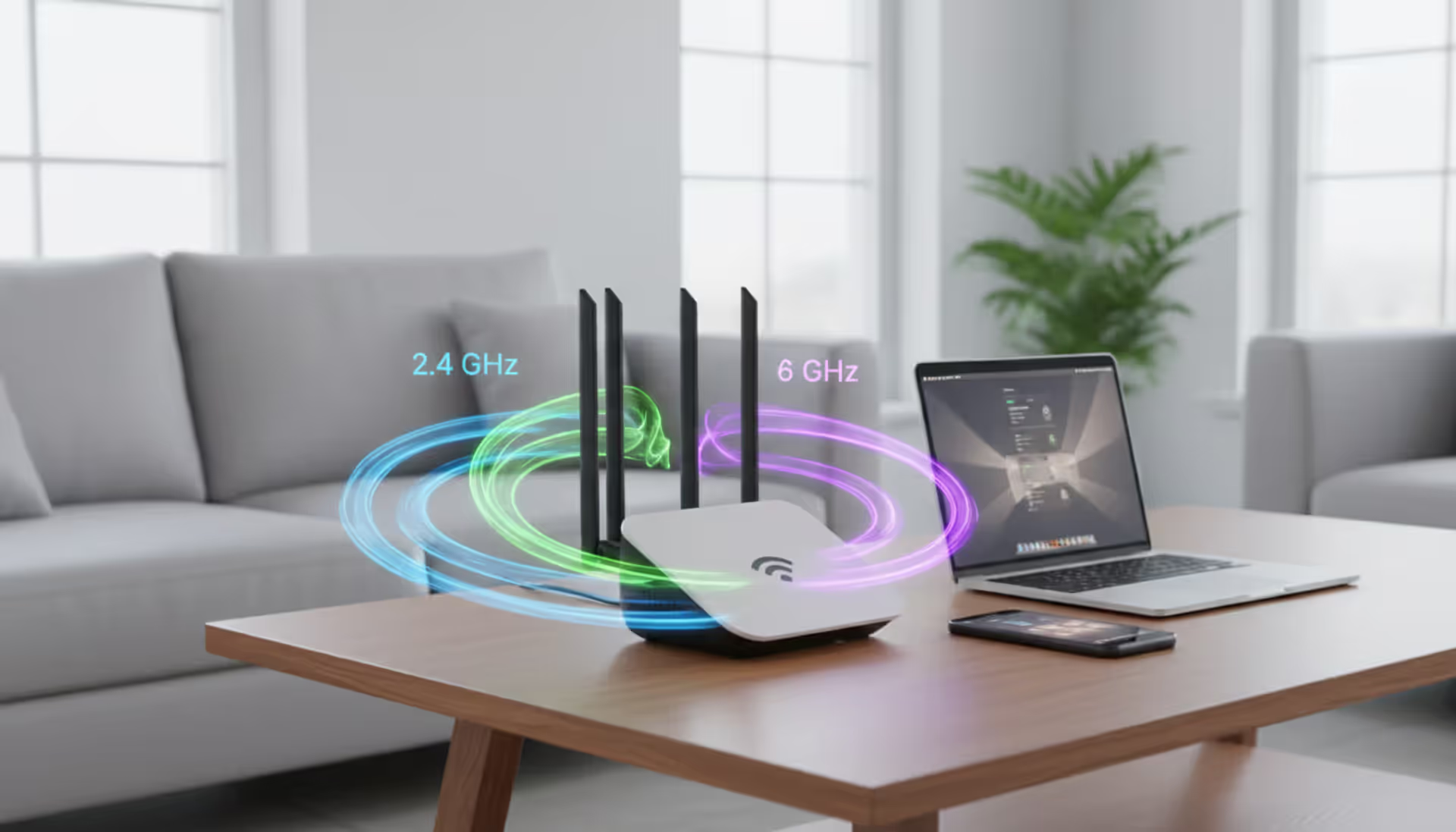
Think of the 2.4 GHz spectrum as a slice of invisible real estate in the air around you—specifically, radio frequencies between 2.400 and 2.4835 GHz. Back in the 1980s, the FCC made a decision that would shape modern life: they opened this frequency band for unlicensed use under the Industrial, Scientific, and Medical (ISM) designation. Translation? Companies could build products using these frequencies without jumping through regulatory hoops or paying licensing fees for each gadget sold.
Your WiFi router takes advantage of this setup every second it's running. Here's what happens: when you click a link or stream a video, your router converts that digital request into electromagnetic waves oscillating at roughly 2.4 billion times per second. These waves radiate from your router's antennas, hit your phone or laptop's antenna, and get translated back into data. The whole conversation runs simultaneously in both directions—you sending requests, the router sending back responses.
Why did 2.4 GHz become the backbone of wireless connectivity for decades? Physics favors lower frequencies when you need signals to punch through obstacles. A 2.4 GHz wave slides through drywall, wood framing, and even concrete more easily than higher frequencies. It'll reach your basement office or that bedroom at the far end of your house where 5 GHz signals give up. Since 1997, when the first WiFi standard launched, every router has included 2.4 GHz for exactly this reason.
But here's the catch that drives network engineers crazy: that same unlicensed accessibility created a traffic jam. Your wireless mouse? 2.4 GHz. Your baby monitor? Same. Your neighbor's three WiFi routers, your other neighbor's Bluetooth speaker, the cordless phone down the hall—they're all shouting in this same narrow slice of spectrum. Even your microwave oven joins the party when heating leftovers, blasting interference across multiple channels.
Understanding 2.4 GHz WiFi Channels
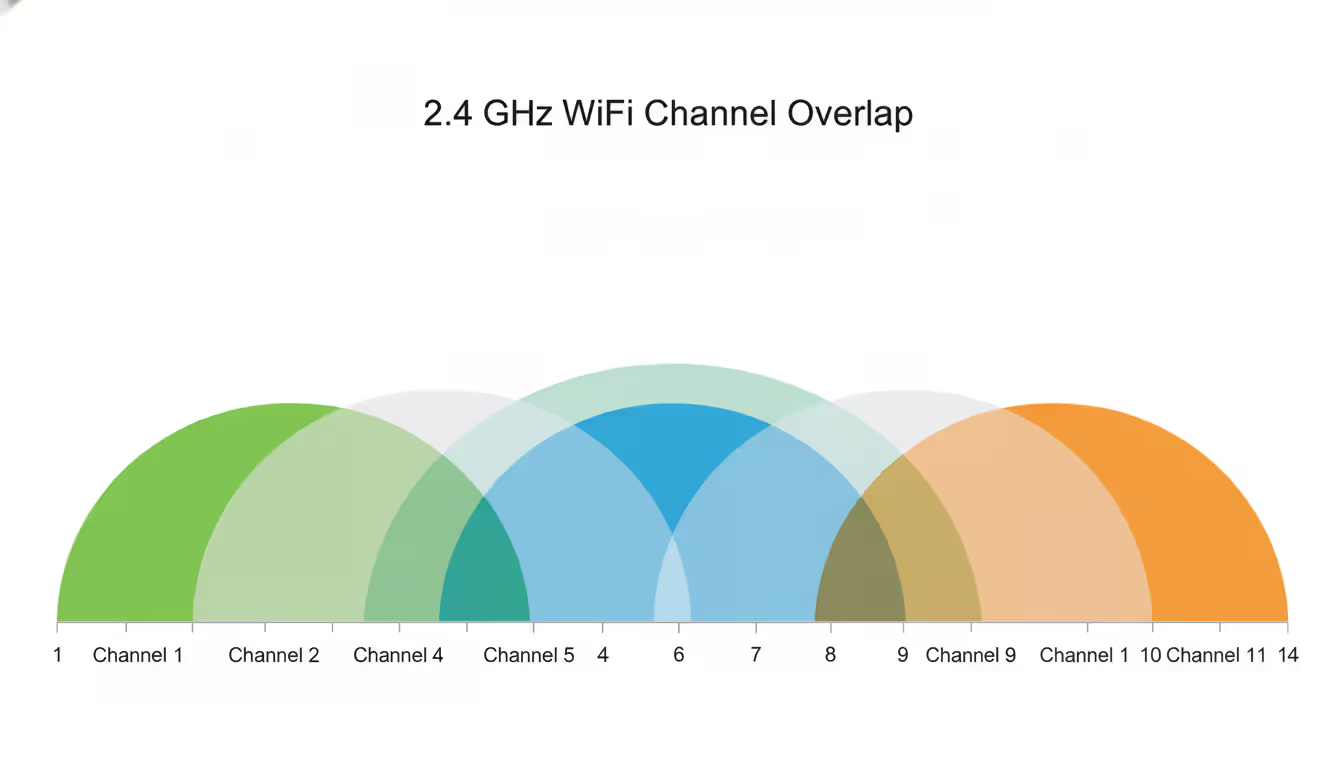
Imagine a highway with 14 lanes, but the lanes are so narrow that trucks spill into adjacent lanes. That's essentially how 2.4 GHz channels work. The spectrum gets divided into 14 numbered channels, each theoretically occupying its own space. In reality, each channel uses 22 MHz of bandwidth while sitting only 5 MHz away from its neighbors.
Here in the US, regulations limit you to channels 1 through 11. Europeans get channels 12 and 13, while Japan has access to channel 14 under different rules. Your router won't even show you the restricted channels—it's programmed to comply with regional regulations before it leaves the factory.
The spacing problem creates real headaches. Let's say your router broadcasts on channel 6. Your signal bleeds into channels 3, 4, 5, 7, 8, and 9. When your neighbor picks channel 8 because it "looks less crowded," they're actually interfering with your channel 6 network and you're interfering right back. Both of you get worse performance than if you'd coordinated your channel selection.
Author: Trevor Langford;
Source: milkandchocolate.net
Non-Overlapping Channels: 1, 6, and 11
Here's where the math works in your favor: channels 1, 6, and 11 sit far enough apart (25 MHz of separation) that they don't step on each other's toes. These three channels can run simultaneously in the same space without creating interference between them.
Network administrators setting up office WiFi always use this trio in a repeating pattern. First access point on channel 1, second on channel 6, third on channel 11, then back to channel 1 for the fourth. This arrangement prevents self-interference while maximizing coverage.
Most people make the same mistake when they see channel 3 or channel 8 looking "empty" on a WiFi scanner—they jump on that channel thinking they've found unused spectrum. Wrong move. Those middle channels overlap with the properly configured networks on 1, 6, and 11. You've just created mutual interference that slows everyone down. Stick with the three non-overlapping options. Always.
How to Choose the Best 2.4 GHz Channel
Picking the optimal channel requires actual data from your specific location. No website or guide can tell you whether channel 1, 6, or 11 works best at your house—you've got to measure it yourself.
Download a WiFi analyzer first. Windows users have free options like WiFi Analyzer from the Microsoft Store. Mac owners can tap into built-in diagnostics by Option-clicking the WiFi menu icon, though WiFi Explorer gives you prettier graphs and more detail. Android phones work great for this—try WiFi Analyzer by farproc. iPhone users face Apple's restrictions on network scanning apps, unfortunately.
Fire up your analyzer and walk around. You're looking for two things: how many networks broadcast on each channel, and how strong those competing signals measure at your router's location. Signal strength shows up as dBm values—remember that -40 dBm means a much stronger signal than -75 dBm (less negative equals stronger).
Let me give you a real scenario from my apartment building. My scanner showed: - Channel 1: eight networks, strongest at -52 dBm - Channel 6: twelve networks, strongest at -48 dBm - Channel 11: six networks, strongest at -71 dBm
Channel 11 wins despite having nearly as many networks as channel 1, because those competing signals are much weaker. That strongest signal at -71 dBm barely reaches my apartment.
Now for the router configuration. Pull up your browser and type your router's IP address—usually 192.168.1.1, 192.168.0.1, or printed on a sticker underneath the router. Log in, hunt for wireless settings under the 2.4 GHz section, and find the channel selector. It's probably set to "Auto." Change it to your chosen channel manually, click save, and give the router a minute to restart.
Run speed tests from Speedtest.net or Fast.com from different rooms. Document your results. If you don't see improvement, switch to your second-choice channel. Networks come and go as neighbors buy new routers or move away, so recheck every few months.
2.4 GHz vs. 5 GHz: Which Should You Use?
Your dual-band router gives you two completely different tools. Knowing when to grab which tool saves you from endless frustration.
Speed separates these bands dramatically. The 5 GHz band pushes 1,300 Mbps with WiFi 5 routers, and WiFi 6 models break 2,000 Mbps easily. Meanwhile, 2.4 GHz tops out around 450-600 Mbps under perfect conditions. For raw throughput, 5 GHz dominates.
The spectrum congestion tells another part of the story. The 5 GHz range includes up to 24 non-overlapping channels in the US, compared to just three usable channels at 2.4 GHz. In an apartment with 30 visible networks, that extra channel space means breathing room.
But distance and obstacles flip the advantage back to 2.4 GHz. Those higher frequency 5 GHz waves run into a brick wall—literally—with disappointing regularity. I've tested routers where 5 GHz delivers 400 Mbps in the same room, then drops to unusable levels through two walls. The 2.4 GHz band holds a solid connection across the entire house.
Feature
2.4 GHz
5 GHz
Maximum Range
Covers 100+ feet through multiple walls
Reaches 50-75 feet with obstacles
Download Speed
Peaks around 450-600 Mbps
Achieves 1,300-3,500 Mbps depending on WiFi standard
Congestion Level
Extremely crowded with dozens of competing devices
Much cleaner with minimal interference
Obstacle Performance
Penetrates walls, floors, and furniture effectively
Point your smart home devices toward 2.4 GHz—they rarely need high bandwidth anyway. That WiFi thermostat, those smart bulbs, the Ring doorbell on your front porch—they'll appreciate the extra range. Same goes for that ancient laptop from 2012 that doesn't even have 5 GHz capability.
Reserve your 5 GHz bandwidth for hungry devices close to your router. Your 4K streaming stick, your work-from-home computer running Zoom calls all day, your tablet downloading movies—these devices benefit from the faster speeds and cleaner spectrum.
2.4 GHz or 5 GHz for Gaming
Gaming performance depends less on which frequency you choose and more on connection stability. Let me explain why the "always use 5 GHz for gaming" advice oversimplifies things.
Competitive gaming cares about latency consistency. A steady 25ms ping beats a connection that bounces between 15ms and 60ms, even though that second connection might average out to roughly the same number. Packet loss matters too—those moments when data fails to arrive destroy your gameplay faster than slightly higher ping.
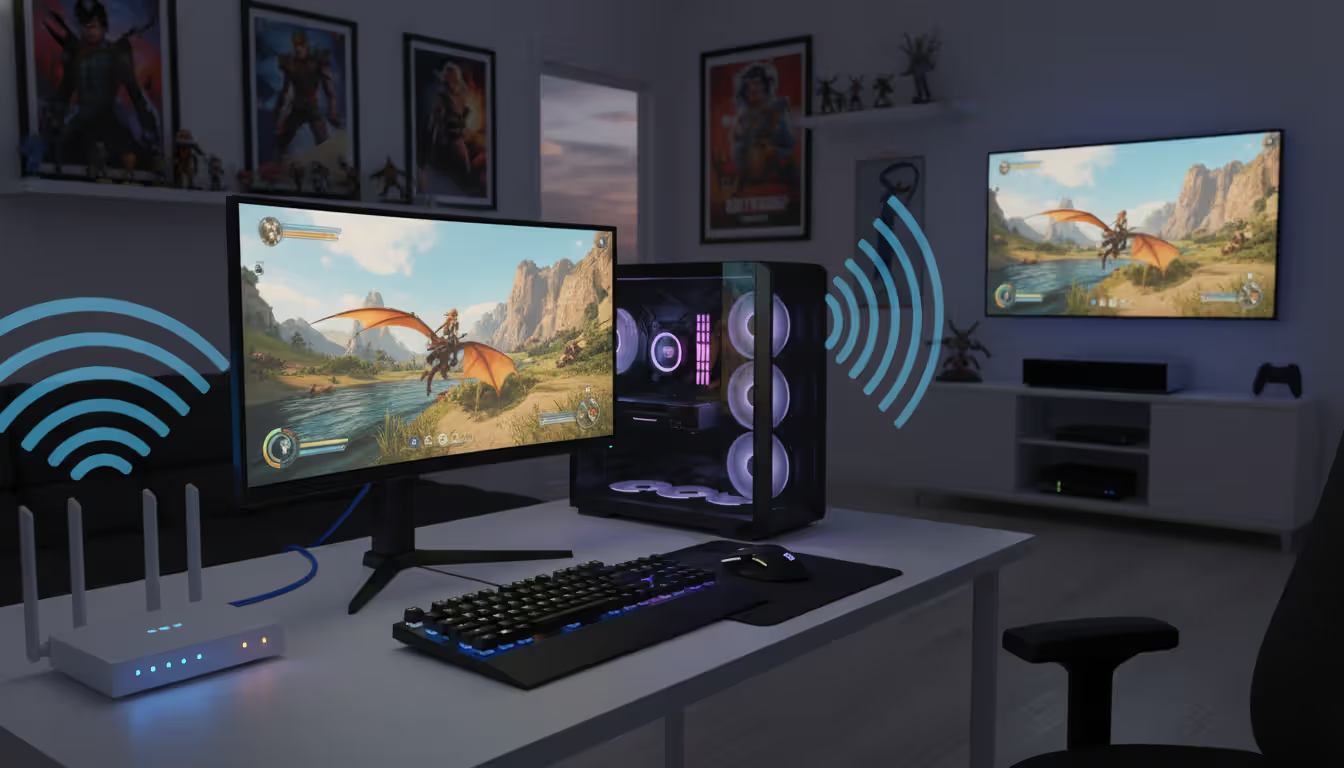
The 5 GHz band usually delivers more stable latency because fewer devices interfere with your connection. When your gaming PC or console sits one room away from your router, 5 GHz probably wins. Testing from my office, I see 18-22ms ping on 5 GHz versus 20-35ms on 2.4 GHz during evening hours when neighbors stream Netflix.
But 2.4 GHz can absolutely handle gaming if your setup works against 5 GHz. Gaming console in the basement, router on the second floor? You might get better results from 2.4 GHz's superior penetration. Living in a rural area with few competing networks? The interference advantage of 5 GHz matters less.
Test both bands yourself. Load up your game, check the network statistics (most competitive games show ping in real-time), and play for 30 minutes on each frequency during your typical gaming hours. Watch for ping spikes and packet loss warnings. Whichever band runs more smoothly wins—ignore the frequency preference guides.
Nothing beats Ethernet for serious gaming, though. Running a cable eliminates the wireless interference question entirely and gives you the lowest possible latency.
Author: Trevor Langford;
Source: milkandchocolate.net
Common Issues with the 2.4 GHz Spectrum
Microwave ovens earned their reputation as WiFi killers honestly. These kitchen appliances generate radiation around 2.45 GHz—smack in the middle of WiFi territory. When somebody nukes their lunch, that microwave dumps electromagnetic noise across multiple channels. Your WiFi stutters or disconnects entirely until the timer beeps. Moving your router away from the kitchen helps, or you can accept losing WiFi for two minutes while heating soup.
Bluetooth gadgets add to the chaos despite using clever frequency-hopping to minimize problems. One Bluetooth device? No big deal. But count up everything in your house: wireless mouse, mechanical keyboard, AirPods, portable speaker, game controller, fitness tracker, wireless printer. That's seven Bluetooth radios all hopping around the 2.4 GHz band. Heavy file transfers while using multiple Bluetooth peripherals can expose noticeable slowdowns.
Baby monitors—especially older analog models—care nothing about playing nice with other devices. Some models basically jam entire channels with strong, constant signals. Cordless phones using 2.4 GHz (look for DECT 6.0 models that use 1.9 GHz instead) create identical interference patterns.
Apartment living presents the ultimate 2.4 GHz nightmare. Fire up a WiFi scanner in a 200-unit building and watch your screen light up with 40, 50, even 60 networks. All those routers fighting over three non-overlapping channels creates unavoidable congestion. No amount of channel optimization fixes this saturation—the spectrum simply can't handle the load. This scenario explains why 5 GHz adoption matters so much. It provides an escape hatch from the 2.4 GHz parking lot.
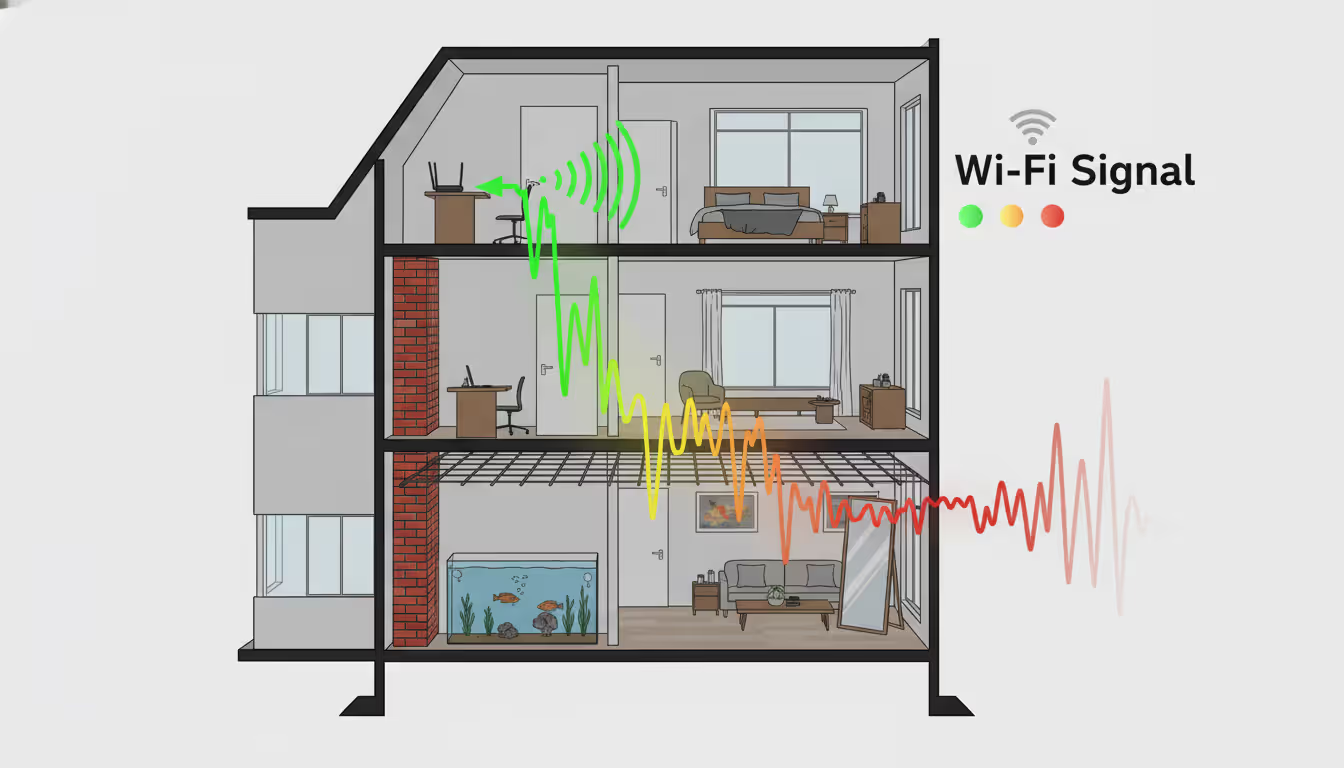
Physical barriers damage signals even when interference isn't an issue. Metal objects reflect or absorb radio waves. Water does too, which explains why aquariums and water heaters sitting between your router and device kill your signal. Mirrors contain a metallic backing that bounces WiFi signals away. Older homes built with plaster-and-metal-lath walls create Faraday cage effects that trap signals in individual rooms. Concrete reinforced with metal rebar blocks signals surprisingly well.
Speed limitations come built into 2.4 GHz by physics and design. Even in a perfect environment with zero interference and line-of-sight to your router, the frequency characteristics and 20 MHz channel width restrict maximum data rates. Anyone expecting gigabit speeds from 2.4 GHz will face disappointment regardless of how much they spent on their router.
Author: Trevor Langford;
Source: milkandchocolate.net
How to Optimize Your 2.4 GHz WiFi Performance
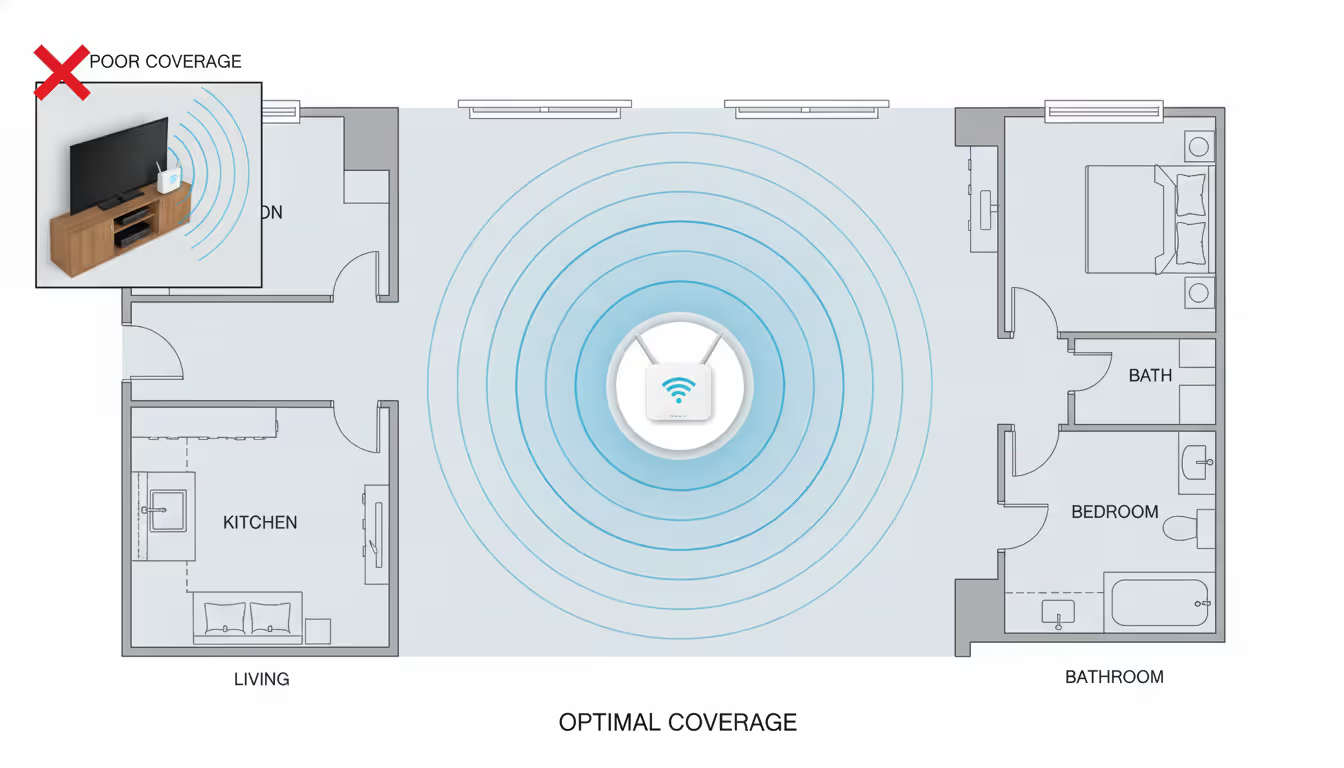
Router placement beats every other optimization trick combined. Your router belongs in a central location—physically elevated on a shelf or mounted on a wall—with clear space around it. Keep it away from metal filing cabinets, avoid tucking it behind your TV and gaming consoles, and don't hide it in a closet or utility room for aesthetic reasons.
I've visited homes where people stuffed their router behind an entertainment center stacked with electronics, then complained about poor WiFi. Moving that router to a hallway shelf solved 80% of their problems instantly. Sure, seeing router hardware doesn't win interior design awards, but neither does screaming at buffering videos.
Firmware updates matter more than most people realize. Manufacturers release updates that squash bugs, improve performance algorithms, and patch security holes. Some modern routers update automatically, but plenty of models require manual checking. Log into your router's admin interface every few months and look for firmware updates, or visit the manufacturer's support website to download the latest version.
Channel width settings deserve attention in congested areas. The 2.4 GHz band supports 20 MHz and 40 MHz channel widths. That wider 40 MHz option delivers higher speeds by bonding two adjacent channels together, but it doubles your interference footprint. In apartment buildings, stick with 20 MHz to reduce conflicts with neighboring networks. If you're in a rural area with few nearby routers, experiment with 40 MHz—you might see better speeds without causing problems.
Author: Trevor Langford;
Source: milkandchocolate.net
Move compatible devices off 2.4 GHz and onto 5 GHz. Every device connected to your 2.4 GHz radio competes for airtime using the same shared channel. Your router can only talk to one device at a time (WiFi 6 improves this with OFDMA, but older standards definitely work this way). Fewer devices on 2.4 GHz means each remaining device gets more bandwidth and faster response times.
Ancient devices supporting only 802.11b or 802.11g standards force your router into compatibility modes that slow everything down. That old laptop from 2008 or that original iPad might drag your entire 2.4 GHz network to crawl speeds. Consider upgrading these dinosaurs or at least understand they're bottlenecking your network.
Disable WPS (WiFi Protected Setup) unless you actively use it for connecting devices. This feature creates security vulnerabilities that let attackers potentially access your network, and it occasionally triggers connectivity glitches. Most people never use WPS anyway—typing your WiFi password isn't that hard.
Transmission power adjustment sounds counterintuitive, but reducing your router's broadcast power sometimes improves performance in dense environments. Your stronger signal interferes less with neighbors' networks, and their signals interfere less with yours. This works only in specific situations where mutual interference creates the primary problem. Test carefully and revert the change if performance tanks instead of improving.
Auto channel selection algorithms look at interference levels when the router boots up, then forget to adapt as conditions change. I've seen corporate networks improve dramatically when we switched to manual channel selection based on testing during actual business hours. The 3 AM interference pattern your router sees when you restart it tells you nothing about the congestion happening at 8 PM when everyone streams video
— Jennifer Martinez
FAQ
What is the difference between 2.4 GHz and 5 GHz WiFi?
These bands offer fundamentally different tradeoffs. The 2.4 GHz band travels farther and penetrates walls effectively but delivers slower maximum speeds and suffers from severe congestion because everybody uses it. The 5 GHz band provides significantly faster speeds with much less interference but can't reach as far and struggles with obstacles between your device and router. Think of 2.4 GHz as a pickup truck—slow but capable of going anywhere—while 5 GHz resembles a sports car that excels on open roads but stalls on rough terrain.
Which 2.4 GHz channel has the least interference?
No universal answer exists—it depends entirely on your specific location. Download a WiFi analyzer app and scan your environment to see which of the three non-overlapping channels (1, 6, or 11) shows the weakest competing signals where your router sits. The clearest channel in suburban neighborhoods often differs from the best choice in apartment complexes where dozens of networks overlap. What worked at your old house won't necessarily work after you move.
Can I use channels 12, 13, or 14 in the United States?
Absolutely not—FCC regulations prohibit using these channels for WiFi in the US. Most routers sold in American markets won't even display channels 12-14 as options because the firmware enforces regional compliance. Other countries permit these channels, which explains their existence in the WiFi specification. Attempting to access them through modified firmware or imported routers violates federal law and risks causing interference with other licensed services.
Why is my 2.4 GHz WiFi so slow?
Dozens of factors might contribute to sluggish performance. Interference from neighboring networks or household electronics tops the list. Poor router placement kills speed too—routers buried in closets or sitting on the floor struggle. Outdated firmware can slow things down, as can having too many devices connected simultaneously. Legacy devices supporting only older WiFi standards sometimes force your entire network into slow compatibility modes. Check your channel selection with a WiFi analyzer, update your router's firmware, verify you're using channel 1, 6, or 11, and consider whether distance or obstacles explain the problem.
Should I disable 2.4 GHz and only use 5 GHz?
Only disable 2.4 GHz if every single device in your home supports 5 GHz and sits within range of your router—an unlikely scenario. Smart home devices, budget streaming sticks, older smartphones, and plenty of IoT gadgets only connect via 2.4 GHz. Turning off the band would brick these devices entirely. Most households benefit from running both bands simultaneously and strategically connecting each device to whichever frequency suits its needs and location.
Is 2.4 GHz better for gaming or 5 GHz?
The 5 GHz band typically delivers superior gaming performance thanks to reduced interference and more consistent ping times, assuming your gaming device sits within reasonable range of your router. That said, 2.4 GHz handles gaming perfectly fine if your connection remains stable without packet loss. Rather than following blanket advice, test both bands during actual gameplay while monitoring your latency and connection stability. Use whichever band gives you steady performance. For competitive gaming that demands the absolute lowest latency, hardwiring your console or PC with Ethernet cable outperforms both wireless options.
The 2.4 GHz spectrum isn't going anywhere despite newer technologies and additional frequency bands arriving. Its ability to reach distant devices and penetrate obstacles makes it irreplaceable for countless applications, even as 5 GHz and 6 GHz bands handle demanding tasks requiring maximum speed.
Getting good performance from 2.4 GHz requires understanding its constraints rather than fighting them. Measure interference in your actual environment instead of guessing. Position your router thoughtfully where signals can propagate freely. Shift devices that support 5 GHz to that cleaner band, preserving your limited 2.4 GHz capacity for devices that genuinely need it.
The interference and congestion problems plaguing this frequency band won't magically disappear. But proper configuration combined with realistic expectations about what 2.4 GHz can and can't deliver will give you reliable connectivity for all those devices that depend on this workhorse spectrum.
Zero trust VPN fundamentally changes remote access security by continuously verifying identity and device posture before granting application-level access. Unlike traditional VPNs that trust authenticated users across entire networks, zero trust solutions enforce micro-segmentation and never assume trust
WiFi 6E adds 59 channels in the 6 GHz band, providing clean spectrum for high-speed connections. Learn how channel allocation works, real-world speed differences versus WiFi 6, tri-band operation, and whether the technology justifies the cost premium for your specific environment
Organizations with distributed locations depend on reliable WAN connectivity. This guide covers monitoring methods, performance metrics, common issues, tool selection, and implementation best practices to maintain network health across geographic distances
Web based and cloud based systems differ fundamentally in infrastructure, scalability, and costs. Web based systems run on fixed servers with predictable expenses, while cloud platforms offer elastic scaling with usage-based pricing. Learn which architecture fits your monitoring, remote access, or enterprise needs
The content on this website is provided for general informational purposes only. It is intended to offer insights, commentary, and analysis on cloud computing, network infrastructure, cybersecurity, and IT solutions, and should not be considered professional, technical, or legal advice.
All information, articles, and materials presented on this website are for general informational purposes only. Technologies, standards, and best practices may vary depending on specific environments and may change over time. The application of any technical concepts depends on individual systems, configurations, and requirements.
This website is not responsible for any errors or omissions in the content, or for any actions taken based on the information provided. Users are encouraged to seek qualified professional advice tailored to their specific IT infrastructure, security, and business needs before making decisions.