If you've ever needed to grab a file from your office computer while working remotely, you know the frustration of being physically separated from your data. I've watched colleagues email files to themselves or upload everything to Dropbox just to access documents during remote sessions—workarounds that waste time and create security headaches.
Remote file transfers don't have to be complicated. This guide walks through proven techniques for moving files between computers, whether you're using Windows Remote Desktop, setting up network shares, or working with Linux servers over SSH. I'll show you what actually works in real-world scenarios, including fixes for common problems that tech support articles usually skip.
Understanding Remote File Transfer Methods
Not every file transfer situation needs the same solution. I learned this the hard way after spending 45 minutes transferring a 3GB video file through RDP clipboard sharing—a method that works great for 5MB PowerPoint files but chokes on anything larger.
Here's what I've found works best: RDP shines when you're already working in a remote Windows session and need quick access to local files. Treating remote drives like they're sitting in your own computer? That's RDP's strength in Windows-heavy offices.
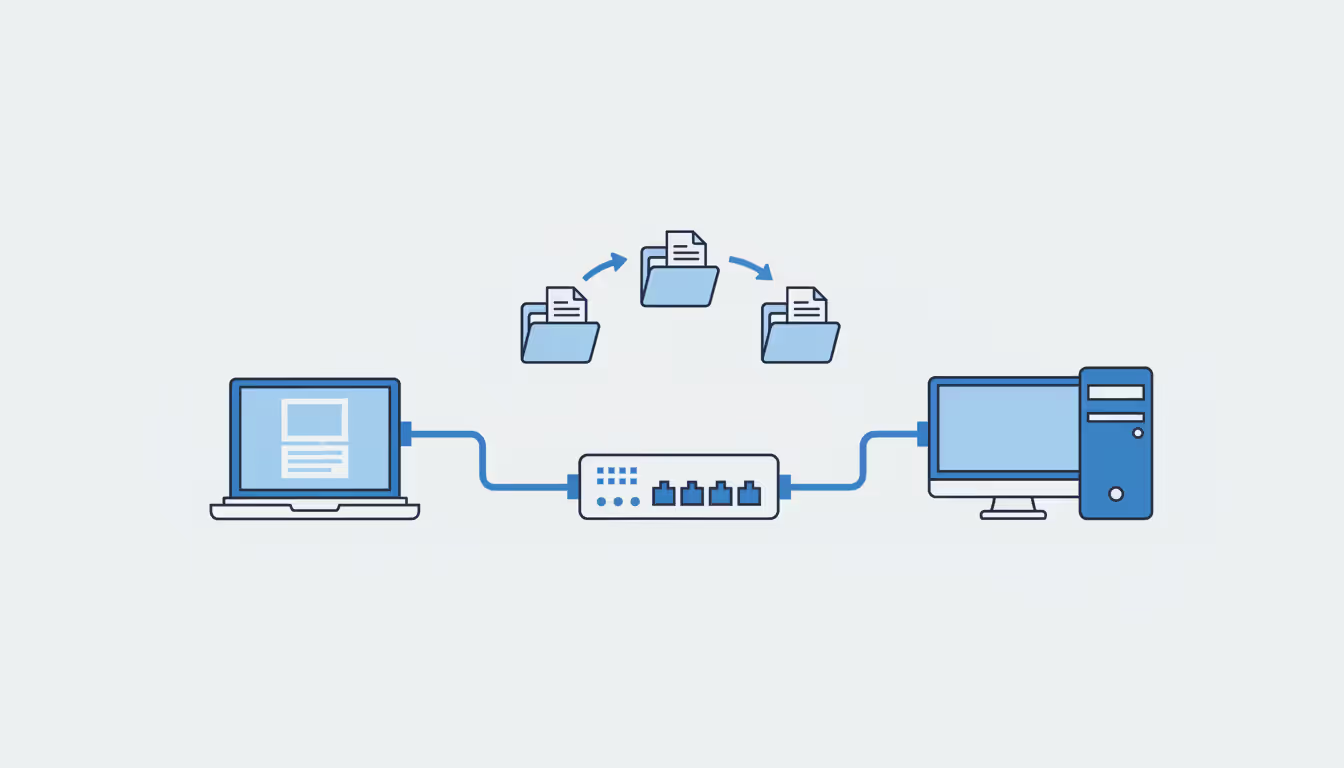
Network shares handle the heavy lifting on local networks. Two computers in the same office sharing files regularly? Stop emailing attachments back and forth. A shared folder gives you gigabit speeds without the overhead of remote desktop protocols.
Then there's SSH—the workhorse of Linux administration and secure transfers across the internet. When I need to move database backups between servers or transfer sensitive client data over untrusted networks, SCP and SFTP are my default choices. The encryption overhead costs you maybe 20% of theoretical maximum speed, but that's a bargain for security.
Your operating system matters too. A Mac user connecting to a Windows server faces different options than someone working entirely in Ubuntu. File size plays a role—copying a 50MB presentation through RDP clipboard? Fine. That same method with a 10GB video archive? You'll be waiting until tomorrow. Context determines which tool belongs in your hand.
How to Transfer Files Via RDP
Windows Remote Desktop includes file transfer features that many IT professionals don't realize exist. The most practical approach involves exposing your local hard drives inside the remote session—they appear just like the C: drive or D: drive on the remote machine.
Enabling Local Resources in RDP
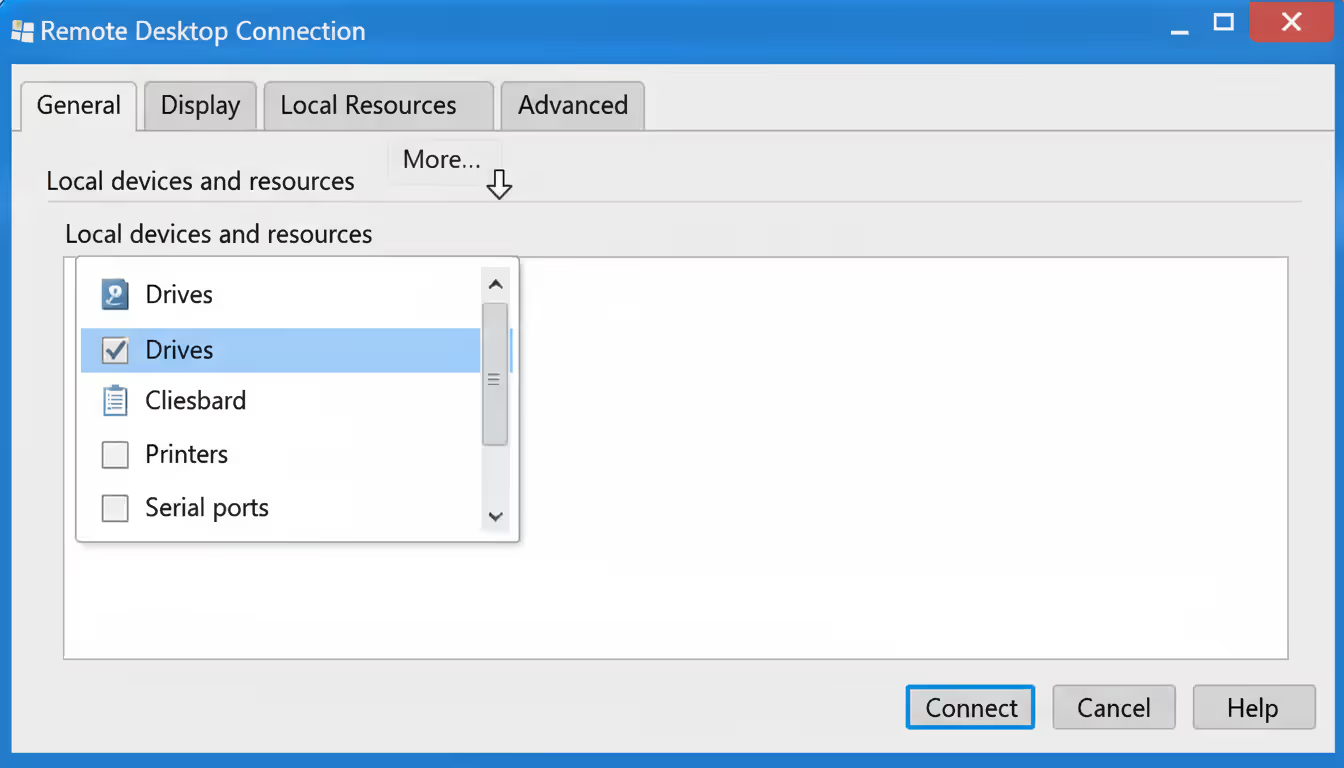
Before typing any credentials, you need to configure the Remote Desktop Connection client. Open it (search for "Remote Desktop" in your Start menu or run mstsc.exe), but don't connect yet. Click "Show Options" at the bottom—this expands settings most people never touch.
Look for the "Local Resources" tab at the top. Under a section labeled "Local devices and resources," you'll see a button that says "More." Click it. A new window appears with checkboxes for Drives, Ports, and other hardware categories.
Author: Nicole Bramwell;
Source: milkandchocolate.net
Check the box next to "Drives" to share all your local storage, or expand it and pick specific drives. I typically share just my D: drive (where I keep project files) rather than exposing my entire system. It's a small security practice that limits what someone could access if they somehow compromised my remote session.
Don't overlook the "Clipboard" checkbox higher up—it should already be checked. This enables copy-paste between your physical computer and the remote desktop, perfect for smaller files when you don't need drive access.
Now connect as usual. Once you're in the remote session, open File Explorer and scroll down in the left sidebar. Your local drives appear under a section that might say "Redirected Drives" or show up under "This PC" with labels like "C on LAPTOP-NAME."
From here, it's just drag and drop. Files move between the remote desktop and your local machine like you're working with two folders on the same computer. Pull files from the remote server to your redirected local drive, or push files from your machine to the remote server's actual storage.
Here's a technique I use constantly: even without drive redirection enabled, you can transfer files via the clipboard if it's shared. Copy a file (not the contents—the actual file) on your local PC, then paste it into any folder on the remote desktop. Windows transfers the complete file, not a shortcut. This works up to about 2GB, though anything over 500MB gets painfully slow.
Troubleshooting Common RDP Transfer Issues
The number one complaint I hear: "I enabled drive sharing, but my local drives don't show up in the remote session." Nine times out of ten, this means Group Policy on the remote server blocks drive redirection. IT departments disable this feature for security reasons, especially on terminal servers where multiple users share resources.
To check this, you'd need administrative access on the remote machine. Open Group Policy Editor and navigate through Computer Configuration, then Administrative Templates, Windows Components, Remote Desktop Services, Remote Desktop Session Host, and finally Device and Resource Redirection. If there's a policy called "Do not allow drive redirection" set to Enabled, that's your culprit. You'll need to talk to your administrator about exceptions.
Clipboard transfers fail when the rdpclip.exe process crashes in the remote session—it happens more often than Microsoft would like to admit. Pull up Task Manager on the remote desktop, find rdpclip.exe under Processes, and end it. Then either log off and back on, or run rdpclip.exe from the command line to restart it. This fixes 95% of clipboard issues I encounter.
Slow transfer speeds plague RDP because it's fundamentally a screen-sharing protocol that happens to support file transfers, not the other way around. Microsoft designed RDP to efficiently transmit what you see on screen, not to move gigabytes of data. Anything over 100MB deserves a better method—network shares or direct FTP connections that don't compete with your remote display for bandwidth.
Some transfers start fine but never finish. I see this with multi-gigabyte files when the session times out or your screen locks. RDP requires an active connection—if it drops halfway through copying a 5GB database, you're starting over from zero. For large files, use a method that supports resume capabilities or stays active even when you disconnect.
How to Transfer Files From PC to PC Over Network
Moving files between computers on the same local network should be straightforward—and it is, once you get past Windows' maze of sharing settings. These methods deliver the fastest speeds you'll see for file transfers, assuming both machines connect via Ethernet rather than WiFi.
Start with shared folders, the traditional Windows approach. Find the folder you want to share, right-click it, and select Properties. There's a tab labeled "Sharing" at the top—click it. You'll see an "Advanced Sharing" button that opens the real controls.
Check the box that says "Share this folder" and decide on permissions. Windows defaults to giving "Everyone" read-only access, which means anyone on your network can view files but not modify them. For most scenarios, you'll want to click the "Permissions" button and get more specific—add your username with Full Control, then remove the Everyone group entirely. This prevents random devices on your network from browsing your files.
After setting up the share, access it from another computer by opening File Explorer and typing the path in the address bar. Use this format: \\COMPUTERNAME\ShareName (replacing with your actual computer name and share name). Or use the IP address if names don't resolve: \\192.168.1.100\ShareName. Windows will probably ask for credentials—provide a username and password that exists on the computer hosting the share.
For ongoing access, map it as a network drive instead of typing paths repeatedly. In File Explorer, look for "Computer" or "This PC" in the ribbon menu at top, then find "Map network drive." Pick any available letter (Z: is my go-to), type the network path, and check the box for "Reconnect at sign-in" if you want this available every time you boot up.
Windows 11 dropped HomeGroup, which used to simplify all this. The replacement requires more manual configuration but gives you better control over who accesses what. Open Settings, go to Network & Internet, then Advanced network settings, then Advanced sharing settings. Under your current profile (probably "Private networks" for home/office), turn on both "Network discovery" and "File and printer sharing."
A gotcha I run into frequently: Windows Firewall blocking the ports that file sharing needs. The firewall should automatically create exceptions when you enable sharing, but third-party security software or manual firewall changes sometimes interfere. If you've set up sharing correctly but can't connect from another computer, verify that ports 137-139 and 445 aren't blocked. These handle the SMB protocol Windows uses for network file sharing.
Author: Nicole Bramwell;
Source: milkandchocolate.net
Want maximum speed for a one-time bulk transfer? Connect the two PCs directly with an Ethernet cable and assign static IP addresses on the same subnet—something like 192.168.1.1 on one machine and 192.168.1.2 on the other, both with subnet mask 255.255.255.0. This creates a direct pipe between computers without routing through your network switch, and you'll see transfer speeds limited only by your network adapters. Gigabit Ethernet typically delivers 110-115 MB/s in real-world testing.
Network shares preserve file attributes better than almost any other method—permissions, timestamps, metadata all stay intact. This matters when moving application data or system files where those details affect how software behaves.
How to Transfer Files Over SSH
Linux administrators and anyone working with remote servers eventually learn SSH-based file transfers. Two tools dominate this space: SCP for straightforward copying and SFTP for interactive sessions where you need to browse around first.
Using SCP Commands
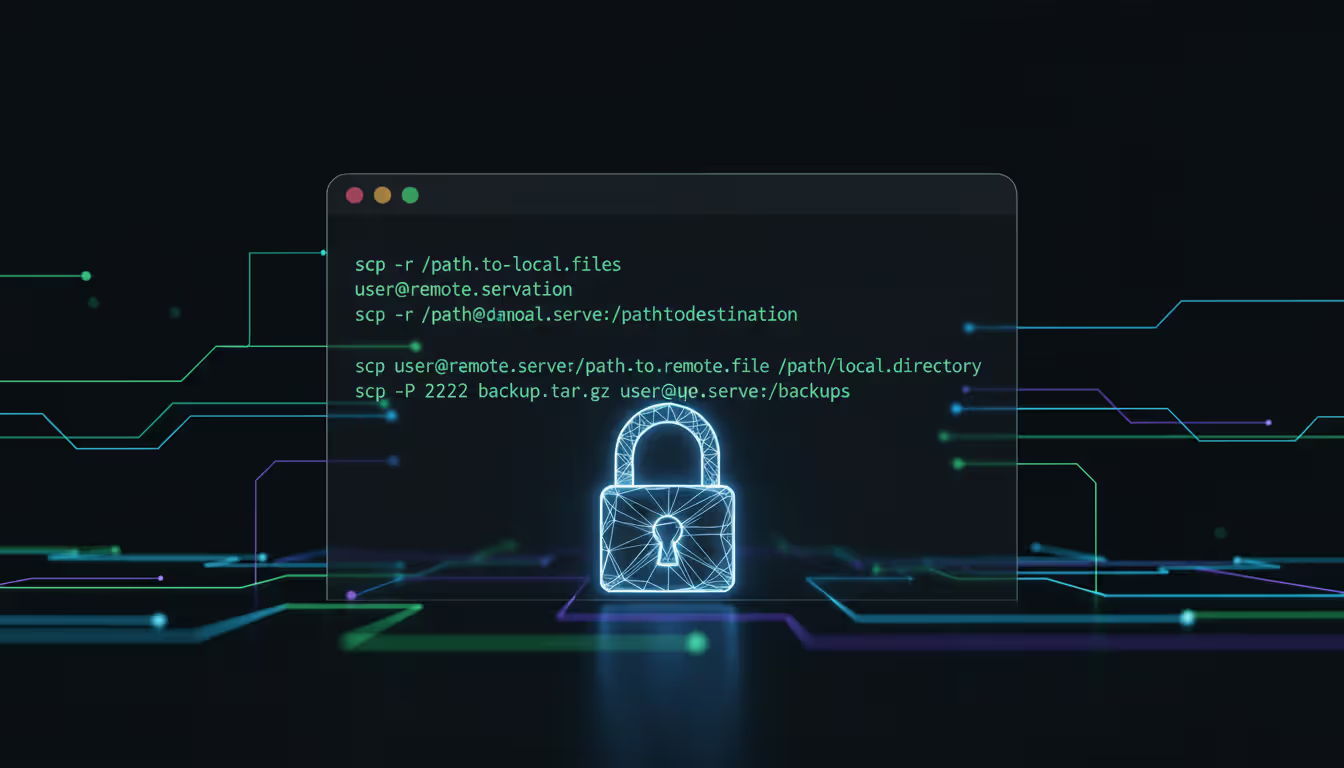
Think of SCP as the traditional copy command (cp on Linux) extended to work across networks. The syntax stays simple: scp source destination, where either location can be remote.
Copy a file from your local machine to a remote server:
SCP piggybacks on SSH authentication, meaning you'll need either a password or SSH keys set up. Key-based authentication is standard practice in production environments—it's significantly more secure and eliminates password prompts during automated transfers. When your SSH key isn't in the default location (~/.ssh/id_rsa), specify it with -i:
SCP runs quietly by default. Add -v for verbose output that shows exactly what's happening—authentication steps, connection details, transfer progress. This helps immensely when troubleshooting why a transfer fails.
The main limitation I've hit with SCP: no resume support. If your connection drops halfway through transferring a 50GB file, you're back to square one. For unreliable connections or massive files, rsync (which also uses SSH) or SFTP handle interruptions better.
Author: Nicole Bramwell;
Source: milkandchocolate.net
Using SFTP for Interactive Transfers
SFTP gives you an FTP-like interactive session but encrypted through SSH. It's more flexible than SCP when you're dealing with multiple files or need to explore the remote filesystem before deciding what to transfer.
Connect to a remote host:
sftp username@server.example.com
You'll see an sftp> prompt. Commands you'll use constantly: - ls lists what's in the remote directory - lls lists your local directory (notice the extra 'l') - cd remote_folder changes remote directory - lcd /local/folder changes local directory - get report.pdf downloads file from remote to local - put presentation.pptx uploads file from local to remote - mget *.csv downloads all CSV files - mput *.log uploads all log files
SFTP handles wildcards and recursive operations. Download an entire directory structure with get -r folder_name. Add -P (capital P) to preserve permissions and timestamps: get -P important_file.conf.
Unlike SCP, SFTP can resume interrupted downloads. Use reget filename to pick up where you left off after a connection drop—a lifesaver when transferring large files over flaky connections.
Windows users got native SSH support starting with Windows 10 version 1809. Open PowerShell or Command Prompt and use the exact same SCP/SFTP syntax I showed above—it just works. For older Windows versions, grab PuTTY's pscp and psftp utilities.
Prefer graphical interfaces? WinSCP provides a Windows application for SFTP and SCP transfers with a two-pane file browser. I recommend it to users uncomfortable with command lines but who still need secure file transfers. It's particularly popular in web hosting where people need to upload files to Linux servers from Windows desktops.
Comparing File Transfer Methods
Each approach brings trade-offs. Speed versus security. Convenience versus compatibility. Your specific situation determines the right choice.
Method
Speed
Security Level
Ease of Setup
OS Compatibility
Best Use Case
RDP Drive Mapping
Medium
Medium (session encrypted)
Simple
Windows native, limited Mac/Linux support
Occasional file access during remote work sessions
RDP Clipboard
Sluggish
Medium
Very simple
Windows native
Quick transfers of small files only
Network Share (SMB)
Very fast
Low (unless SMB3 encryption enabled)
Simple on LAN
Windows, Mac, Linux all supported
Repeated transfers on trusted local networks
SCP
Fast
High (SSH encrypted)
Moderate
Linux, Mac, Windows with OpenSSH
Secure one-time transfers, automation scripts
SFTP
Fast
High (SSH encrypted)
Moderate
Linux, Mac, Windows with OpenSSH
Interactive transfers when browsing is needed
FTP
Very fast
Terrible (no encryption)
Simple
Universal
Legacy systems only—avoid for new setups
Speed comparisons assume similar network conditions. On my office gigabit network, SMB shares regularly hit 105-115 MB/s for large files. SCP and SFTP deliver 70-95 MB/s—the encryption overhead costs you about 15-25% of theoretical maximum speed. RDP transfers rarely break 25 MB/s because they're bandwidth-limited by the remote display protocol, not the network itself.
Security varies dramatically by default configuration. SMB improved substantially with SMB3's encryption support, but plenty of networks still run SMB2 or have encryption disabled for compatibility. RDP encrypts the session but wasn't purpose-built for file transfer security—adequate for internal business use, questionable for highly sensitive data over public networks.
Setup complexity matters when you're deciding between methods. Transferring one file one time probably doesn't justify learning SSH command syntax and configuring key pairs—RDP clipboard or a temporary network share gets the job done. Automated nightly backups running via cron job? The upfront investment in SSH configuration pays dividends.
The biggest security mistake I see is using unencrypted protocols like FTP or basic SMB on networks that aren't fully trusted. If you're transferring files over any network you don't completely control, SSH-based methods should be your default. The performance difference is negligible compared to the risk of data exposure
— Marcus Chen
Security Best Practices for Remote File Transfers
File transfers create vulnerability windows at multiple stages: when you authenticate, while data moves across networks, and at both endpoints where access control matters. Address each layer or accept the risk of exploitation.
Encrypted protocols aren't optional for sensitive data. FTP transmits everything in plain text—credentials, file contents, everything. Anyone with packet capture tools on your network sees it all. FTPS (FTP over SSL) or SFTP provide encryption, though I recommend SFTP for simpler firewall configuration and stronger authentication.
For RDP, verify Network Level Authentication (NLA) is enabled on the host machine. This forces authentication before a full remote desktop session establishes, blocking certain attack vectors. Check Remote Desktop settings on the computer you're connecting to—it's usually enabled by default on modern Windows, but older systems might have it turned off.
Network shares demand careful permission management. That default "Everyone" group I mentioned earlier? It's often broader than you realize. Use specific user accounts or Active Directory groups instead, and apply least privilege principles—grant only the minimum permissions required. Read-only access handles most file distribution scenarios without risking unauthorized modifications.
SSH key authentication beats passwords for automated transfers and dramatically reduces brute-force attack success rates. Generate strong keys (RSA 4096-bit minimum, though Ed25519 offers better security with shorter keys), protect private keys with passphrases, and never copy private keys between systems. Once keys are configured properly, disable password authentication entirely on your SSH servers.
Firewall rules should restrict file transfer services to necessary networks. A file server has no business with SMB ports exposed to the internet—limit access to internal networks or specific VPN IP ranges. SSH can remain internet-accessible for remote administration, but pair it with fail2ban or similar tools that automatically block IPs after repeated failed login attempts.
Monitor transfer logs for unusual activity patterns. Large unexpected file transfers, connections from unfamiliar IP addresses, or activity at 3 AM when nobody should be working might signal compromised credentials or insider threats. Windows Event Viewer, SSH authentication logs, and file server audit logs all capture this information if you've configured logging properly.
File integrity verification matters for critical transfers. Tools like rsync automatically verify checksums during transfers. For manual copying, generate an MD5 or SHA-256 hash of the source file and compare it against the destination—mismatches indicate corruption or tampering occurred during transit.
Those temporary shares you created for a one-time transfer last week? They're probably still active, representing a forgotten security hole. Remove network shares immediately after use, and avoid saving RDP credentials on shared computers where other people might access them.
Author: Nicole Bramwell;
Source: milkandchocolate.net
Frequently Asked Questions
Can I transfer files to remote desktop without enabling drive mapping?
Absolutely. The clipboard sharing feature works without drive redirection—just copy files on your local computer and paste them into folders within the remote desktop session. This handles files up to roughly 2GB, though performance degrades noticeably above 500MB. Another approach: set up network shares or use cloud storage accessible from both machines. Upload from one location, download from the other.
What's the fastest way to transfer large files between two PCs on the same network?
Network shares over wired Gigabit Ethernet connections deliver the highest speeds I've measured in practice—typically 105-115 MB/s for large file transfers. Make sure both computers use wired connections instead of WiFi, which introduces significant overhead even on modern WiFi 6 networks. For maximum speed during a one-time bulk transfer, connect both PCs directly with an Ethernet cable, assign static IPs on the same subnet (like 192.168.1.1 and 192.168.1.2), and eliminate router processing entirely.
Is transferring files via RDP secure?
RDP sessions use encryption, so files moved through drive mapping or clipboard sharing get encrypted in transit. However, RDP encryption was designed for remote display protocols rather than optimized for file transfer security. For highly sensitive documents—financial records, medical data, legal materials—SSH-based methods provide stronger purpose-built encryption. RDP security is adequate for typical business scenarios on trusted corporate networks but shouldn't be your first choice for confidential data moving across the internet.
Do I need special software to transfer files over SSH on Windows?
Windows 10 version 1809 and newer (plus all Windows 11) includes OpenSSH client components built in. Open PowerShell or Command Prompt and use SCP/SFTP commands exactly like you would on Linux or Mac—no additional software required. For users who prefer graphical interfaces, WinSCP provides a free Windows application for SSH file transfers with drag-and-drop functionality. Older Windows versions need third-party solutions like PuTTY's pscp and psftp utilities.
Why can't I see my local drives in Remote Desktop?
Three common culprits: First, double-check that you enabled drive redirection in the RDP client settings before connecting—it's under the Local Resources tab, click More, then check Drives. Second, Group Policy on the remote machine might block drive redirection. Administrators frequently disable this feature for security reasons on terminal servers or shared remote desktops. Third, some RDP server configurations specifically restrict which local resources users can share. If you've configured the client correctly but drives still don't appear, contact your system administrator about policy exceptions.
What's the difference between SCP and SFTP?
SCP performs straightforward file copying—you specify source and destination, it transfers the file, done. Think of it like the cp command extended across networks. SFTP provides an interactive session where you browse remote directories, manage files, and selectively transfer items before disconnecting. SCP wins for speed and automation in scripts where you know exactly what you're copying. SFTP offers flexibility when you need to explore the remote filesystem first or handle multiple files based on what you discover. Both use identical SSH encryption and authentication mechanisms, so security is equivalent.
Effective file transfer strategies match methods to specific situations. RDP works well for occasional transfers during active remote sessions, particularly in Windows-dominated environments. Network shares excel at repeated transfers on local networks where raw speed outweighs encryption concerns. SSH-based approaches provide the security and flexibility demanded by transfers over untrusted networks or Linux server environments.
Begin with the simplest method meeting your security requirements. Expand your toolkit as situations demand it. A home user occasionally grabbing files from a work PC might never need SSH expertise, while system administrators managing Linux infrastructure use SCP and SFTP multiple times daily.
Security considerations should drive every transfer decision. Encrypted protocols prevent data interception, strong authentication stops unauthorized access, and proper permission management limits damage from compromised credentials. The few extra minutes invested in secure configuration prevents hours of incident response later.
Test your chosen approach with small files before attempting large transfers. This reveals configuration problems, permission issues, or network limitations while stakes remain low. Understanding actual transfer speeds on your specific network infrastructure helps set realistic expectations and guides appropriate method selection for time-sensitive work.
Zero trust VPN fundamentally changes remote access security by continuously verifying identity and device posture before granting application-level access. Unlike traditional VPNs that trust authenticated users across entire networks, zero trust solutions enforce micro-segmentation and never assume trust
WiFi 6E adds 59 channels in the 6 GHz band, providing clean spectrum for high-speed connections. Learn how channel allocation works, real-world speed differences versus WiFi 6, tri-band operation, and whether the technology justifies the cost premium for your specific environment
Organizations with distributed locations depend on reliable WAN connectivity. This guide covers monitoring methods, performance metrics, common issues, tool selection, and implementation best practices to maintain network health across geographic distances
Web based and cloud based systems differ fundamentally in infrastructure, scalability, and costs. Web based systems run on fixed servers with predictable expenses, while cloud platforms offer elastic scaling with usage-based pricing. Learn which architecture fits your monitoring, remote access, or enterprise needs
The content on this website is provided for general informational purposes only. It is intended to offer insights, commentary, and analysis on cloud computing, network infrastructure, cybersecurity, and IT solutions, and should not be considered professional, technical, or legal advice.
All information, articles, and materials presented on this website are for general informational purposes only. Technologies, standards, and best practices may vary depending on specific environments and may change over time. The application of any technical concepts depends on individual systems, configurations, and requirements.
This website is not responsible for any errors or omissions in the content, or for any actions taken based on the information provided. Users are encouraged to seek qualified professional advice tailored to their specific IT infrastructure, security, and business needs before making decisions.