For more than 50 years, organizations have relied on File Transfer Protocol infrastructure to move files between systems. Even in 2026, despite newer alternatives like cloud storage APIs and managed transfer services, FTP remains the backbone for many automated workflows—from nightly database backups to content distribution pipelines that publishers use for shipping digital assets to regional offices.
What Is an FTP Server and How Does It Work
Think of an ftp server as a specialized computer configured to store files and share them across networks. It runs software that speaks File Transfer Protocol, waiting for clients to request access. The server-client relationship works like a restaurant: the server takes orders (commands), processes them, and delivers what you requested (files).
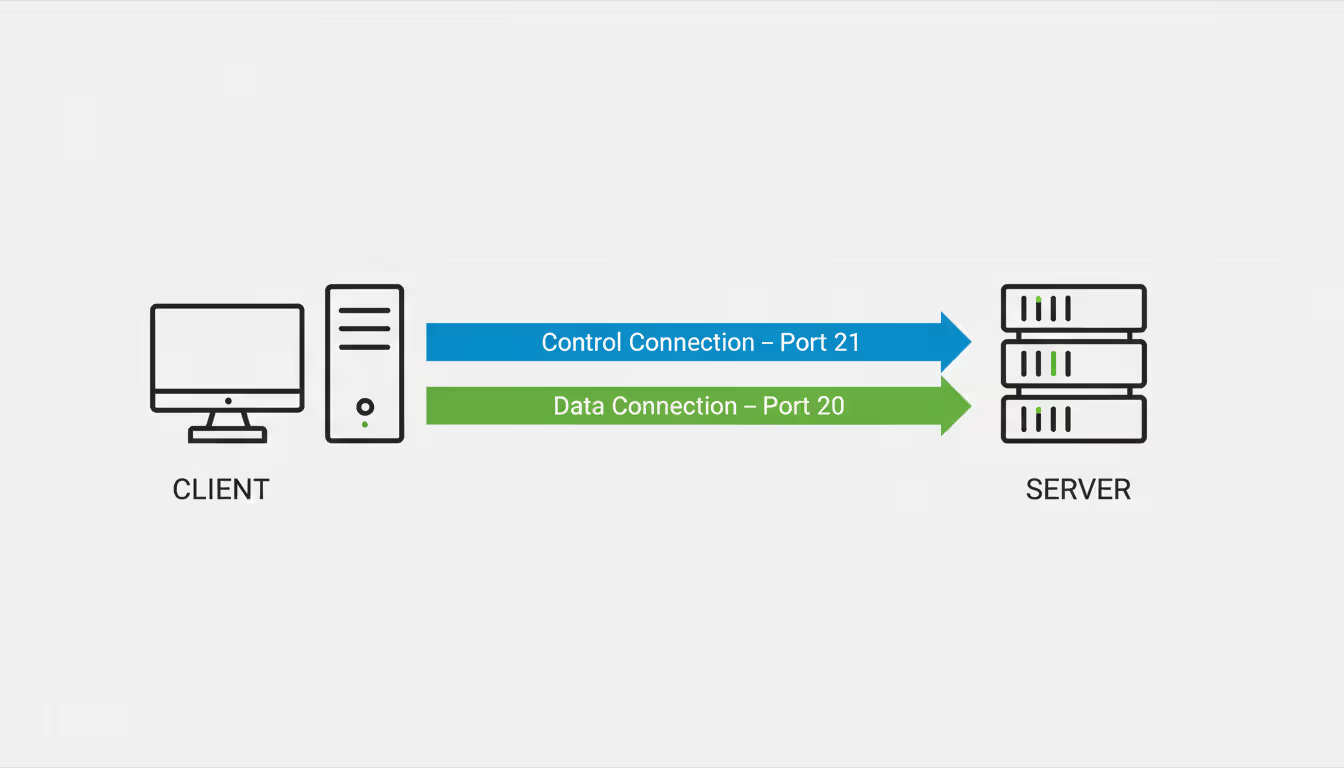
What makes FTP architecturally unique is its split-personality design. You get one connection for commands—the control path—running on port 21. Separately, a data connection handles moving actual file bytes. This separation seemed logical in 1971 when FTP was designed, but it's created decades of firewall headaches.
The control connection carries instructions: LIST (show directory contents), RETR (download this file), STOR (upload that file). Meanwhile, port 20 or various high-numbered ports handle the heavy lifting—actually streaming file data between machines.
Active versus passive modes confuse newcomers. Here's the practical difference: active mode has your server initiate the data connection back to the client. Sounds fine until your client sits behind a NAT router at a coffee shop. That inbound connection gets blocked every time.
Passive mode flips things around. Your server opens a port and waits. The client connects to it. Both connections flow outbound from the client's perspective, sailing through typical firewall configurations. That's why by 2020, virtually every FTP client defaulted to passive mode—active mode just causes too many support headaches.
Authentication happens after connecting. The server maintains a user database (or hooks into system accounts). Match username and password? You're in. Each account maps to specific directories with read, write, or no access. Some servers still allow anonymous login—the username "anonymous" with your email as password—but that's increasingly rare outside specialized public repositories.
Here's the elephant in the room: FTP sends everything as readable text. Passwords, commands, file contents—all visible to anyone sniffing network traffic. This made sense in 1971 on trusted university networks. It's indefensible today, which is why encrypted variants have largely supplanted plain FTP for anything sensitive.
Author: Rachel Denholm;
Source: milkandchocolate.net
How to Set Up an FTP Server
Building your own FTP infrastructure takes a weekend if you're methodical. The process involves picking software that matches your platform, opening the right firewall holes, and creating users with appropriate access boundaries.
Choosing FTP Server Software
Windows folks typically grab FileZilla Server—it's free, the GUI makes sense, and it handles 90% of common scenarios without consulting documentation. Alternatively, if you're already running Internet Information Services for websites, the bundled FTP service integrates naturally with existing Windows user accounts.
Linux administrators have strong opinions about their preferred daemon. vsftpd got its name from emphasizing security ("very secure FTP daemon"). It's lightweight, doesn't consume resources sitting idle, and ships with sensible security defaults. I've run vsftpd instances that handled millions of transfers on modest hardware.
ProFTPD appeals to Apache administrators because the configuration syntax feels familiar. You get tremendous flexibility—sometimes too much. It's powerful when you need granular control over every aspect of behavior.
Pure-FTPd splits the difference: good performance, reasonable security posture, simpler than ProFTPD but more capable than vsftpd for complex scenarios.
In 2026, containerization has changed the game somewhat. You can pull a pre-configured FTP server Docker image, adjust a few environment variables, and have identical setups across development, staging, and production. This consistency eliminates the "works on my machine" problem that plagued traditional deployments.
Basic Configuration and User Permissions
After installation, ftp server setup starts with designating storage locations. Create a dedicated filesystem partition if possible—keep FTP data separate from system files. I learned this lesson after a runaway upload filled my root partition and crashed a production server at 3 AM.
User configuration demands attention. Create dedicated FTP-only accounts rather than reusing your personal login. Each account should own a home directory. Virtual users—credentials that exist only for FTP, not system-wide—provide an extra security boundary. If someone steals FTP credentials, they can't use them for SSH access.
Passive mode port configuration deserves careful planning. Instead of letting the server pick random ports from 1024-65535, specify a range like 40000-40100. Then poke exactly those holes through your firewall. This controlled approach gives you 100 simultaneous connections while limiting exposure.
Bandwidth throttling prevents one large transfer from choking everything else. Set per-user limits around 80% of your connection capacity. During testing at a media company, we discovered automated backup scripts were saturating the pipe at 2 AM, disrupting real-time monitoring feeds. Per-user limits solved it.
Connection limits matter too. Allowing unlimited simultaneous connections from one IP address invites resource exhaustion attacks. Cap it at 5-10 per user unless you have specific requirements for parallel transfers.
Enable comprehensive logging immediately—before your first real user connects. Logs showing authentication attempts, file operations, and errors become invaluable during post-incident analysis. Last year, logs helped me trace unauthorized access to a compromised password from a phishing attack.
Configure log rotation or your logs will eventually consume all available space. I've seen 200GB log files from busy servers that nobody maintained. Rotate daily, keep 30 days, compress old logs.
Test everything with a restricted dummy account first. Create "testuser" with access to exactly one directory. Try uploading, downloading, renaming, and deleting files. Attempt to navigate to parent directories—this should fail. Only after this test user behaves correctly should you create real accounts.
How to Connect to an FTP Server
Connecting requires four pieces of information: the server address (hostname or IP), port number (21 unless configured otherwise), username, and password. Multiple connection methods exist, each with trade-offs.
Command-line clients come built into Windows, macOS, and Linux. Open your terminal and type ftp 192.168.1.100 or ftp ftp.yourcompany.com. After connecting, you'll see a prompt for credentials. Commands like dir or ls show files, get report.pdf downloads, put data.csv uploads. The interface feels archaic—because it is—but it's universal and scriptable.
For scripting automated transfers, command-line FTP shines. I've built systems that run nightly, pulling reports from vendor servers using .netrc credential files and bash scripts. No GUI required, perfect for servers without desktop environments.
GUI clients make how to ftp to a server much friendlier for interactive use. FileZilla remains popular for good reasons: drag-and-drop transfers, directory comparison, transfer queue management. WinSCP adds integration with Windows Explorer and supports multiple protocols beyond FTP. Cyberduck provides elegant macOS integration.
Web browsers used to support FTP URLs—typing ftp://ftp.example.com would show directories like files on your computer. Chrome removed FTP support in version 88 (2021). Firefox followed in 2021. Edge dropped it. This method is essentially dead by 2026.
Connection failures follow predictable patterns. "Connection refused" means either the server isn't running, you've got the wrong port, or a firewall blocks the connection entirely. Check if the server process is running, verify port 21 is open, test from different networks.
"530 Login incorrect" is straightforward—wrong username or password. But sometimes the account exists and credentials are right—the account might be disabled, expired, or IP-restricted. Check server logs for the specific rejection reason.
Timeouts during directory listings while the initial connection succeeded? Classic passive mode problem. The control connection works, but data channel establishment fails. Your client reaches the server, authenticates successfully, sends the LIST command... then silence. Usually the server's passive ports are filtered by a firewall somewhere in the path. Try active mode as a workaround, or contact the administrator to check passive port accessibility.
FTP Server to Server File Transfers
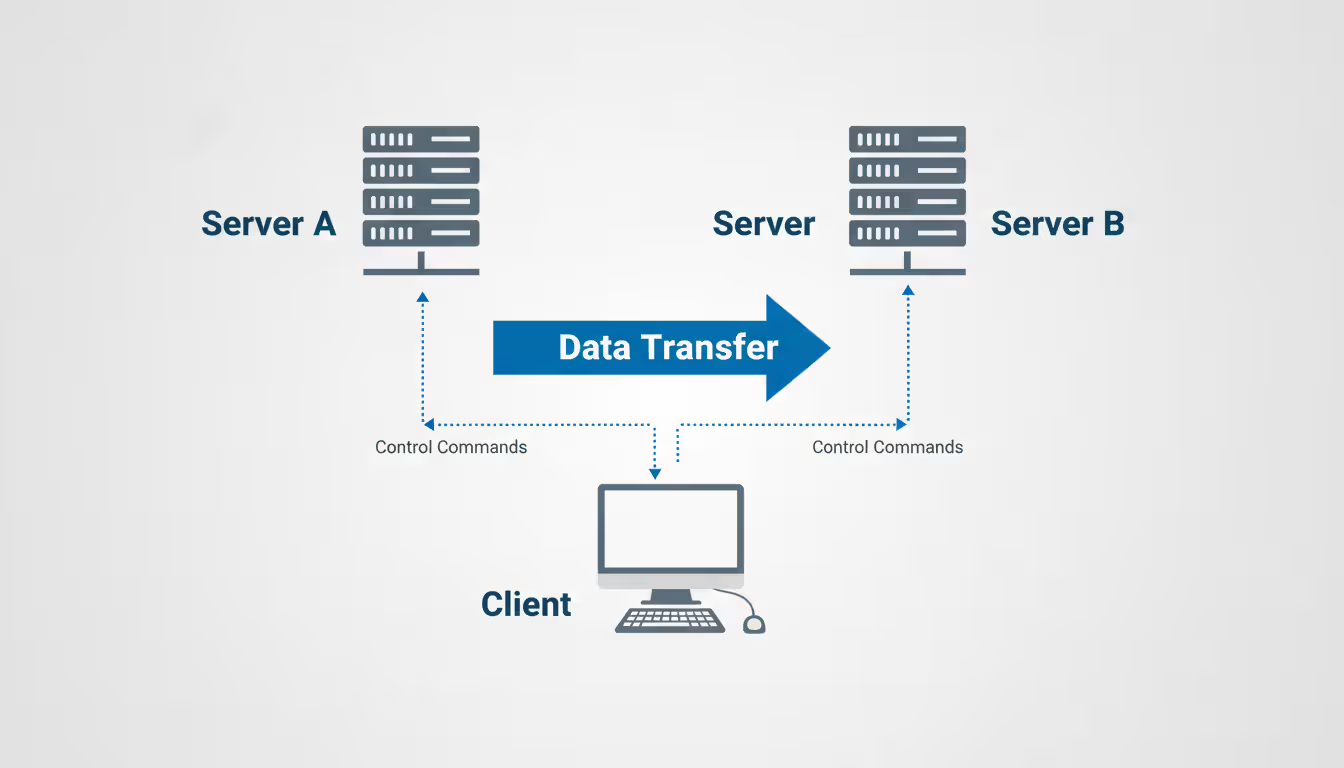
Standard FTP moves files between your computer and a server. But ftp server to server transfers—called FXP—connect two remote servers and orchestrate direct transfers between them, with your client just managing the process.
Imagine migrating 2TB of images from your old hosting provider in Chicago to a new datacenter in Amsterdam. Downloading everything to your office (hours or days over your 100Mbps connection) then uploading it again (equally slow) wastes time and bandwidth. FXP tells the Chicago server to connect directly to the Amsterdam server and transfer files using their gigabit datacenter connections. Your client just monitors progress.
Author: Rachel Denholm;
Source: milkandchocolate.net
The mechanics involve your FTP client sending PORT or PASV commands to both servers, establishing their passive ports. Then you issue a transfer command. Instead of pulling data through your connection, the source server opens a direct connection to the destination and pipes data across.
Media companies use this technique constantly. A video production house might render content on servers in Los Angeles, then distribute copies to regional offices in New York, London, and Tokyo using FXP. The LA server connects directly to each destination, bypassing the editor's workstation entirely.
Security concerns have made FXP controversial. The "FTP bounce attack" exploits permissive FXP implementations to scan or attack third-party systems. An attacker uses your server as a proxy, making connections appear to originate from your IP. By 2026, most FTP servers disable FXP by default.
Enable it only when you control both endpoints. In vsftpd, you'll set pasv_promiscuous=YES to allow data connections to different addresses than the control connection. ProFTPD needs the AllowForeignAddress directive. Always combine this with IP whitelisting—specify exactly which remote addresses can establish data connections.
Testing and Monitoring Your FTP Server
Regular verification catches problems before users complain. Start simple, then layer on sophistication as your infrastructure grows.
The most basic ftp server test uses an external connection attempt. From a different network—your phone's hotspot works great—connect using a command-line client. Test anonymous access if enabled. Try authenticated login. Upload a test file, list directories, download the file back, delete it. This exercises the full operational chain.
Online testing services provide external perspective without needing multiple networks. FTPTest.net and similar sites attempt connections from their servers and report results. They'll catch issues like incorrect NAT configuration where you advertise a private IP in PASV responses, invisible from inside your network but breaking external connections.
Performance testing reveals capacity limits. Transfer a 1GB file and time it. FTP should deliver close to your network bandwidth minus about 10% overhead. Getting only 30% of expected speed? Look for disk I/O bottlenecks, CPU saturation (if using encryption), or network congestion. I once spent hours troubleshooting slow transfers before discovering an auto-negotiation mismatch had limited the server's network interface to 100Mbps instead of gigabit.
Production ftp server monitoring requires continuous oversight. Monitoring tools like Nagios check service availability every 5 minutes, alerting when FTP stops responding. Configure checks from multiple geographic locations—an FTP server reachable from your headquarters might be blocked by upstream issues affecting customer access.
Disk space monitoring prevents the "failed uploads with cryptic errors" scenario. When storage fills up, STOR commands fail mid-transfer. Users see partial files or timeout errors. Alert at 80% capacity so you can expand storage or clean old files before hitting 100%.
Watch authentication failure rates. One or two failed logins? Someone typo'd their password. Fifty failures per minute from one IP? Automated brute-force attack. I configure fail2ban to temporarily block IPs after five failed attempts in ten minutes. This stops password guessing without impacting legitimate users who occasionally mistype credentials.
Transfer logs reveal usage patterns worth understanding. One client I worked with discovered their FTP server handled 80% of daily traffic between 2-4 AM from automated processes. Scheduling maintenance during low-traffic periods (10 AM-12 PM in their case) minimized disruption.
Track concurrent connections, average throughput, and server resource usage during peak hours. Establish baseline metrics. When performance degrades, you'll have historical data showing what "normal" looks like. Last month my monitoring caught CPU usage creeping upward over two weeks—turned out to be a memory leak in an FTP process that required updating to the latest patch version.
Security Considerations for FTP Servers
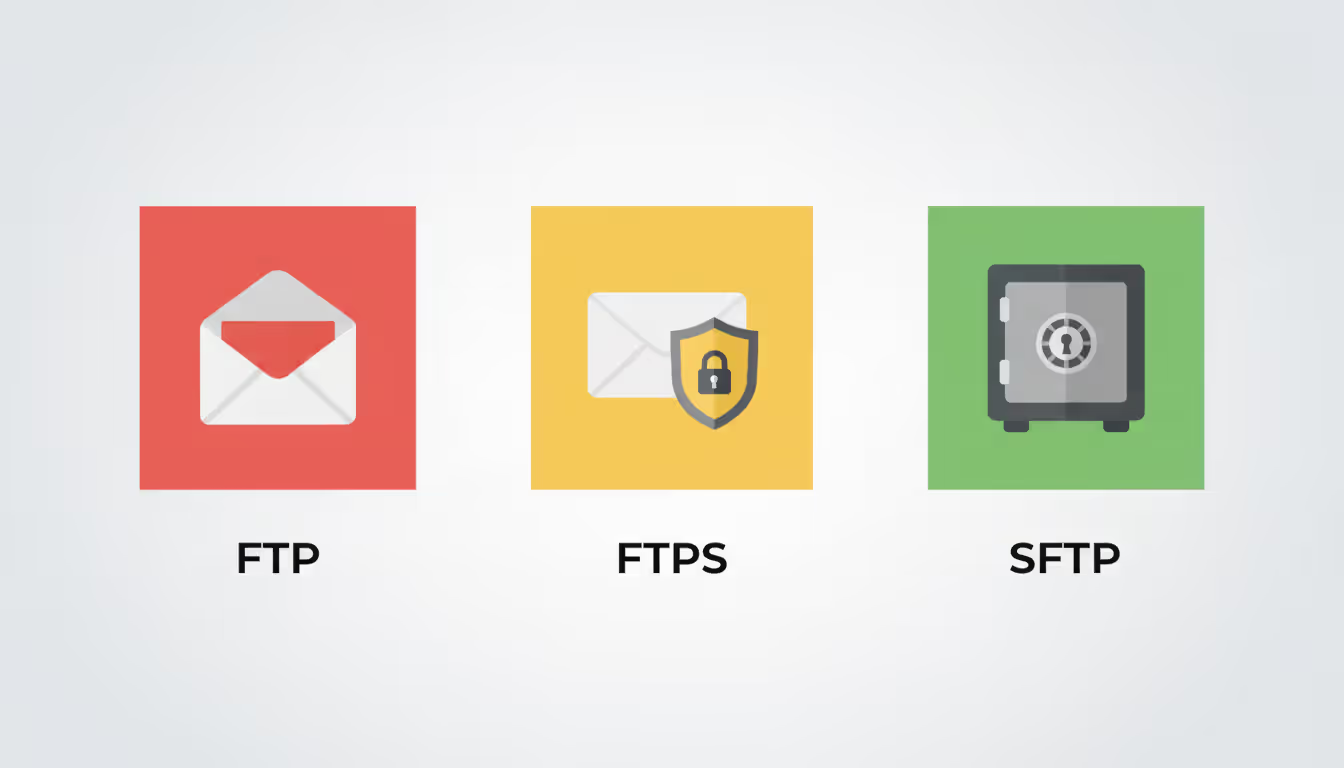
Unencrypted FTP transmits credentials and content as plain text. Anyone with a packet sniffer between client and server can capture everything. This vulnerability is fundamental to the protocol design. Two encrypted alternatives address it: FTPS and SFTP.
Author: Rachel Denholm;
Source: milkandchocolate.net
FTPS wraps traditional FTP in SSL/TLS encryption, similar to HTTPS securing HTTP. You get two implementation styles. Explicit FTPS starts as normal FTP on port 21, then the client sends an AUTH TLS command to upgrade the connection to encrypted. Implicit FTPS encrypts from the first byte, typically using port 990 instead of 21.
SFTP has a confusing name—it's actually "SSH File Transfer Protocol," not "Secure FTP." It runs over SSH on port 22, providing encrypted transfers plus SSH's security features like key-based authentication. SFTP uses one channel for both commands and data, avoiding the dual-connection complexity that makes FTP firewall-hostile.
Which should you pick? In 2026, default to SFTP for new projects unless you have compelling reasons otherwise. It's simpler to configure, friendlier to firewalls, and leverages SSH infrastructure many organizations already maintain. Use FTPS when integrating with legacy systems that don't understand SFTP, or when you've invested heavily in SSL certificate infrastructure.
Firewall rules need precision. Open port 21 for command connections. Open your designated passive port range (say, 45000-45100). Nothing else. Don't expose FTP servers directly to the public internet without additional protection layers. Put them behind VPNs when possible. Use jump boxes for administrative access.
Authentication strength matters enormously. Disable anonymous access unless you're running a public file repository (rare). Enforce minimum password complexity—12 characters, mixed case, numbers, symbols. Better yet, use SSH key authentication with SFTP. Keys resist brute-force attacks far better than passwords.
Implement account lockout after repeated failures. Five wrong passwords in 10 minutes? Lock the account for an hour. This thwarts automated password guessing while barely impacting legitimate users.
User isolation through chroot jails prevents directory traversal. Each user should see only their designated directory tree. They shouldn't even know other directories exist, let alone access them. This containment limits damage if credentials get compromised. vsftpd's chroot_local_user=YES enables this. Test thoroughly—chroot can break in subtle ways if library dependencies aren't available inside the jail.
Keep software current. Critical vulnerabilities get patched regularly. ProFTPD had an authentication bypass in versions before 1.3.7b (2020). vsftpd patched a serious denial-of-service bug in 2021. Subscribe to security announcement lists for your chosen server software. Apply patches within days of release for critical issues, within weeks for lower-severity fixes.
Common FTP Server Problems and Solutions
FTP infrastructure creates substantial risk exposure when deployed without proper security controls.In 2026, deploying unencrypted FTP for sensitive information is genuinely indefensible. The performance impact from SFTP or FTPS encryption is trivial—maybe 5-10% throughput reduction—compared to the exposure from credential interception or data leakage. Organizations need to approach FTP security with the same discipline applied to any internet-facing service: frequent patches, robust authentication requirements, detailed audit logging, and proper network isolation
— Marcus Chen
Connection timeouts after successful authentication stump many administrators. The client connects fine, logs in successfully, then hangs when requesting directory listings. This symptom screams "passive mode data channel failure." The server sends back a PASV response with IP and port information. The client tries connecting to that data channel. Silence. Either the passive ports are firewalled, or the server is advertising an unreachable address (common with NAT). Check passive port accessibility, verify PASV response contains your public IP, not a private 192.168.x.x address.
Permission errors like "550 Permission denied" or "550 Access is denied" stem from filesystem permissions conflicting with FTP expectations. On Linux, check ownership with ls -la. The FTP process runs as a specific user—often "ftp" or "vsftpd." That user needs read access for downloads, write access for uploads, and appropriate directory permissions for listing contents. Windows administrators should verify NTFS permissions grant the FTP service account necessary rights on target directories.
Slow transfer speeds have multiple culprits beyond obvious bandwidth limits. Disk I/O bottlenecks appear when storage can't keep pace with network speed. This happened to me on a server with five RAID arrays rebuilding simultaneously—disk subsystem was completely saturated. CPU limitations affect encrypted transfers disproportionately. Cryptography is computationally expensive. A server that easily saturates gigabit with plain FTP might only achieve 300Mbps with FTPS if the CPU can't encrypt faster. Upgrade CPU or enable hardware encryption acceleration.
Firewall blocking manifests differently depending what's filtered. Blocked port 21 prevents any connection—clients get "connection refused" immediately. Blocked passive ports allow connection and authentication but fail during file operations. Users report they can log in but can't see files or transfers hang. Document your firewall rules clearly. Test from outside networks quarterly.
The "425 Can't open data connection" error occurs when command channel works but data channel establishment fails. The root cause varies: passive mode misconfiguration, firewall blocking data ports, client behind aggressive NAT. Try switching connection modes in your client settings. Some clients expose "active mode" versus "passive mode" options. If passive fails, test active. Still broken? The problem likely involves firewalls or NAT configuration requiring administrator intervention.
File corruption during transfer often traces to ASCII versus binary mode confusion. FTP inherited two transfer modes from an era when text files had platform-specific line endings. ASCII mode converts CR/LF sequences between systems—useful for text files, catastrophic for binaries. Transfer a JPEG in ASCII mode and you'll get corrupted garbage. Modern clients default to binary (type I) for everything, but older scripts sometimes explicitly set ASCII mode. When troubleshooting mysterious file corruption, verify binary mode is active. In command-line clients, type binary before transfers to force binary mode.
Comparison of Popular FTP Server Software
Software
Runs On
Installation Complexity
Notable Security Features
Licensing
FileZilla Server
Windows, Linux
Straightforward with graphical wizard
Supports FTPS encryption, IP address filtering, configurable speed throttling
Open source, no cost
ProFTPD
Linux, Unix variants, macOS
Medium—relies on text-based configuration
Implements TLS/SSL, supports chroot isolation, extensive access control lists
Integrates Windows authentication, supports FTPS, IP-based restrictions
Bundled with Windows Server license
Frequently Asked Questions
What is the difference between FTP and SFTP?
FTP transmits data without encryption, exposing passwords and file contents to network sniffing. SFTP operates over SSH connections and encrypts everything in transit. FTP uses port 21 plus additional data ports, creating firewall complexity. SFTP uses only port 22 with a single connection channel. SFTP delivers stronger security and simpler network configuration, making it the preferred option for modern deployments.
Do I need a dedicated server to run an FTP server?
FTP server software runs on any network-connected computer—desktops, laptops, virtual machines, or cloud instances all work. Production deployments benefit from dedicated resources ensuring consistent availability and performance. Shared hosting environments frequently prohibit FTP server installation, so check your provider's acceptable use policy if you're working within managed hosting rather than controlling your own infrastructure.
What port does an FTP server use?
Standard FTP listens on port 21 for control connections. Data transfers use port 20 in active mode or random high-numbered ports (typically ranging from 1024 to 65535) in passive mode. FTPS can operate on port 990 for implicit SSL or port 21 for explicit SSL upgrades. SFTP uses port 22, sharing it with standard SSH. Many administrators configure specific passive port ranges like 50000-50100 to simplify firewall management.
Can I access an FTP server from a web browser?
Browser manufacturers removed native FTP capabilities from Chrome, Firefox, and Edge between 2021-2022 due to minimal usage and security concerns. Some browsers might handle read-only FTP through extensions, but functionality is unreliable and limited. For practical FTP access, use dedicated client applications like FileZilla or command-line tools built into your operating system.
How do I know if my FTP server is working properly?
Test from outside your local network using an FTP client to reach your server's public IP or domain name. Verify successful authentication, directory listing, uploading a test file, downloading it back, and deletion. Review server logs for error messages. Use internet-based FTP testing services to confirm external accessibility. Monitor server resource consumption (CPU, memory, disk I/O) during transfers to ensure adequate performance under load.
Is FTP secure for transferring sensitive files?
Unencrypted FTP is definitively insecure—it broadcasts passwords and file contents as readable text across networks. For sensitive data, use FTPS (FTP wrapped in SSL/TLS encryption) or SFTP (SSH File Transfer Protocol). Both encrypt data during transmission, protecting against interception. SFTP is typically recommended for new implementations due to simpler configuration and stronger security architecture. Never transfer confidential information over unencrypted FTP across public networks.
FTP servers continue serving specific file transfer needs effectively despite being a mature technology. Understanding protocol architecture, security limitations, and proper configuration enables you to deploy infrastructure meeting your requirements without creating unnecessary vulnerabilities.
Choosing between standard FTP, FTPS, and SFTP depends on security needs, legacy compatibility requirements, and administrative preferences. Most greenfield deployments in 2026 should default to SFTP unless specific circumstances argue otherwise. Proper deployment extends beyond software installation—it demands thoughtful user permission structures, careful firewall configuration, and ongoing monitoring.
Consistent testing identifies problems before impacting users. Monitoring provides visibility into usage patterns and potential security events. When issues surface, systematic troubleshooting guided by understanding FTP's dual-channel architecture typically locates root causes quickly.
Security deserves primary consideration, not an afterthought. Encrypted protocols, strong authentication mechanisms, restrictive permissions, and prompt updates form the foundation of responsible FTP server administration. File transfer convenience doesn't justify exposing your network to preventable security risks.
Ethernet remains the backbone of reliable network connectivity in homes, offices, and data centers. This guide explains how wired connections work, compares Ethernet vs WiFi performance, covers cable types and speeds, and provides practical troubleshooting advice for common connection problems
Out-of-band management provides independent administrative access to critical infrastructure when primary networks fail. This guide covers implementation strategies, technology options, security considerations, and best practices for deploying reliable out-of-band access across distributed IT environments
Network segmentation divides networks into isolated zones with controlled access, limiting lateral movement during breaches. This guide covers implementation strategies, tools comparison, design approaches, and common mistakes to help organizations improve security and performance through proper segmentation
Network discovery automates the process of identifying and cataloging devices connected to your infrastructure. This guide covers discovery methods, compares leading tools, and provides practical solutions to common challenges IT teams face when implementing network visibility
The content on this website is provided for general informational purposes only. It is intended to offer insights, commentary, and analysis on cloud computing, network infrastructure, cybersecurity, and IT solutions, and should not be considered professional, technical, or legal advice.
All information, articles, and materials presented on this website are for general informational purposes only. Technologies, standards, and best practices may vary depending on specific environments and may change over time. The application of any technical concepts depends on individual systems, configurations, and requirements.
This website is not responsible for any errors or omissions in the content, or for any actions taken based on the information provided. Users are encouraged to seek qualified professional advice tailored to their specific IT infrastructure, security, and business needs before making decisions.