Ethernet remains the backbone of reliable network connectivity in homes, offices, and data centers across the United States. While wireless technology dominates headlines, the physical cable connection invented in the 1970s continues to evolve, offering speeds and stability that wireless alternatives still struggle to match consistently.
Understanding Ethernet Technology
Ethernet is a wired networking standard that transmits data between devices using physical cables and standardized protocols. Developed by Xerox PARC engineer Robert Metcalfe in 1973, Ethernet defines how devices format and transmit data packets across a local area network (LAN).
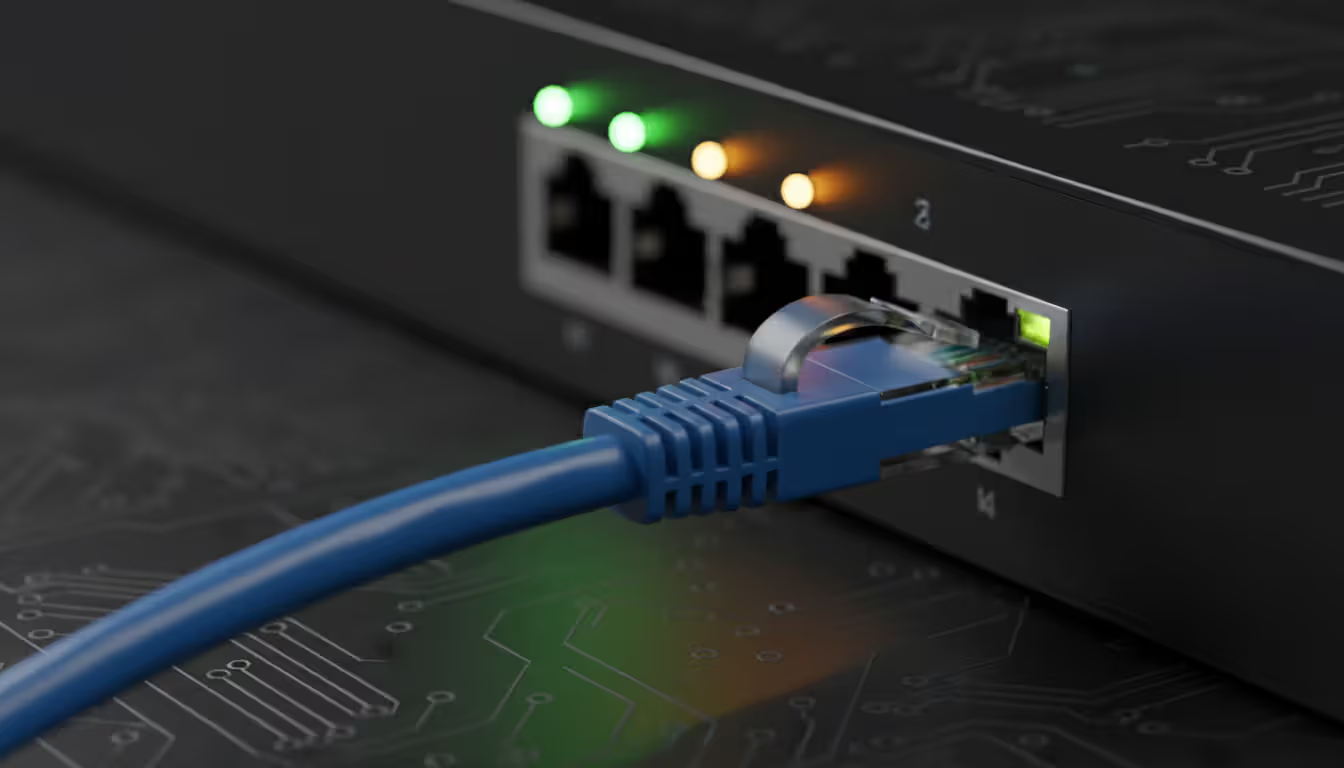
The technology operates on the physical layer through copper or fiber optic cables that connect to dedicated Ethernet ports—rectangular jacks labeled RJ-45 found on computers, gaming consoles, smart TVs, and network equipment. These ports house eight pins that correspond to twisted pairs of wires inside the cable, which carry electrical signals representing binary data.
When your computer sends information through an Ethernet connection, the network interface card (NIC) converts digital data into electrical signals. These signals travel through the cable to a switch or router, which reads the destination address embedded in each data packet and forwards it to the correct device. This process happens in microseconds, creating the near-instantaneous communication we expect from modern networks.
The protocol uses a method called CSMA/CD (Carrier Sense Multiple Access with Collision Detection) in older implementations, though modern switched Ethernet networks have largely eliminated collision domains. Each device on an Ethernet network has a unique MAC (Media Access Control) address—a 48-bit identifier burned into the hardware that functions like a permanent serial number for network communication.
Ethernet's standardization through IEEE 802.3 specifications ensures compatibility across manufacturers and generations of equipment. A cable purchased in 2026 will work with routers from different brands and computers from various manufacturers, provided they support the same speed standards.
Author: Nicole Bramwell;
Source: milkandchocolate.net
Ethernet vs WiFi Router Connections
The fundamental difference between Ethernet and WiFi router connections lies in the transmission medium. Ethernet uses dedicated physical cables, while WiFi broadcasts radio signals through the air that any compatible device within range can receive.
Speed represents the most noticeable advantage of wired connections. A quality Cat6 Ethernet cable can deliver consistent gigabit speeds (1,000 Mbps) in both directions simultaneously. WiFi routers, even the latest WiFi 6E and WiFi 7 models, must share available bandwidth among all connected devices and contend with interference from neighboring networks, microwaves, and physical obstacles like walls and floors.
Latency—the delay between sending and receiving data—consistently favors Ethernet. Wired connections typically exhibit 1-3 milliseconds of latency on local networks, while WiFi connections range from 5-30 milliseconds depending on signal strength, interference, and network congestion. For activities requiring split-second timing, these differences matter significantly.
Security considerations also differentiate the two technologies. Ethernet connections are inherently more secure because accessing the network requires physical access to a cable. WiFi networks, regardless of encryption strength, broadcast signals that attackers can intercept from parking lots or adjacent buildings. While modern WPA3 encryption provides strong protection, the physical isolation of Ethernet eliminates an entire category of attack vectors.
Feature
Ethernet
WiFi
Maximum Speed
10 Gbps (Cat6a/Cat7)
5.8 Gbps (WiFi 7, theoretical)
Typical Latency
1-3 ms
10-30 ms
Security
Physical access required
Vulnerable to interception
Range
100 meters per cable segment
30-50 meters indoors
Installation Difficulty
Requires cable routing
Simple setup
Cost per Device
$15-50 (cable + switch port)
Included after router purchase
When to Use Ethernet Instead of WiFi
Gaming enthusiasts should prioritize Ethernet connections for competitive play. The combination of lower latency and consistent bandwidth prevents the frustrating lag spikes that occur when WiFi signals degrade during crucial moments. Professional esports players universally use wired connections for tournaments and practice.
Streaming high-resolution content benefits from Ethernet's stability. A 4K HDR stream requires sustained bandwidth of 25-50 Mbps, and buffering occurs when WiFi connections dip below these thresholds due to interference or distance from the router. Ethernet eliminates these interruptions, particularly when multiple household members stream simultaneously.
Office environments with desktop computers gain efficiency from Ethernet infrastructure. Video conferencing, large file transfers, and cloud application performance all improve with wired connections. The upfront cost of running cables pays dividends through reduced IT support calls and improved productivity.
Home offices handling sensitive information—medical records, legal documents, financial data—should use Ethernet connections to minimize security risks. While VPNs and encryption protect data in transit, the physical security of Ethernet adds another defensive layer that costs nothing beyond the cable itself.
How Ethernet Connects to Routers and Networks
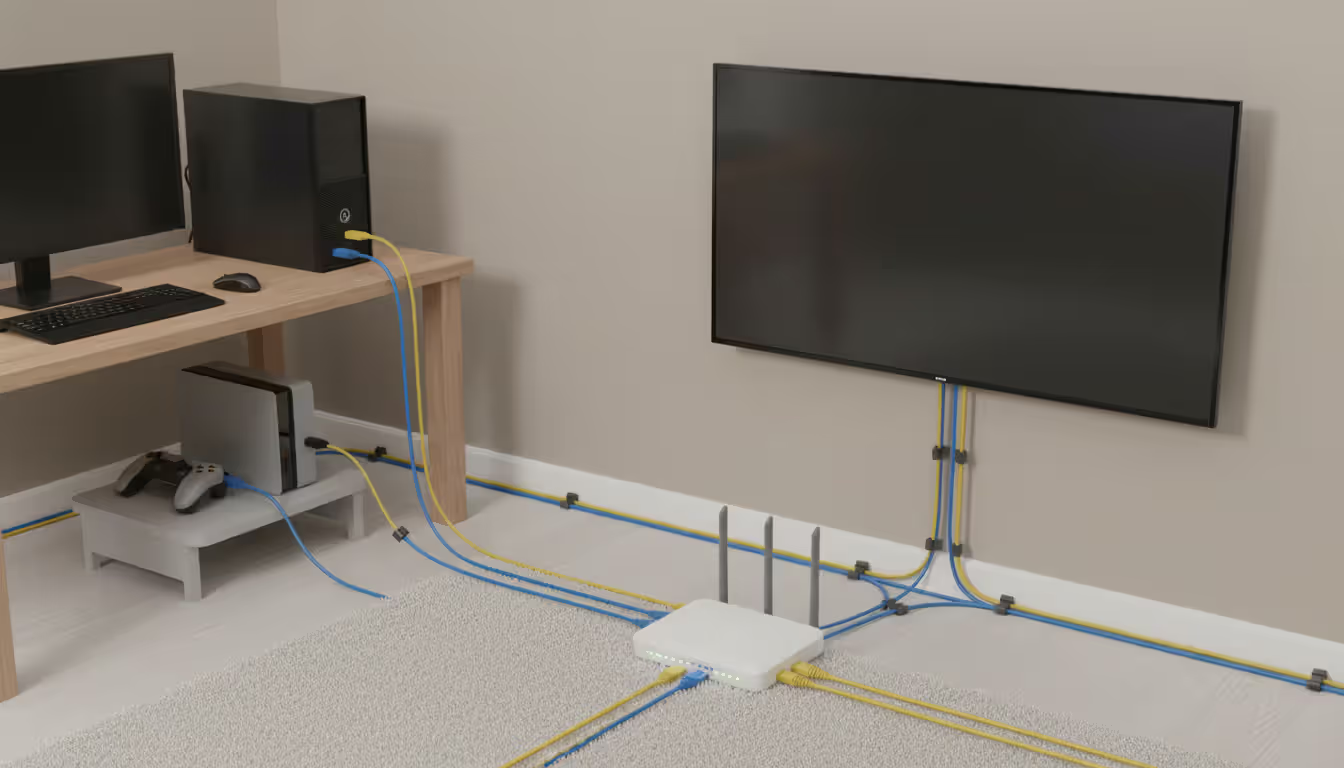
The relationship between Ethernet cables, routers, and modems creates the pathway for internet connectivity. Your internet service provider delivers a signal to a modem—a device that converts the incoming connection (cable, fiber, or DSL) into Ethernet output. This modem typically has one Ethernet port.
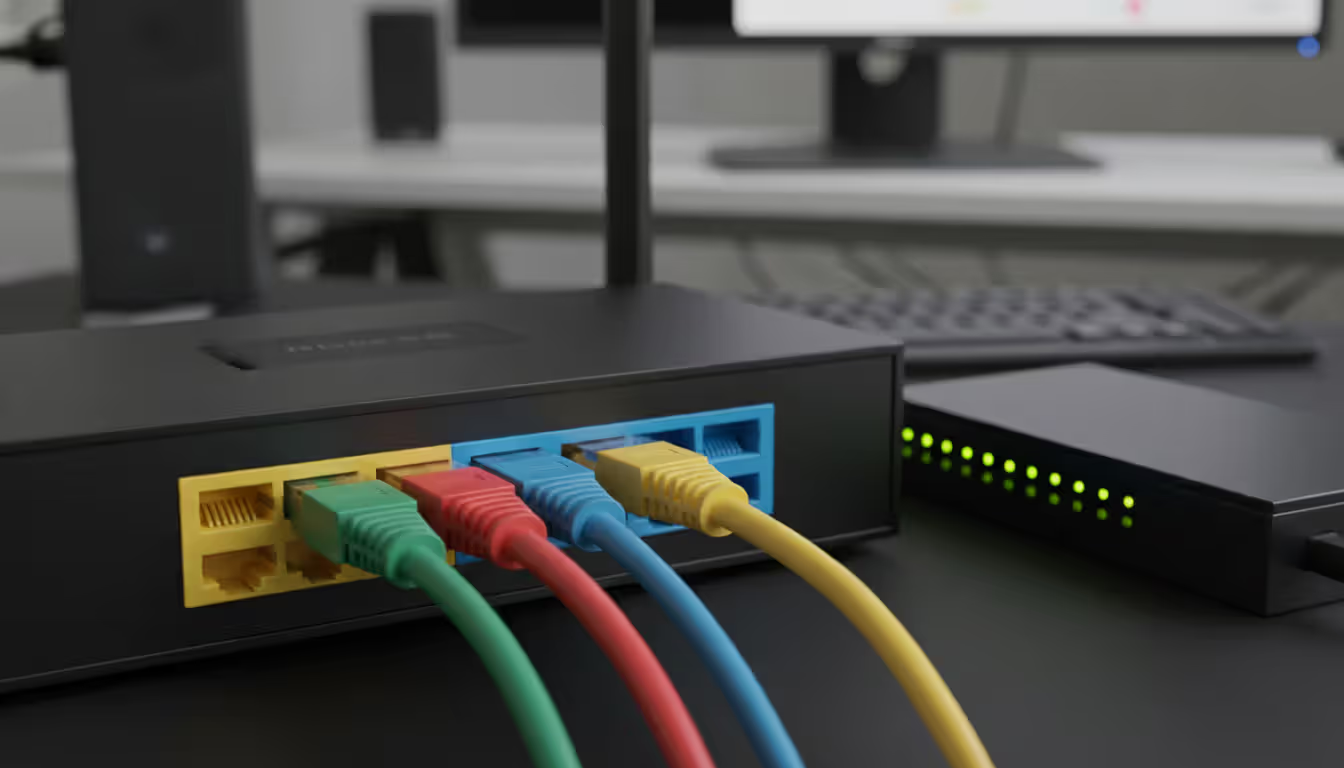
A router connects to the modem via Ethernet cable and performs two critical functions: it assigns local IP addresses to devices on your network through DHCP (Dynamic Host Configuration Protocol), and it routes traffic between your local network and the internet. Most consumer routers include a built-in switch with four to eight Ethernet ports, allowing multiple wired devices to connect directly.
When you plug an Ethernet cable into your computer and the router, the router's DHCP server automatically assigns your computer a private IP address (typically in the 192.168.x.x or 10.0.x.x range). This address allows devices on your local network to communicate with each other and enables the router to track which internet traffic belongs to which device.
For homes or offices needing more than the router's built-in ports, an Ethernet switch expands capacity. These devices contain 8, 16, 24, or more ports and connect to the router through a single uplink cable. Switches intelligently forward traffic only to the destination device rather than broadcasting to all ports, maintaining network efficiency even with dozens of connected devices.
The physical layer topology typically follows a star pattern—all devices connect to a central switch or router rather than daisy-chaining connections. This design prevents a single cable failure from disrupting the entire network and simplifies troubleshooting when problems occur.
Author: Nicole Bramwell;
Source: milkandchocolate.net
Ethernet in Cloud Computing Environments
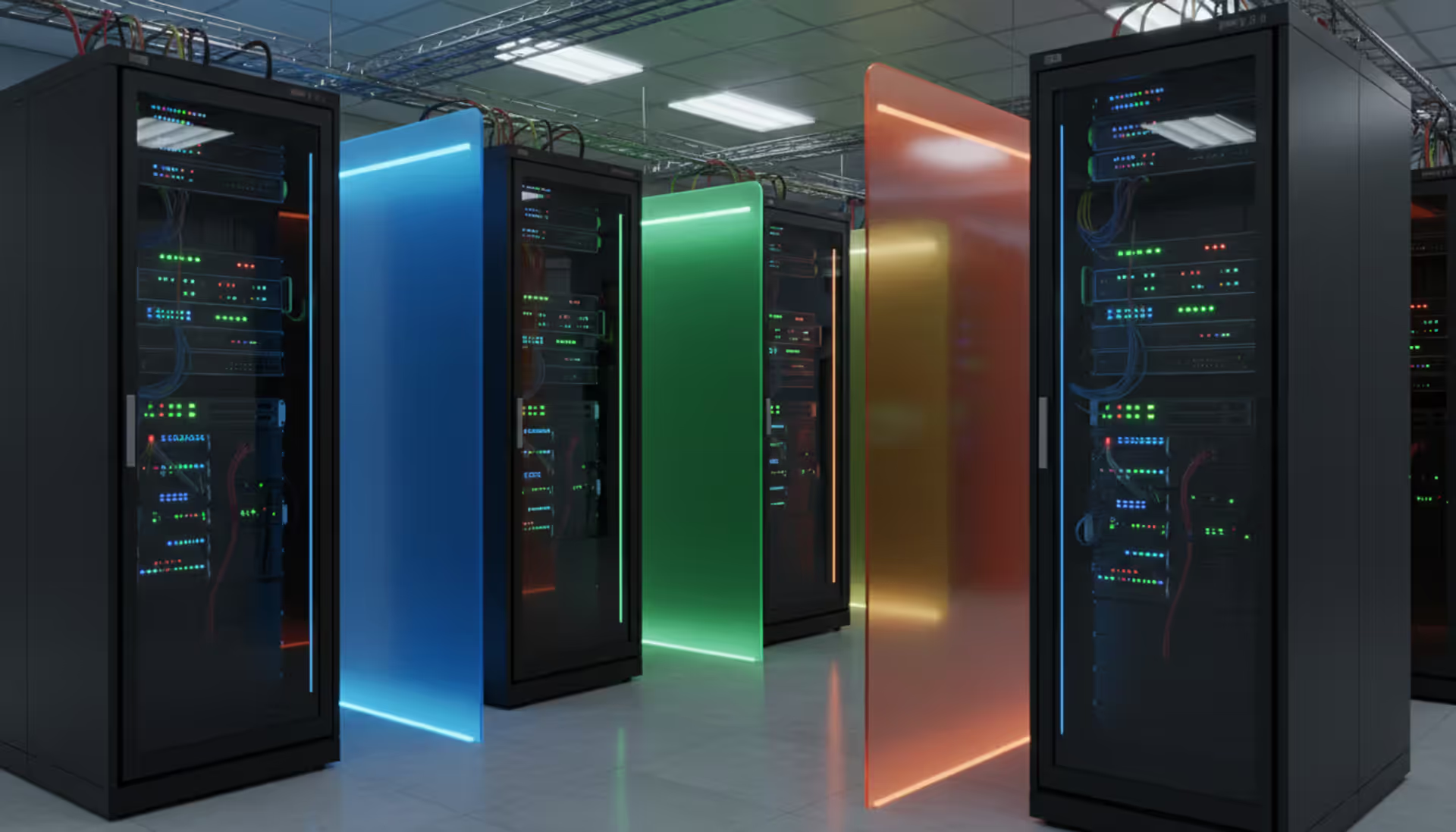
Cloud services that deliver applications, storage, and computing power over the internet rely on massive Ethernet infrastructure within data centers. Companies like Amazon Web Services, Microsoft Azure, and Google Cloud operate facilities where tens of thousands of servers connect through high-speed Ethernet switches and routers.
These data centers use specialized Ethernet implementations far beyond consumer equipment. Spine-and-leaf network architectures employ 40 Gbps and 100 Gbps Ethernet connections between switches, with some facilities deploying 400 Gbps links for backbone traffic. This overbuilt capacity ensures that multiple customers simultaneously accessing cloud resources never experience bottlenecks within the data center itself.
Your local Ethernet connection to a router influences cloud computing performance in practical ways. Uploading files to cloud storage, accessing virtual desktops, or using cloud-based software all benefit from the consistent bandwidth Ethernet provides. A wired connection eliminates the variable performance of WiFi when transferring large datasets to cloud backup services or collaborating on cloud-hosted documents.
The concept of "hybrid cloud" environments—where businesses maintain some infrastructure on-premises while using cloud services for other functions—depends heavily on reliable Ethernet connectivity. Dedicated fiber Ethernet circuits connecting offices to cloud providers offer guaranteed bandwidth and lower latency than standard internet connections, enabling real-time database synchronization and seamless application performance.
Edge computing, an emerging architecture that processes data closer to end users rather than in centralized data centers, still relies on Ethernet for local device connectivity. Smart manufacturing facilities, autonomous vehicle testing grounds, and retail analytics systems use Ethernet to connect sensors and devices to local processing equipment before sending summarized data to the cloud.
Types of Ethernet Cables and Speeds
Ethernet cables fall into categories (abbreviated as "Cat") that indicate performance specifications. Understanding these differences helps match cables to your network equipment and use cases.
Cat5e (Category 5 enhanced) cables handle speeds up to 1 Gbps over distances of 100 meters. These cables cost $5-15 for typical home runs and work perfectly for most residential internet connections, which rarely exceed 1 Gbps. The "e" designation indicates improved crosstalk specifications compared to original Cat5 cables.
Cat6 cables support 1 Gbps over 100 meters and 10 Gbps over shorter distances (up to 55 meters). The thicker gauge wire and tighter twisting reduce interference, making Cat6 the practical choice for new installations in 2026. Prices range from $8-20 for standard lengths, a minimal premium over Cat5e that provides future-proofing.
Cat6a (augmented) extends 10 Gbps capability to the full 100-meter distance. The additional shielding and stricter manufacturing tolerances increase cable diameter and stiffness, making Cat6a more challenging to route through tight spaces. Expect to pay $15-35 per cable, worthwhile for connecting network switches or high-performance workstations.
Cat7 and Cat8 cables target specialized applications. Cat7 supports 10 Gbps over 100 meters with extensive shielding that requires special GG45 or TERA connectors, though most implementations use standard RJ-45 connectors and sacrifice some performance benefits. Cat8 delivers 25-40 Gbps over 30 meters, designed for data center equipment rather than home or office use.
The 100-meter distance limitation applies to all copper Ethernet cables due to signal attenuation. Beyond this length, signals degrade below the threshold for reliable communication. Solutions include fiber optic cables for long runs, network switches as repeaters, or powerline adapters as workarounds.
Cable quality varies significantly among manufacturers. Cheap cables from unknown brands often use aluminum wire with copper coating (CCA—Copper Clad Aluminum) instead of solid copper, reducing performance and violating Ethernet standards. Spending a few extra dollars for cables from established brands ensures proper conductor material and build quality.
Author: Nicole Bramwell;
Source: milkandchocolate.net
Common Ethernet Problems and Solutions
"No internet" errors frustrate users, but systematic troubleshooting usually identifies the cause quickly. Start by checking physical connections—loose cables account for a surprising percentage of support calls. The RJ-45 connector should click firmly into place, and the plastic tab should be intact. Broken tabs allow cables to slip partially out of ports, creating intermittent connections.
Link lights on Ethernet ports provide immediate diagnostic information. Most ports have two LEDs: one indicates link status (solid when connected), and another shows activity (blinking during data transfer). No lights suggest a bad cable, failed port, or powered-off device. A solid link light without activity indicates the physical connection works but data isn't flowing, pointing to configuration issues.
Cable damage occurs most often near connectors where repeated bending stresses the wires. Running cables along sharp edges, stapling through them during installation, or crushing them with furniture can break internal conductors while leaving the outer jacket intact. Testing with a different cable eliminates this variable.
Speed negotiation problems create situations where devices connect but operate at 100 Mbps instead of 1 Gbps. This mismatch usually results from using Cat5 (not Cat5e) cables, damaged cables, or connecting gigabit devices to older 10/100 switches. Checking device specifications and upgrading infrastructure components resolves these bottlenecks.
IP address conflicts generate error messages about duplicate addresses on the network. This typically happens when devices use static IP addresses that overlap with the router's DHCP range. Accessing the router's configuration page and reviewing the DHCP settings shows which addresses are reserved and which are available for static assignment.
Port failures on routers and switches occur occasionally, particularly on consumer equipment. Testing a problematic connection by moving the cable to a different port determines whether the port or the cable is faulty. Managed switches allow administrators to disable and re-enable ports through software, sometimes clearing transient errors.
Driver issues on computers can prevent Ethernet connections from working properly. Windows Device Manager and macOS System Information show whether the operating system recognizes the network adapter. Outdated or corrupted drivers require updates from the computer manufacturer's website or the network adapter vendor.
The performance gap between Ethernet and WiFi becomes most apparent under stress—when multiple devices compete for bandwidth, when physical obstacles degrade wireless signals, or when milliseconds of latency determine success or failure. In professional environments where reliability isn't negotiable, Ethernet remains the only rational choice
— David Chen
FAQ
Is Ethernet faster than WiFi?
Yes, Ethernet consistently delivers faster real-world speeds than WiFi. While the latest WiFi 7 routers advertise multi-gigabit speeds, those figures represent theoretical maximums shared among all connected devices under ideal conditions. Ethernet connections provide dedicated bandwidth that doesn't degrade with distance or interference. A Cat6 cable delivers full gigabit speed in both directions simultaneously, whereas WiFi performance varies based on signal strength, competing networks, and the number of active devices.
Do I need a router to use Ethernet?
You need a router to share an internet connection among multiple devices, but Ethernet works without a router for direct device-to-device connections. Connecting two computers with an Ethernet cable allows file sharing and network gaming on a private network. However, accessing the internet requires a router to manage the connection from your ISP and assign IP addresses to devices. Most modern routers include built-in Ethernet switches with multiple ports.
Can I use Ethernet and WiFi at the same time?
Yes, devices can maintain both Ethernet and WiFi connections simultaneously, though operating systems typically prioritize the wired connection for internet traffic due to its superior performance. This configuration provides redundancy—if the Ethernet cable becomes disconnected, the device automatically fails over to WiFi. Some advanced use cases intentionally route different types of traffic over each connection, such as using Ethernet for internet access while using WiFi for local network printing.
What's the maximum length for an Ethernet cable?
The maximum length for copper Ethernet cables is 100 meters (328 feet) according to IEEE 802.3 standards. Beyond this distance, signal degradation prevents reliable communication at rated speeds. For longer runs, solutions include using fiber optic cables (which support distances of 2 kilometers or more), installing network switches as repeaters every 100 meters, or deploying powerline adapters that transmit network signals over electrical wiring. Data centers sometimes use shorter maximum lengths (30-55 meters) for 10 Gbps connections depending on cable category.
Does Ethernet work with cloud services?
Ethernet works seamlessly with cloud services and often provides better performance than WiFi for cloud applications. Your local Ethernet connection delivers data to your router, which forwards it to the internet and ultimately to cloud servers. The consistent bandwidth and lower latency of Ethernet improve responsiveness when accessing cloud storage, streaming services, virtual desktops, and software-as-a-service applications. Businesses frequently use dedicated Ethernet circuits to connect offices directly to cloud providers, bypassing the public internet for enhanced performance and security.
How do I know which Ethernet cable to buy?
Choose cables based on your network equipment speeds and installation requirements. For most home networks with gigabit internet, Cat6 cables offer the best balance of performance, flexibility, and cost. If your router and devices support 10 Gbps speeds, Cat6a cables ensure full performance over longer distances. Avoid Cat5 (non-enhanced) cables, which don't reliably support gigabit speeds. Purchase cables from reputable brands to ensure solid copper conductors rather than cheaper aluminum alternatives. For outdoor installations or areas with electrical interference, shielded cables (marked STP or FTP) provide additional protection.
Ethernet technology continues to serve as the foundation for reliable network connectivity despite the convenience of wireless alternatives. The physical cable connection delivers unmatched speed consistency, minimal latency, and inherent security advantages that matter for gaming, professional work, and data-intensive applications.
Understanding the relationship between Ethernet cables, routers, and network infrastructure helps you make informed decisions about home and office connectivity. While WiFi provides essential mobility for smartphones and laptops, strategic use of Ethernet connections for stationary devices optimizes overall network performance.
The investment in quality Ethernet cables and proper installation pays dividends through years of trouble-free operation. Whether connecting a single desktop computer or building a multi-room network infrastructure, Ethernet remains the proven solution when performance and reliability cannot be compromised.
Out-of-band management provides independent administrative access to critical infrastructure when primary networks fail. This guide covers implementation strategies, technology options, security considerations, and best practices for deploying reliable out-of-band access across distributed IT environments
Network segmentation divides networks into isolated zones with controlled access, limiting lateral movement during breaches. This guide covers implementation strategies, tools comparison, design approaches, and common mistakes to help organizations improve security and performance through proper segmentation
Network discovery automates the process of identifying and cataloging devices connected to your infrastructure. This guide covers discovery methods, compares leading tools, and provides practical solutions to common challenges IT teams face when implementing network visibility
Master Kubernetes cluster monitoring with comprehensive guidance on tools, metrics, architecture, and implementation. Compare Prometheus, Grafana, Datadog, and other solutions while learning setup procedures, best practices, and disaster recovery strategies for production environments
The content on this website is provided for general informational purposes only. It is intended to offer insights, commentary, and analysis on cloud computing, network infrastructure, cybersecurity, and IT solutions, and should not be considered professional, technical, or legal advice.
All information, articles, and materials presented on this website are for general informational purposes only. Technologies, standards, and best practices may vary depending on specific environments and may change over time. The application of any technical concepts depends on individual systems, configurations, and requirements.
This website is not responsible for any errors or omissions in the content, or for any actions taken based on the information provided. Users are encouraged to seek qualified professional advice tailored to their specific IT infrastructure, security, and business needs before making decisions.